
Super AdminTenant AdminEnd User
The ICTPBX portal includes a built-in JsSIP WebRTC softphone that lives as a floating panel in your browser. You can make and receive calls without installing any app or plugin.
Opening the Softphone
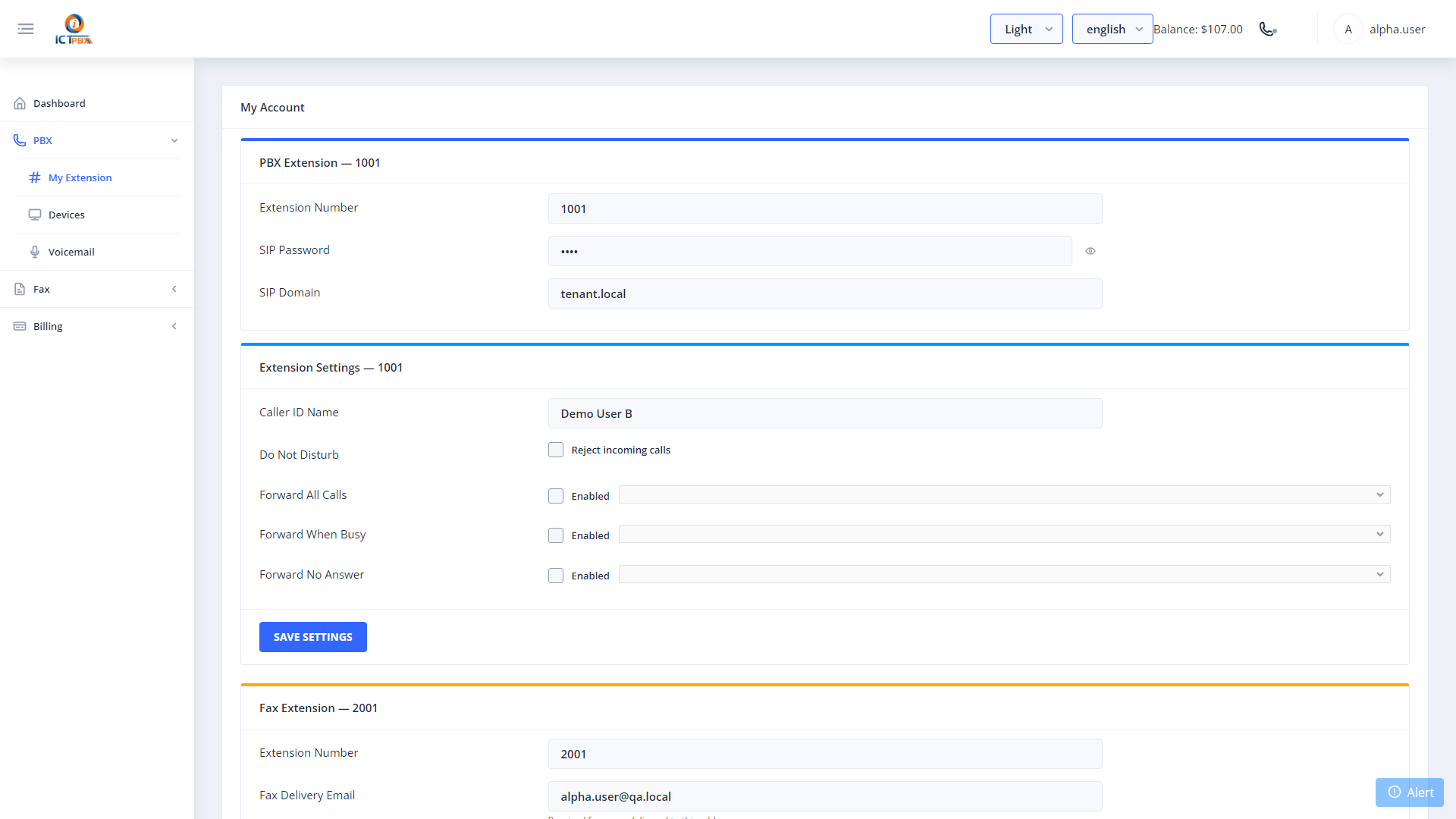
Click the phone icon in the top right of the portal header to open the softphone panel. The panel floats over the page, so you can keep working while on a call. It connects over a secure WebSocket, wss://<your-host>/ws/ on port 443. That’s why the portal has to run on HTTPS with a domain name. On an HTTP or IP-only install, the browser softphone won’t work, so use an external softphone on port 5080 (UDP or TCP) instead.
Making a Call
- Open the softphone panel by clicking the phone icon in the header
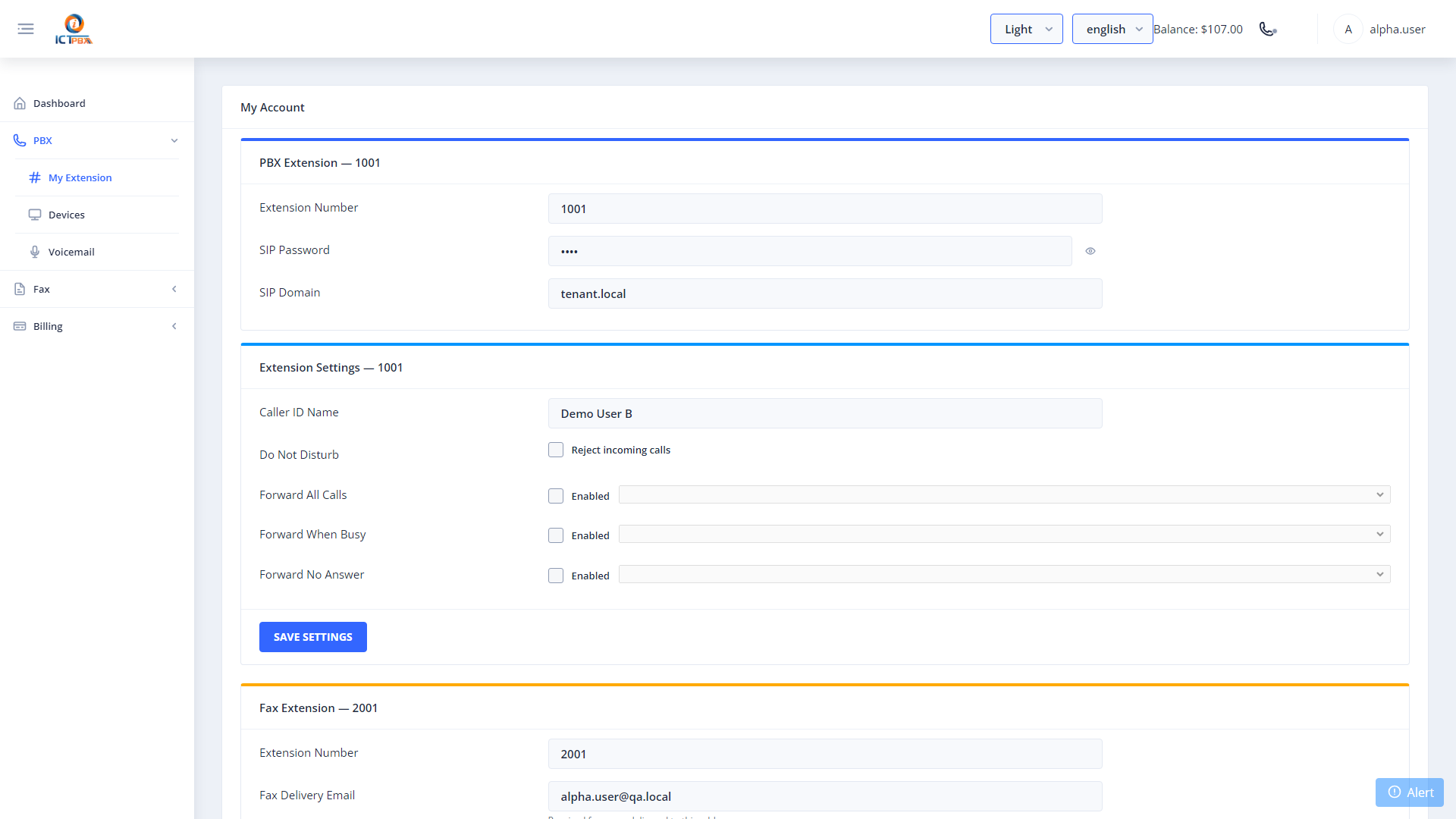
- The first time, open Settings, enter your Extension and SIP Password (you’ll find them on PBX › My Extension) and click Connect. Domain fills in automatically and can’t be edited, and the WebSocket URI is prefilled. The softphone remembers these settings.
- Type the number or extension you want to call using the dial pad
- Press the call button to connect
During a Call
While you’re connected, the softphone gives you these controls:
- Mute / Unmute – silence your microphone without ending the call
- Hold / Unhold – place the call on hold and resume it
- Blind Transfer – transfer the call to any extension or external number immediately
- DTMF – send touch tones for IVR navigation (press # for account numbers, etc.)
- Hang Up – end the call
Receiving Calls
Keep the portal tab open to receive incoming calls. When a call comes in, the softphone panel opens automatically and shows the caller’s number. Click Accept to answer or Decline to send to voicemail.
Related Features
- My Account – find your SIP credentials to use with external SIP clients
- Follow Me – forward calls to your mobile when you’re away from the portal