
Super AdminTenant Admin
Time conditions define business hours, holidays, and custom date/time schedules that tell ICTPBX when to route calls one way versus another. You create time conditions here and then reference them in Call Flows to automatically switch routing based on day and time.
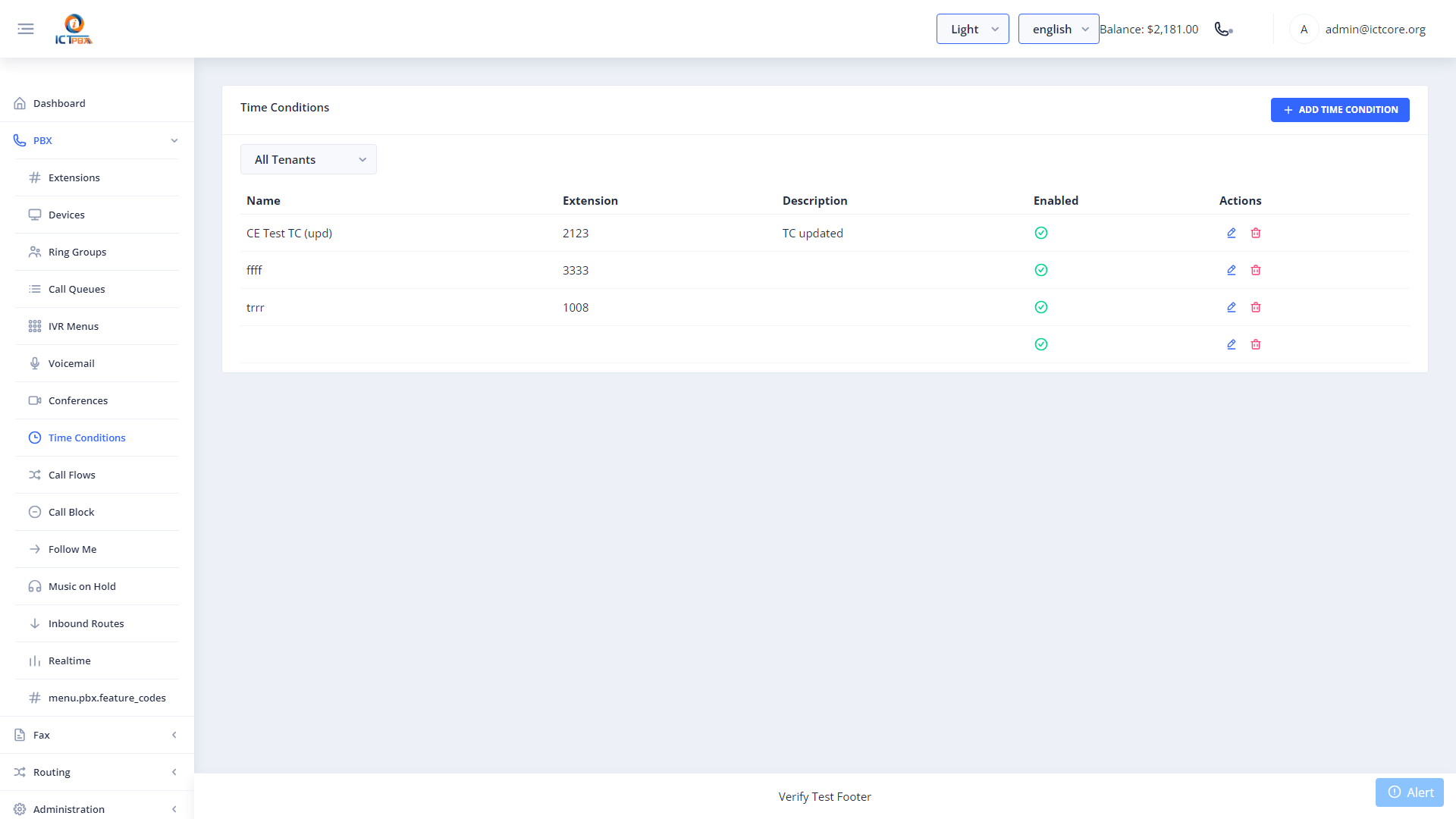
Creating a Time Condition
- Go to PBX › Time Conditions
- Click Add Time Condition
- Name the condition (e.g. “Business Hours”, “Holiday Schedule”)
- Set the days of the week and start/end times for the “open” window
- Optionally add date ranges for holiday overrides
- Click Save
Create your time condition first, then go to Call Flows to wire it up to a routing rule.
Holiday Overrides
Within a time condition you can define specific date ranges (like a holiday week) that override the weekly schedule. During those dates, the condition behaves as “closed” regardless of the configured business hours.
Related Features
- Call Flows – reference time conditions to automate after-hours routing
- Inbound Routes – send DIDs to call flows that check time conditions