
Super Admin
ICTPBX supports full white-label branding per tenant. You can give each business customer their own logo, login page background, application title, favicon, footer content, and support email – all managed from the Branding module. The portal fetches branding via a public API on login, so the white-label experience starts from the very first page load.
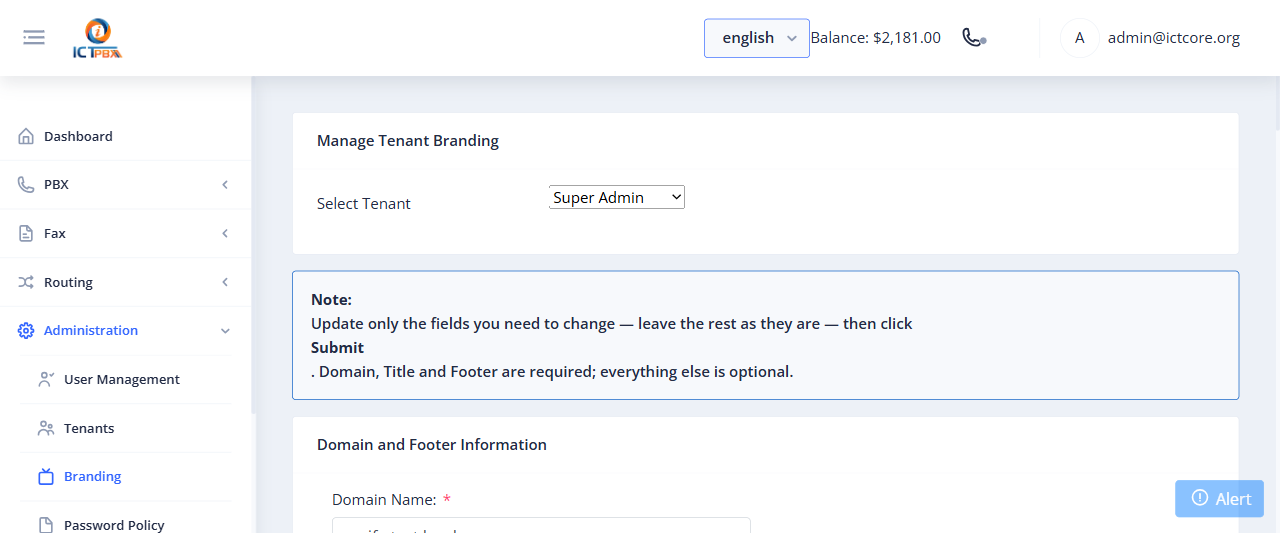
Creating a Branding Profile
- Go to Administration › Branding (Super Admin only, Service Provider Edition)
- Click Add Branding
- Select the tenant to brand
- Enter the Domain: the portal hostname this branding applies to. ICTPBX matches it at login.
- Upload the logo image (recommended: SVG or transparent PNG, at least 200px wide). It’s the only image you upload here.
- Set the application title (appears in the browser tab and the portal header)
- Enter a Login Background URL: a public https link to the image
- Set the login page subtitle (a short tagline shown below the login form)
- Enter a Favicon URL: a public https link to a 32×32 or 64×64 PNG
- Optionally enter footer HTML for custom footer content in the tenant’s portal
- Set the support email shown in the tenant’s portal
- Optionally pick a Locked Theme. It puts every user on that theme and hides the theme selector.
- Click Save
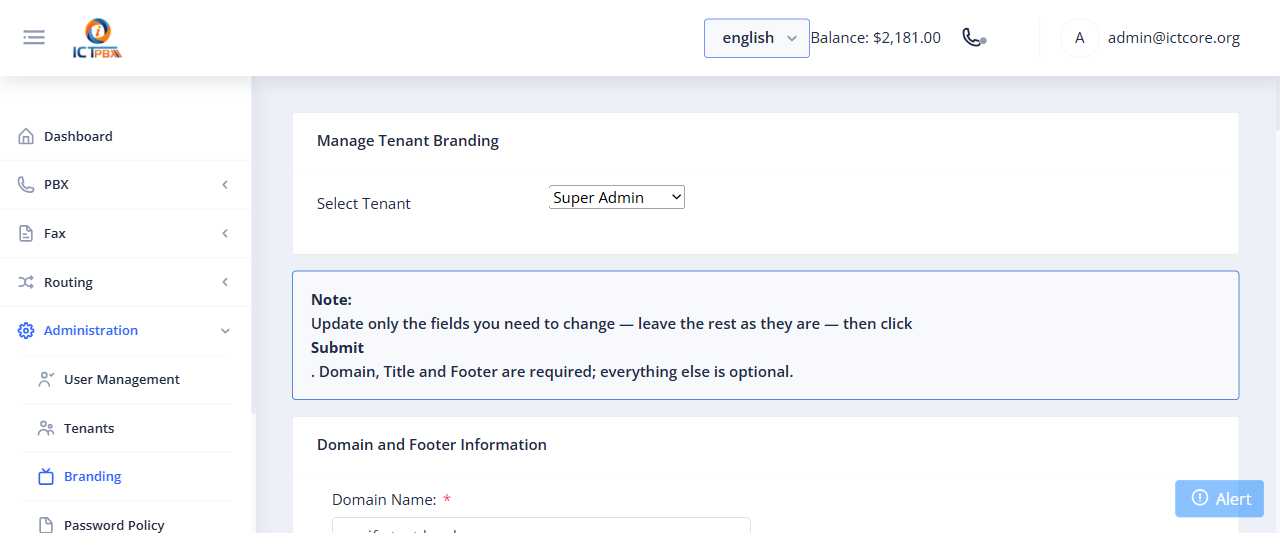
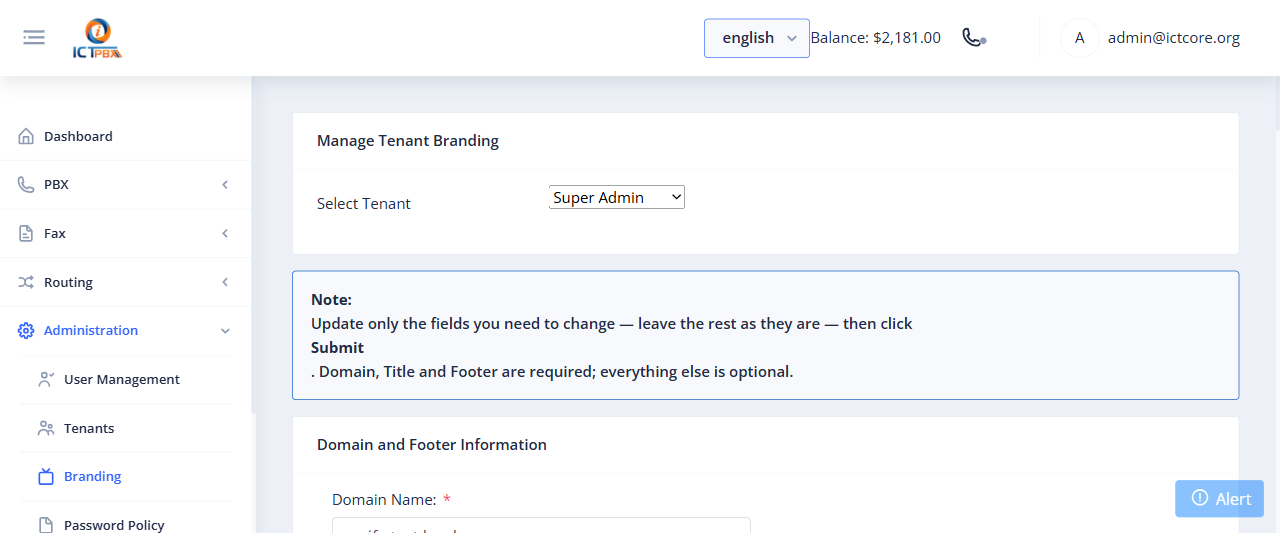
Editing an Existing Profile
Click any branding profile in the list to update it. Changes take effect immediately – the next time a user from that tenant opens the portal, they see the updated branding.
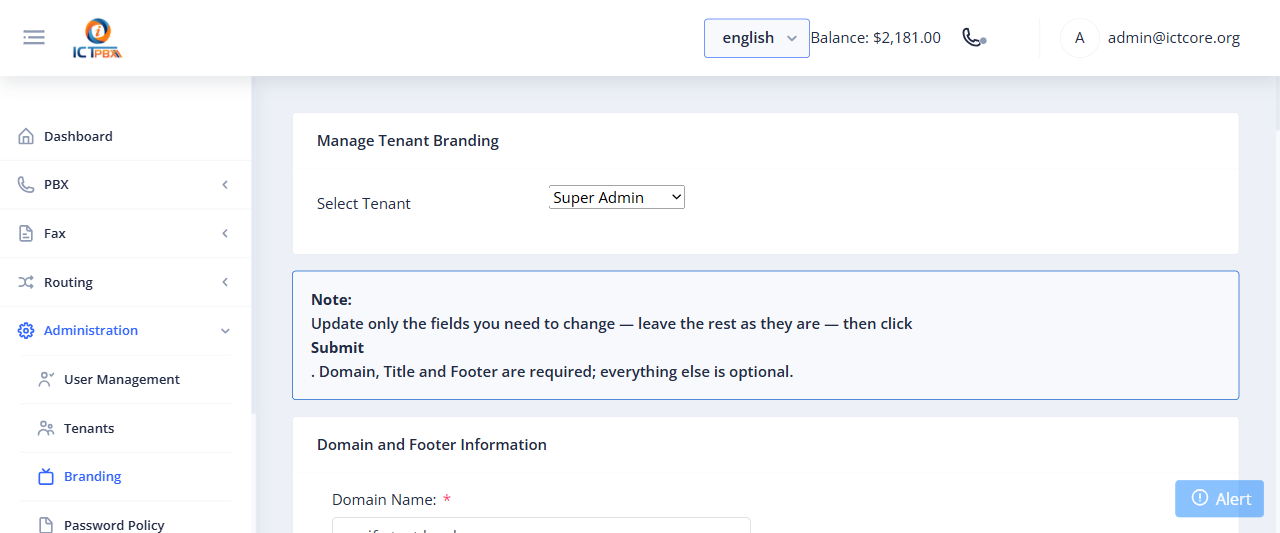
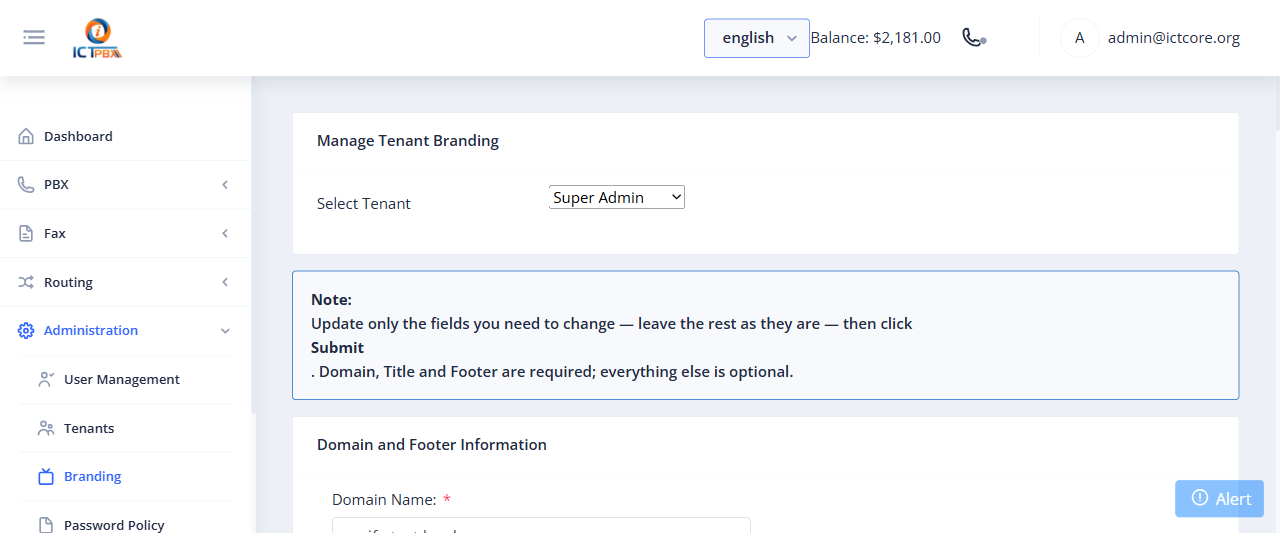
The login page fetches branding based on the hostname. To have a tenant’s login show their logo, they need to access the portal via their custom subdomain – not your default portal URL.
Community Edition
Branding is a Service Provider Edition feature. The Community Edition is single-tenant and doesn’t include branding.
Related Features
- Tenant Management – create the tenant before setting up branding