
Agent
Role: Agent | Access Level: Level 3 — Operational Communication Tools
Introduction
The Agent role in ICTPBX is designed for call center staff, supervisors, and operational team members who need access to communication tools and queue monitoring without full administrative control. As an Agent you can make and receive calls using the built-in WebRTC softphone, monitor your assigned queues, view call records, manage your personal account settings, and send or receive faxes — all from a single browser-based interface.
This guide walks you through every feature available to your role.
1. Logging In
Open your browser and navigate to your ICTPBX portal URL (e.g. https://ictpbx.com).
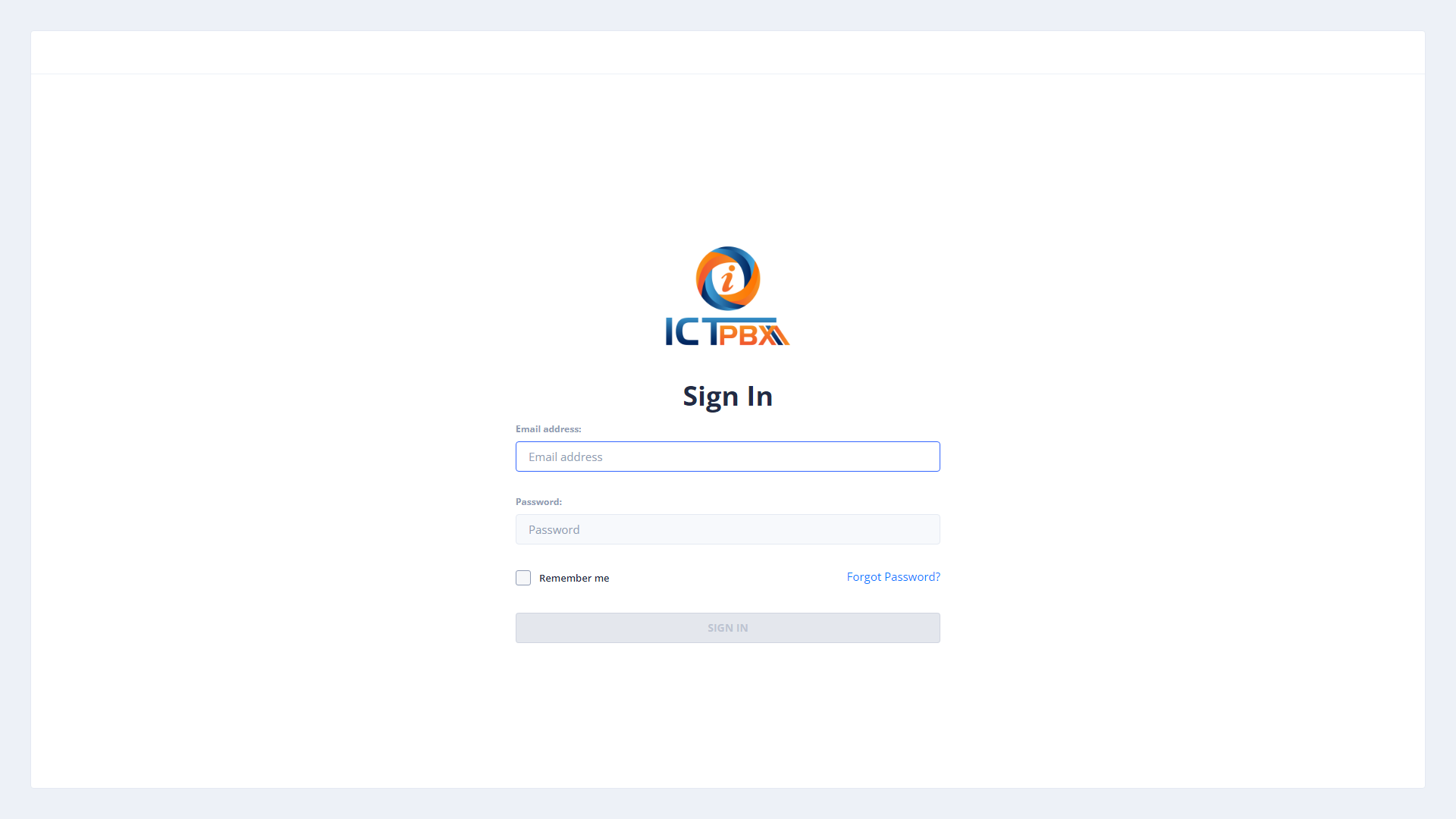
Steps:
- Enter your Email Address in the Email field.
- Enter your Password.
- Optionally tick Remember me to stay signed in.
- Click SIGN IN.
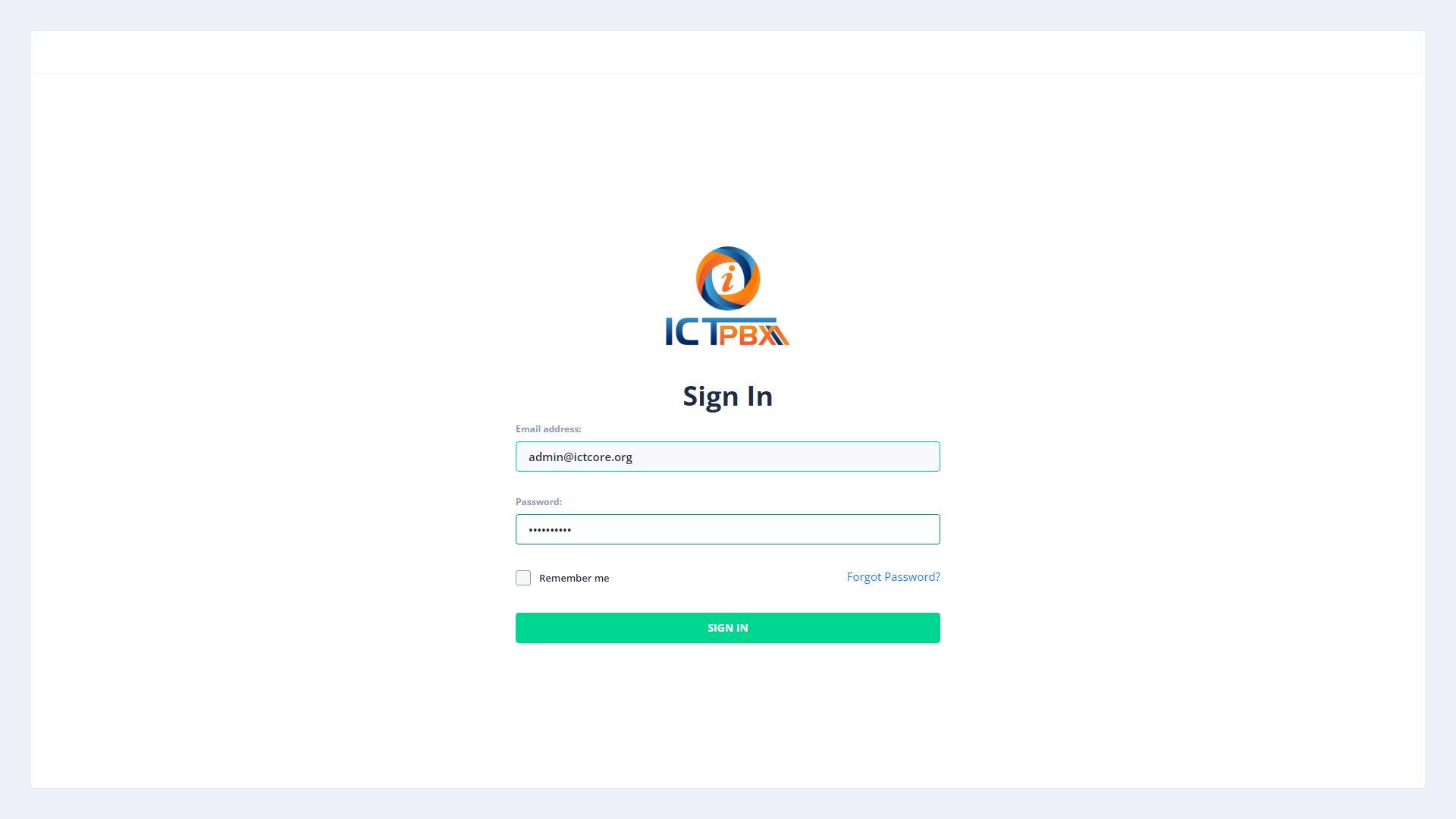
Tip: If your login fails, check that Caps Lock is off. After several failed attempts your account may be temporarily locked — contact your administrator to unlock it.
2. Dashboard
After login you land on the Dashboard, which shows your tenant’s current system statistics — active extensions, devices, queues, fax counts, and your remaining credit balance.
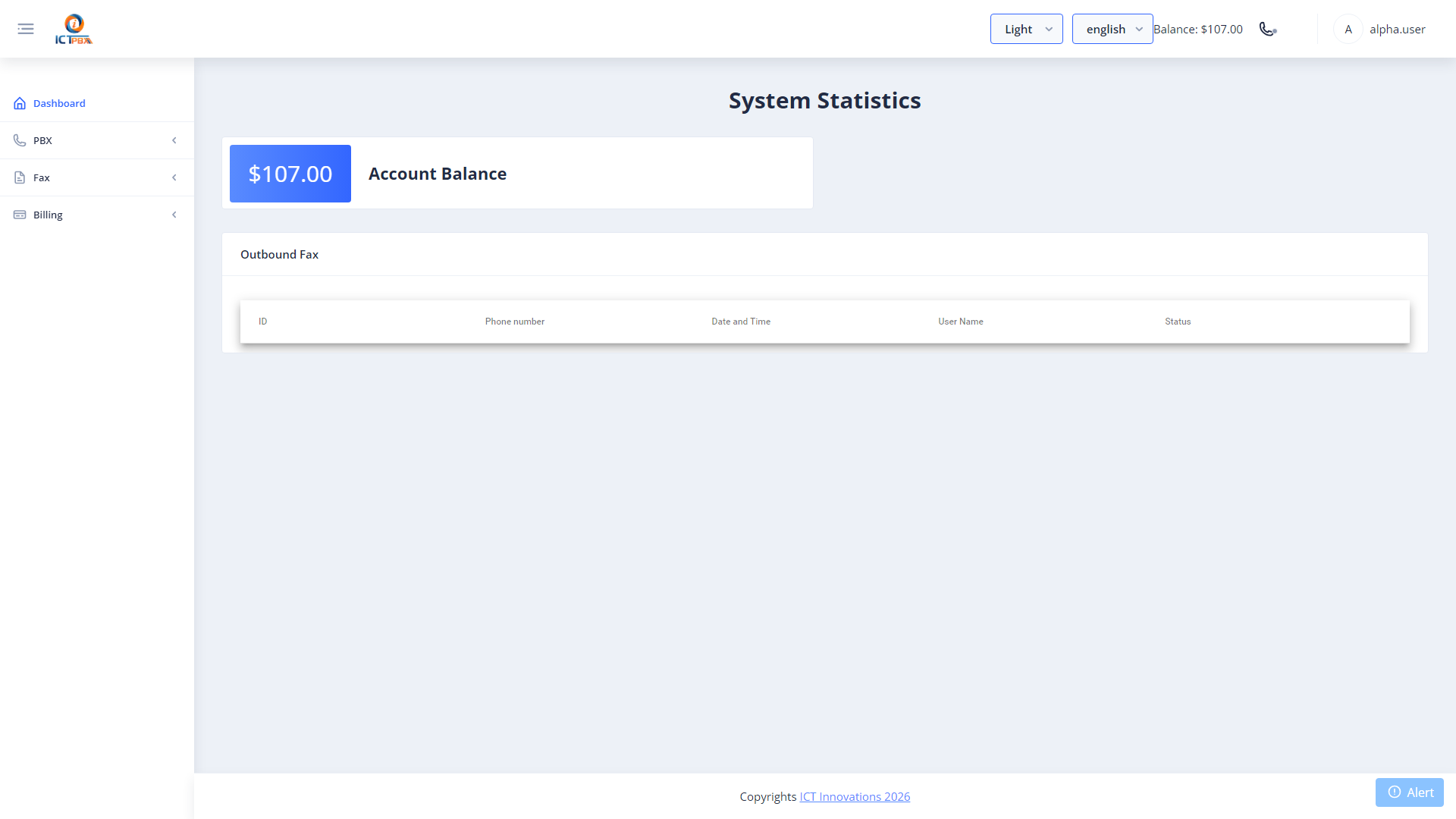
The dashboard gives you a quick overview of the system activity relevant to your tenant. Your credit balance is shown in the top-right header and updates every 10 seconds automatically.
3. WebRTC Softphone
The WebRTC softphone is built directly into the ICTPBX portal — no separate app or plugin required. It uses your SIP extension credentials to connect to the FreeSWITCH PBX through a secure WebSocket connection.
3.1 Opening the Softphone Panel
Click the phone icon (☎) in the top-right header bar. The softphone panel slides open as a floating overlay — you can use it from any page in the portal without losing your place.
3.2 Configuring the Softphone (First Time)
- Click the Settings tab inside the softphone panel.
- Enter your SIP Extension (e.g.
1001). - Enter your SIP Password (from your My Account page).
- Enter the SIP Domain (e.g.
demo.ictpbx.com). - Enter the WebSocket Server (e.g.
wss://demo.ictpbx.com/ws/). - Click Save.
The status indicator turns green when registered successfully.
3.3 Making a Call
- Click the Dialer tab.
- Type the destination extension or phone number.
- Click the green call button (▶).
- The call connects through FreeSWITCH.
3.4 Receiving a Call
When an inbound call arrives, the softphone panel displays the caller’s number with Answer and Reject buttons. Click Answer to accept the call. The browser may request microphone permission on first use — click Allow.
3.5 During a Call — Controls
3.6 Transferring a Call
- While on an active call, click Transfer.
- Enter the destination extension number.
- Click Transfer to complete the blind transfer.
The call is immediately transferred to the destination extension. Your call ends and the remote party rings the new destination.
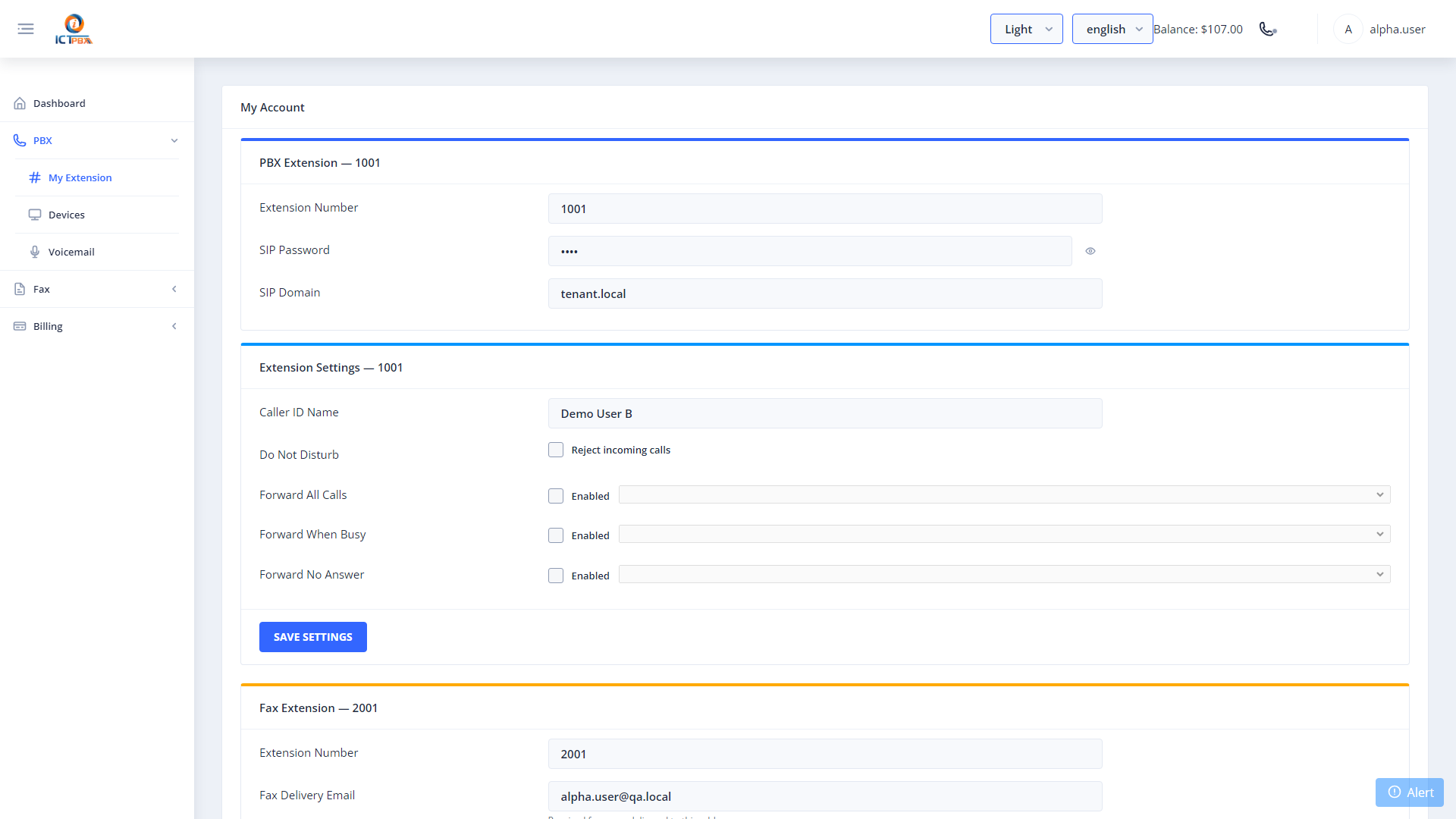
4. My Account
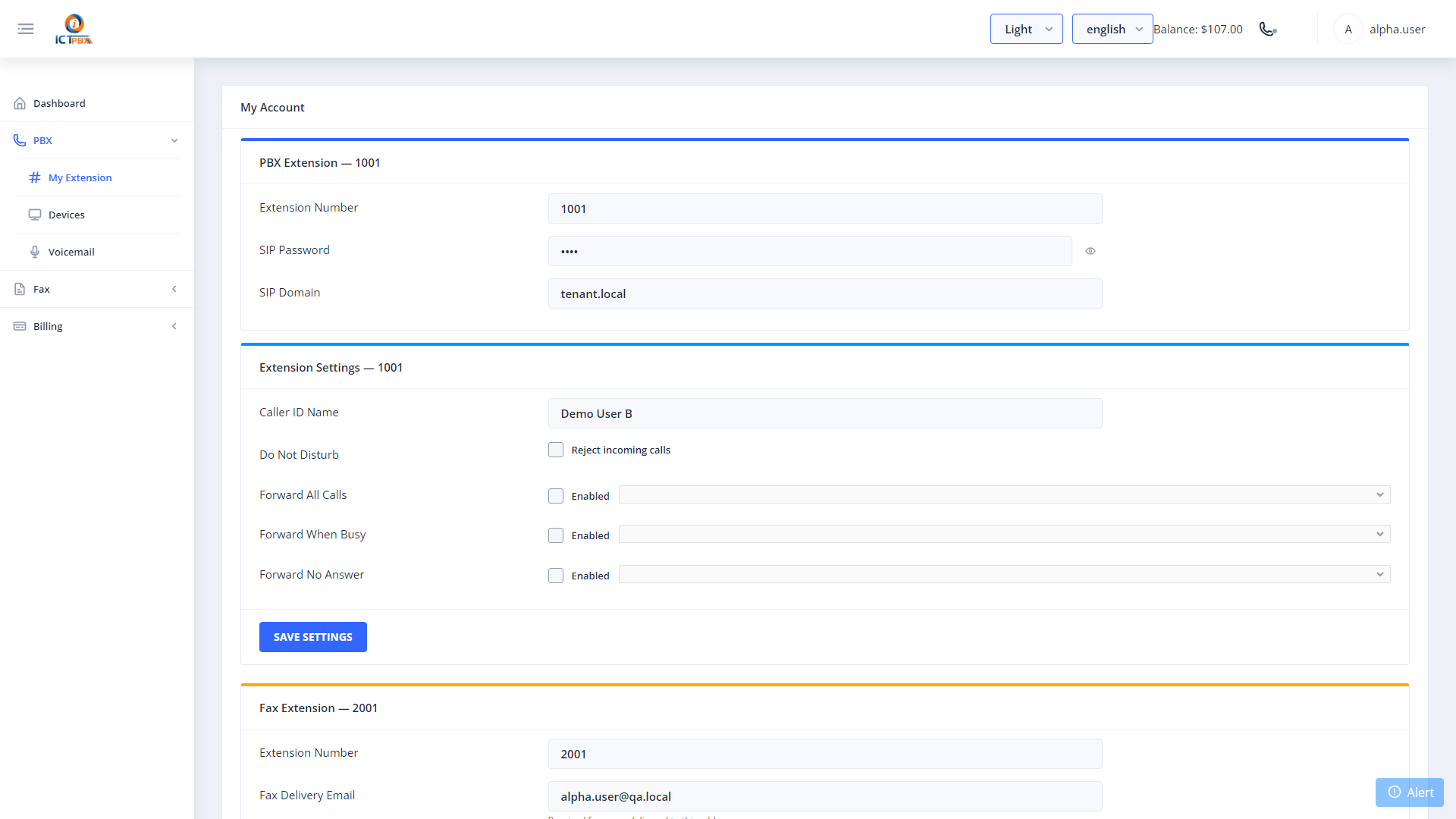
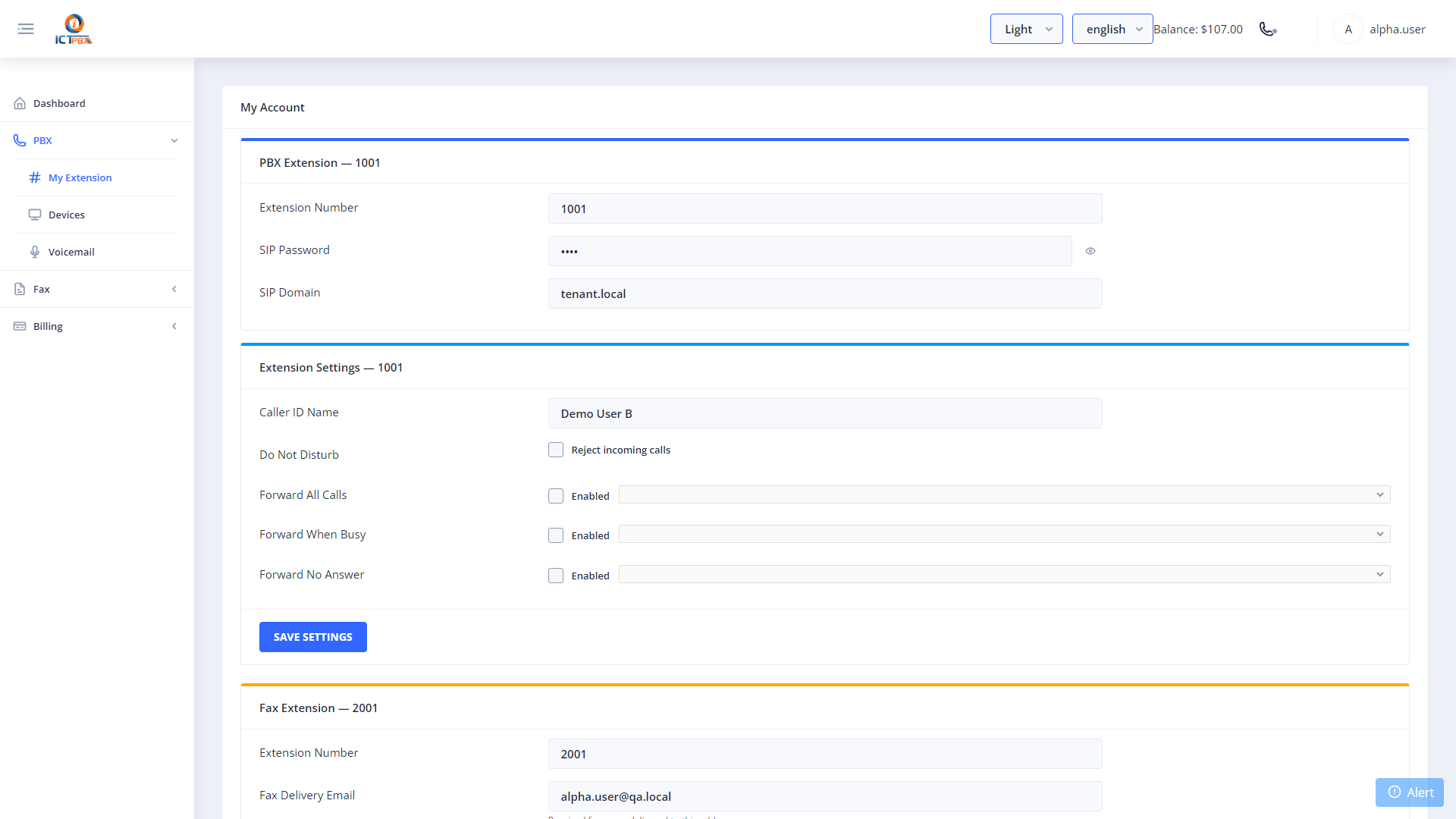
My Account is your personal settings page — this is where you find your SIP credentials, configure call forwarding, set Do Not Disturb, and update your fax delivery email.
Navigate to My Account from the left sidebar menu.
4.1 SIP Credentials
Your SIP credentials are displayed in the Voice Extension card:
Use these credentials to configure any SIP client — Zoiper, Linphone, Grandstream IP phones, or the built-in softphone.
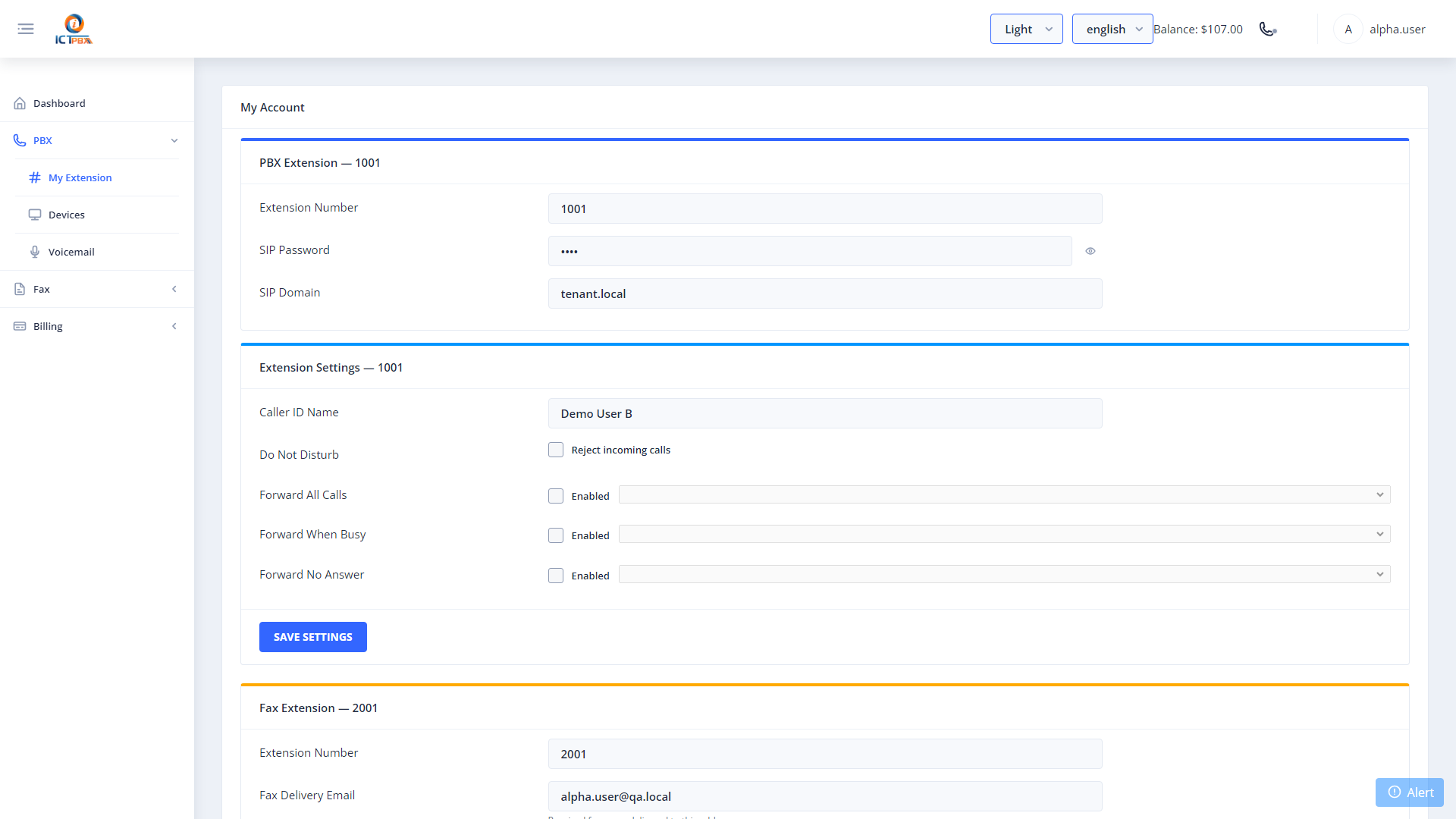
4.2 Extension Settings — Do Not Disturb (DND)
Scroll down to the Extension Settings card.
- Reject Incoming Calls (DND) — Tick this checkbox to reject all incoming calls to your extension. Callers will be sent to voicemail or hear a busy tone, depending on your queue/ring group configuration.
- Click Save Extension Settings to apply.
Note: DND affects ALL inbound calls to your extension — including calls from queues. Enable it only when you are genuinely unavailable.
4.3 Fax Delivery Email
Scroll to the Fax card. Enter your email address in the Fax Delivery Email field. All inbound faxes received on your fax extension will be delivered here as PDF attachments. Click Save to apply.
5. Follow Me — Personal Call Forwarding
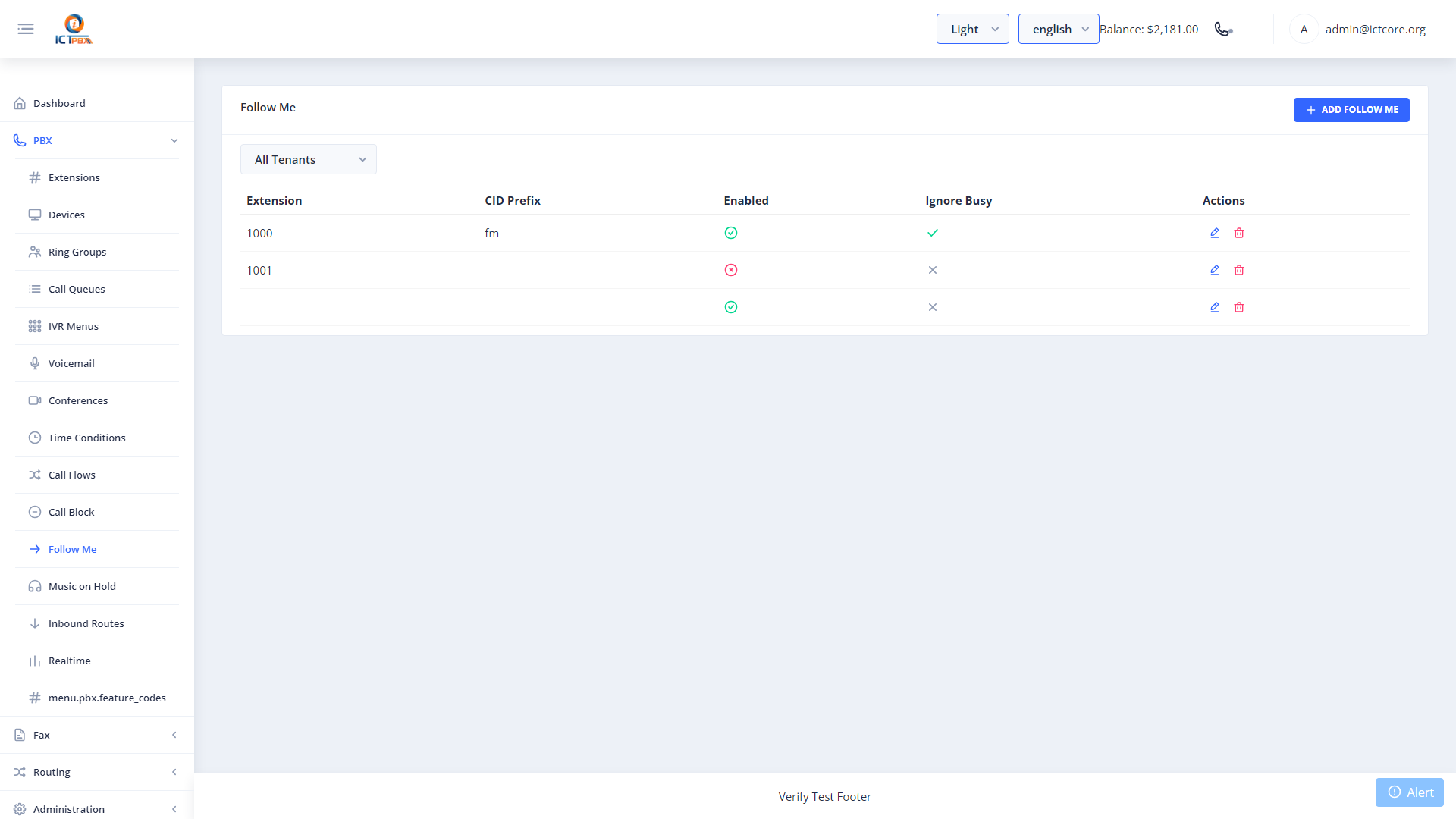
Follow Me lets you forward calls to your extension to one or more external or internal numbers — your mobile, another extension, or any phone number.
Navigate to PBX → Follow Me from the left sidebar.
5.1 Creating a Follow Me Rule
- Click New to open the Follow Me form.
- Select your Extension from the dropdown.
- Tick Enable Follow Me.
- Click Add Destination to add a forwarding number.
- Enter the destination number (e.g.
+12125550100). - Set Delay — seconds before this destination starts ringing (0 = ring immediately).
- Set Timeout — seconds to ring this destination before moving on.
- Add additional destinations if needed for cascaded forwarding.
- Click Save.
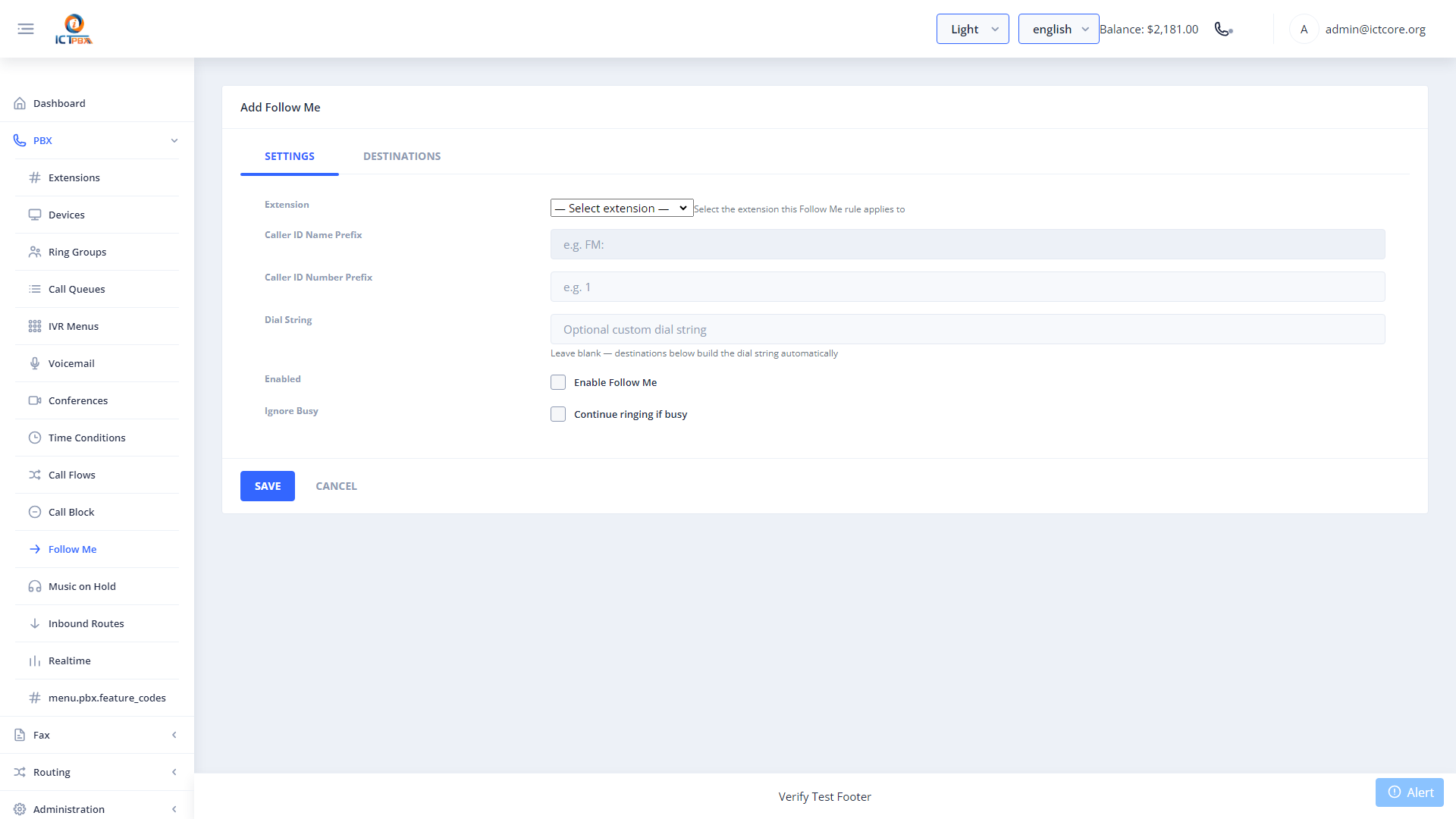
Example: Set Delay=0, Timeout=20 for your mobile. If unanswered after 20 seconds, the call falls through to voicemail.
6. Fax — Sending a Fax
Navigate to Fax → Send Fax from the left sidebar.
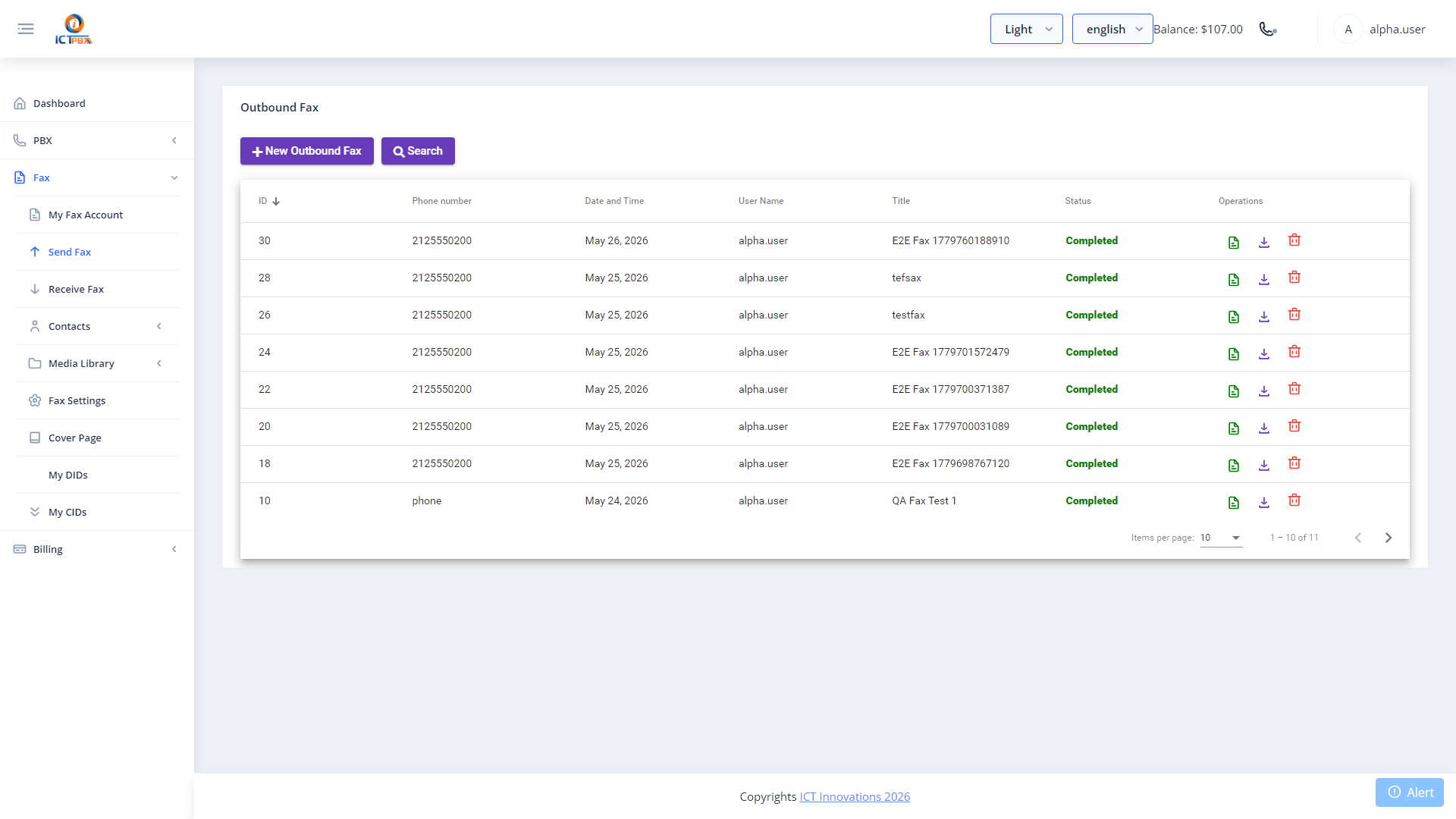
Steps:
- Enter the recipient’s fax number in the To field.
- Select a Cover Page template (optional).
- Upload your PDF document using the file picker.
- Add a subject or note if required.
- Click Send Fax.
The system queues the fax for transmission. You can monitor its status in the Outbound Fax list — statuses include: Queued, Sending, Sent, Failed.
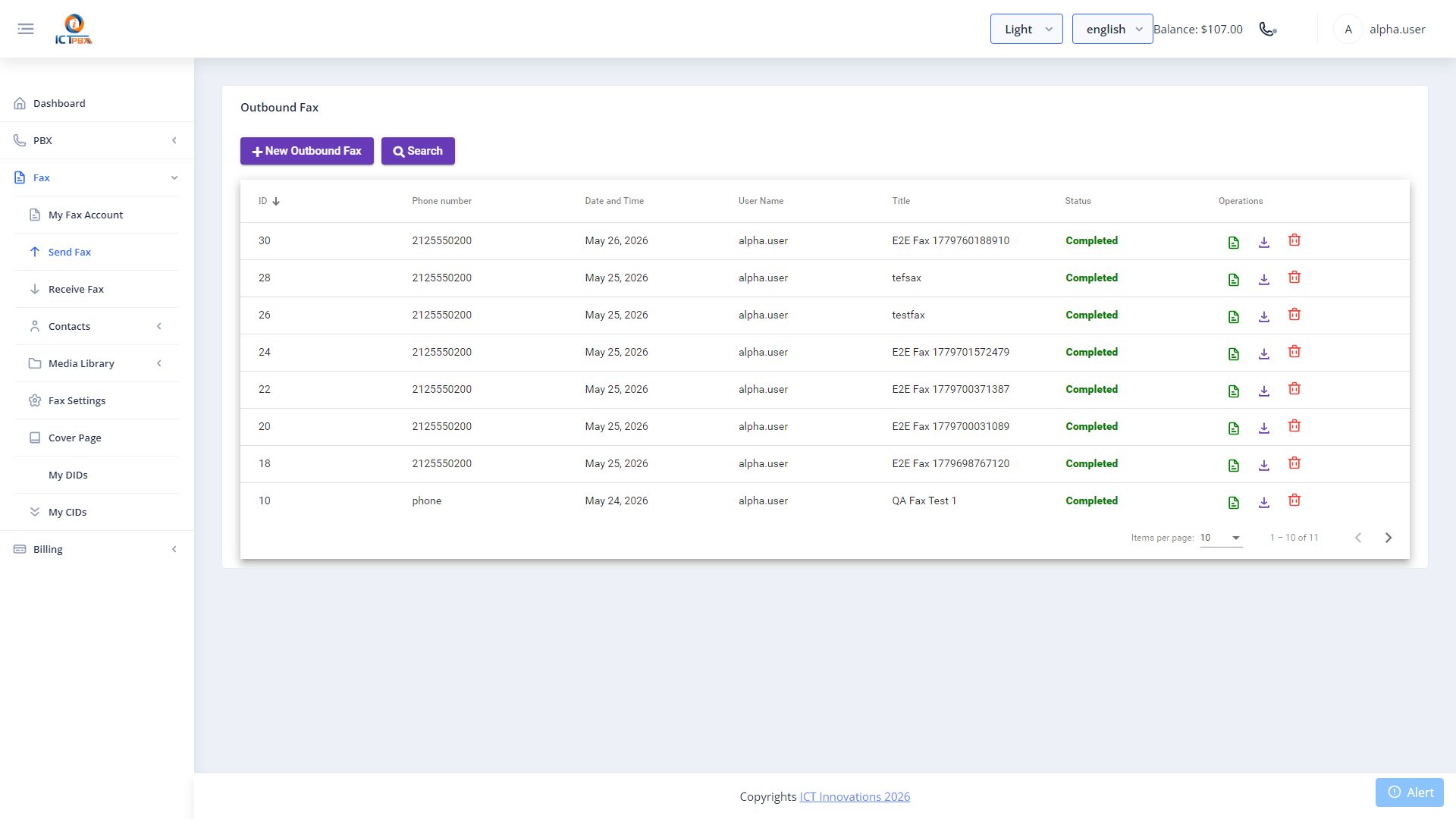
7. Fax — Viewing Received Faxes
Navigate to Fax → Inbound Fax to see all faxes received on your extensions.
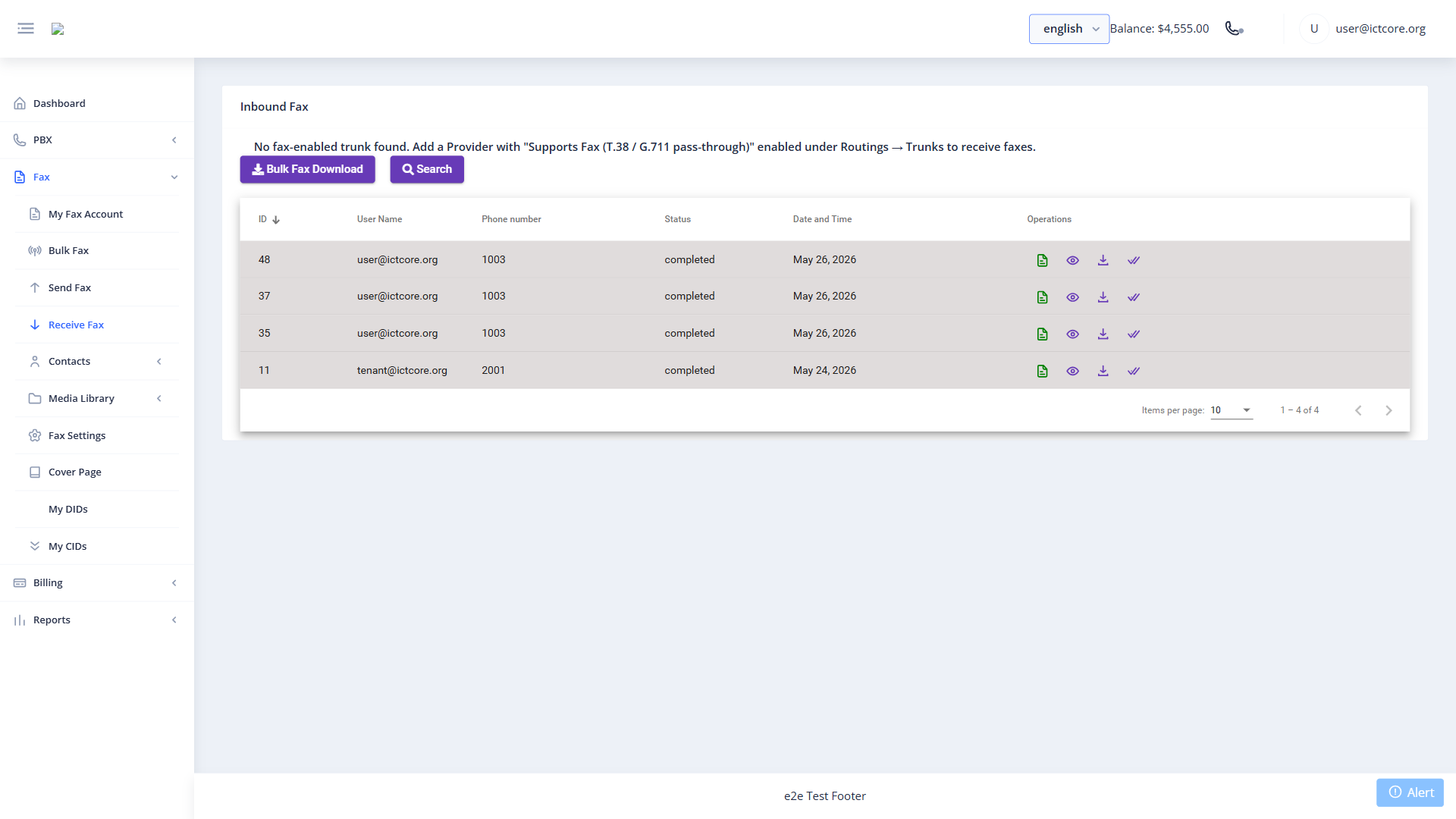
Each entry shows the sender number, date/time, number of pages, and status. Click the download icon to download the fax as a PDF. Faxes are also automatically delivered to your configured fax delivery email.
8. Call Detail Records (CDR)
Navigate to Reports → CDR to view a log of all calls associated with your account.
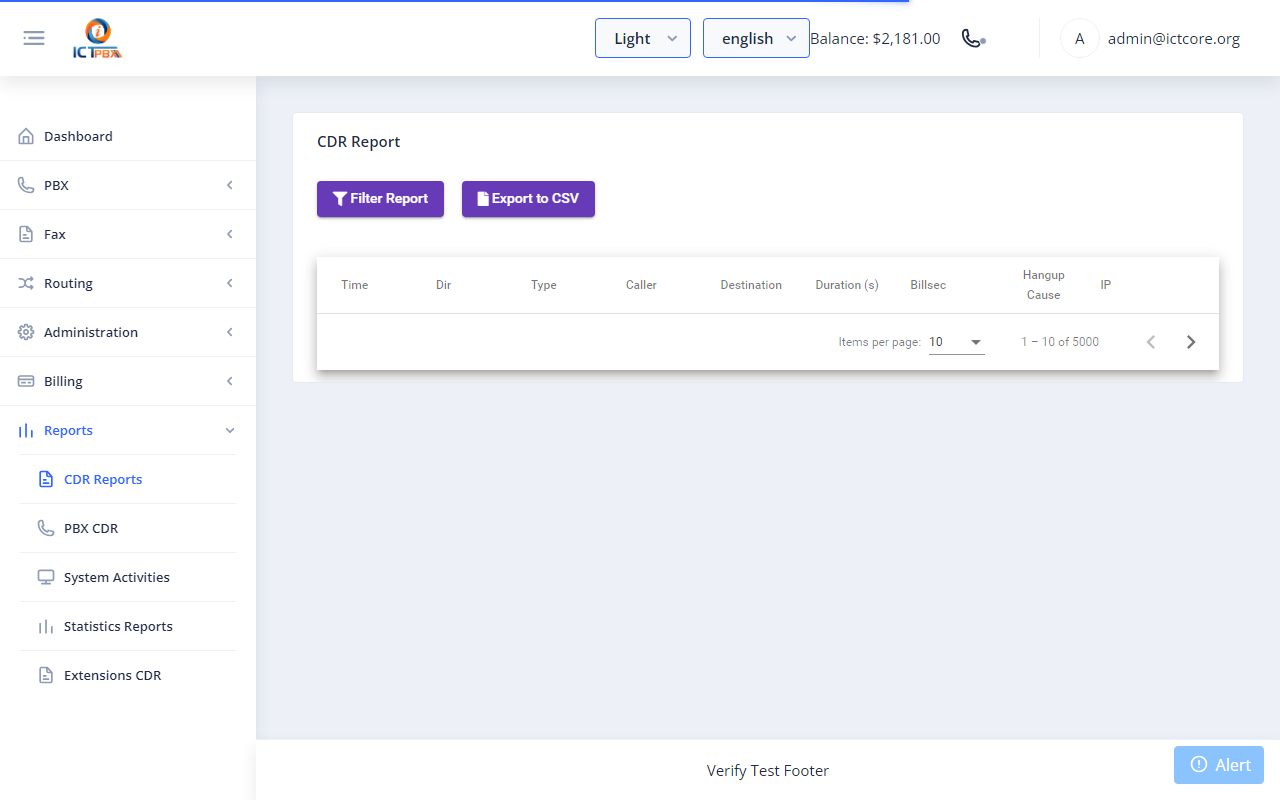
The CDR shows:
- Caller ID — who called
- Destination — number dialled
- Date/Time — when the call occurred
- Duration — length of the call
- Direction — Inbound or Outbound
- Status — Answered, Missed, Busy, etc.
Use the date filter to narrow results to a specific period.
8.1 PBX CDR (FreeSWITCH Records)
Navigate to Reports → PBX CDR for detailed FreeSWITCH-level call records.
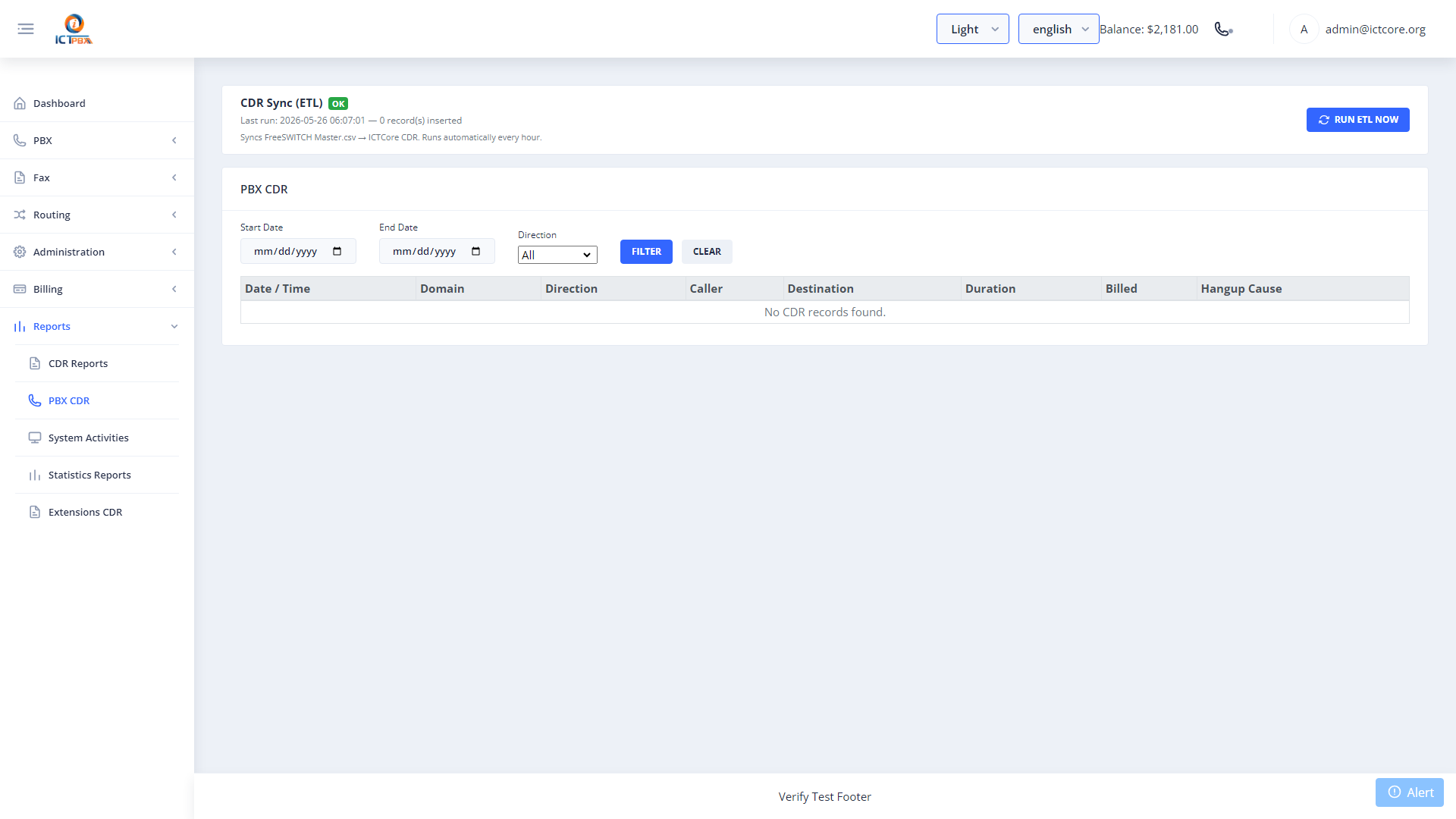
PBX CDR includes additional technical detail: codec used, hangup cause, SIP call ID, and recording link (if call recording is enabled on your extension).
9. My DIDs — Assigned Phone Numbers
Navigate to My DIDs from the sidebar to see the DID phone numbers assigned to your account.
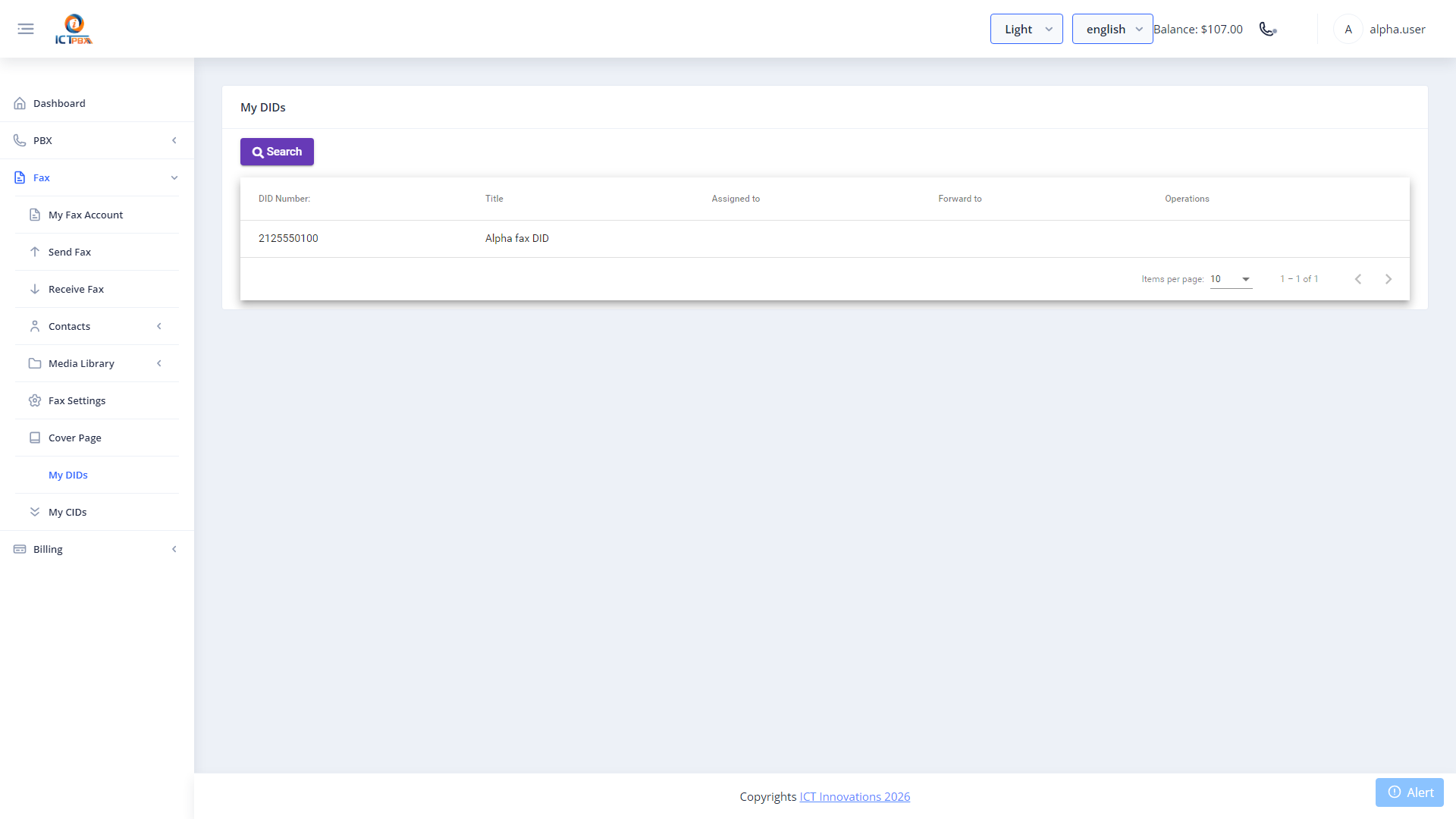
This view shows each number, its current routing destination, and whether it is active. Contact your tenant administrator to change DID routing or assign additional numbers.
10. Billing Quota
Navigate to Billing → Billing Quota to see your current usage against your allocated plan limits.
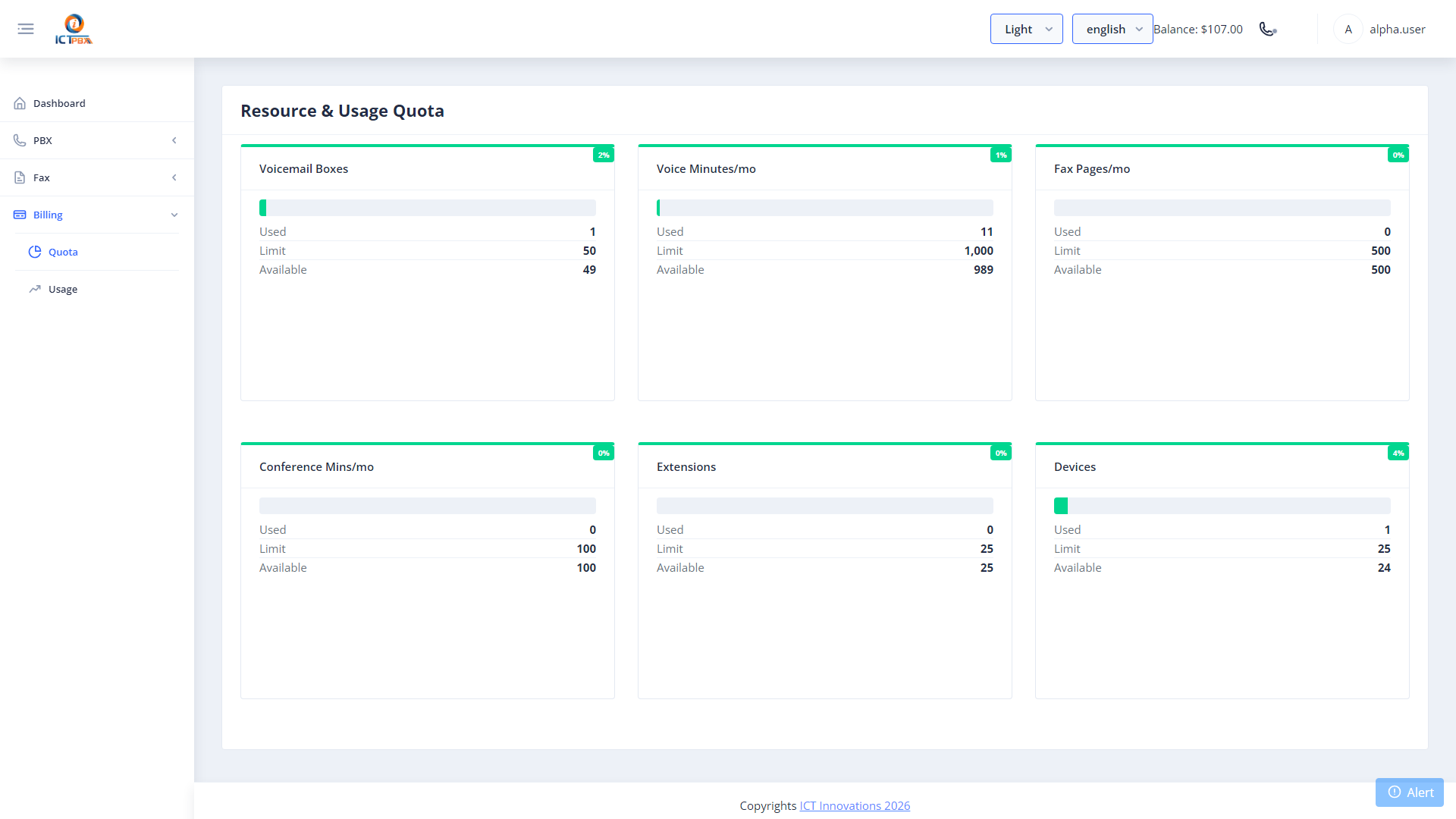
Cards displayed include:
- Voice Minutes — used this month vs. your monthly allocation
- Fax Pages — sent/received this month vs. your monthly allocation
- Extensions, Devices, Ring Groups — current count vs. package limit
If a usage card approaches its limit, contact your tenant administrator to review your subscription package.
11. Feature Codes
Navigate to PBX → Feature Codes for a quick reference of all star-code features available on your extension.
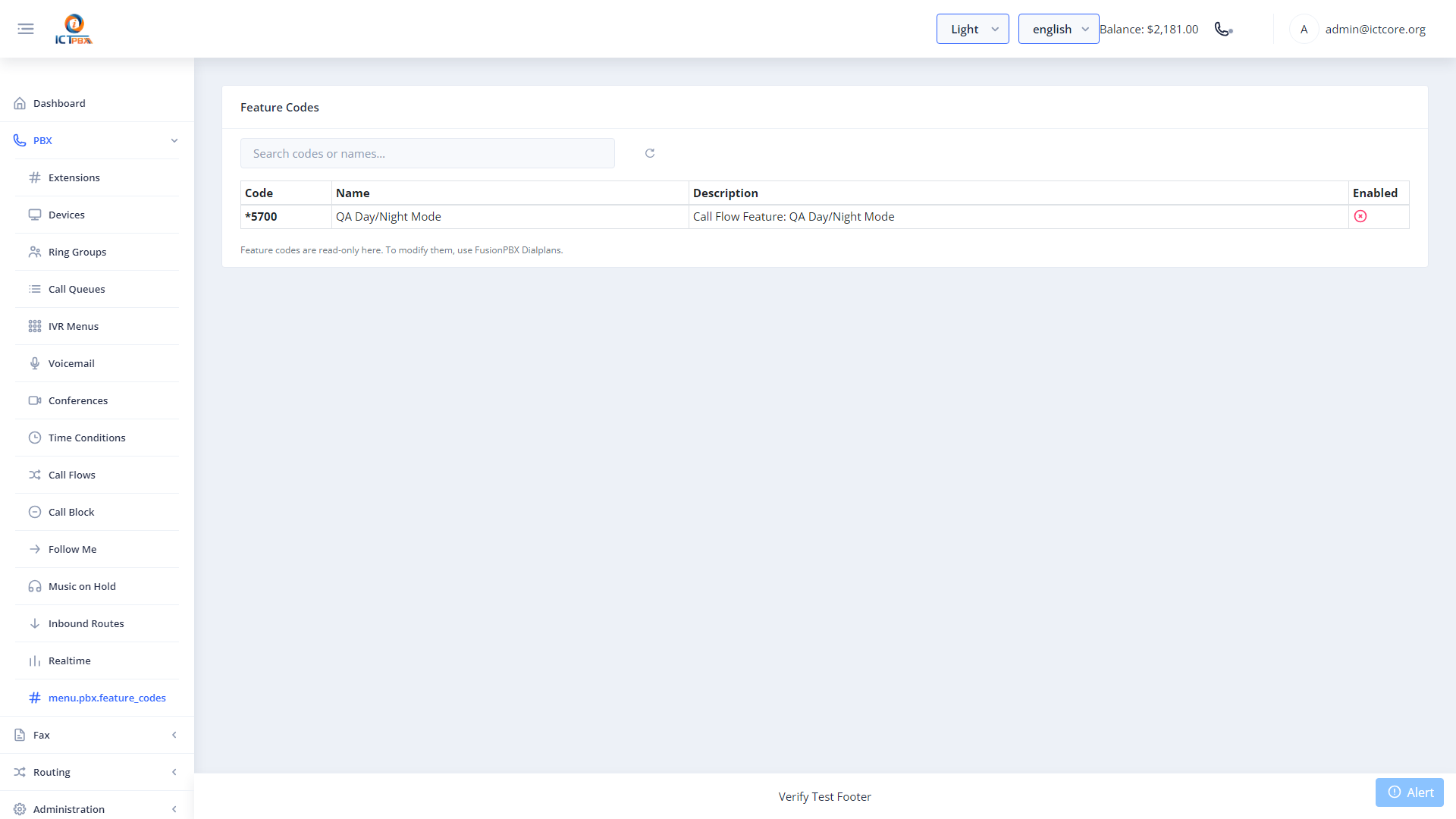
Common feature codes:
Dial these codes from your softphone or desk phone.
12. Tips & Best Practices
Softphone audio quality:
- Use a wired headset for best call quality.
- Close unused browser tabs to reduce CPU load during calls.
- If you experience one-way audio, check that your browser has microphone permission (browser address bar → site settings → microphone → Allow).
Call handling:
- Always check your DND status before leaving for the day — inadvertently leaving DND enabled will cause all calls to be missed.
- Use Follow Me to ensure you never miss an important call — forward to your mobile with a 10–15 second delay so desk calls are answered first.
Fax:
- Always send faxes as PDF files — other formats may not transmit correctly.
- Verify the recipient fax number before sending — international numbers must include the country code (e.g.
+12125550199).
Security:
- Never share your SIP password — it provides access to make calls on your behalf.
- Log out when using shared computers.
- Contact your administrator immediately if you suspect your credentials have been compromised.
ICTPBX Service Provider Edition — Agent User Guide Platform: demo.ictpbx.com