
1. Logging In
Navigate to your ICTPBX URL (e.g. https://demo.ictpbx.com). Enter your credentials and click Sign In.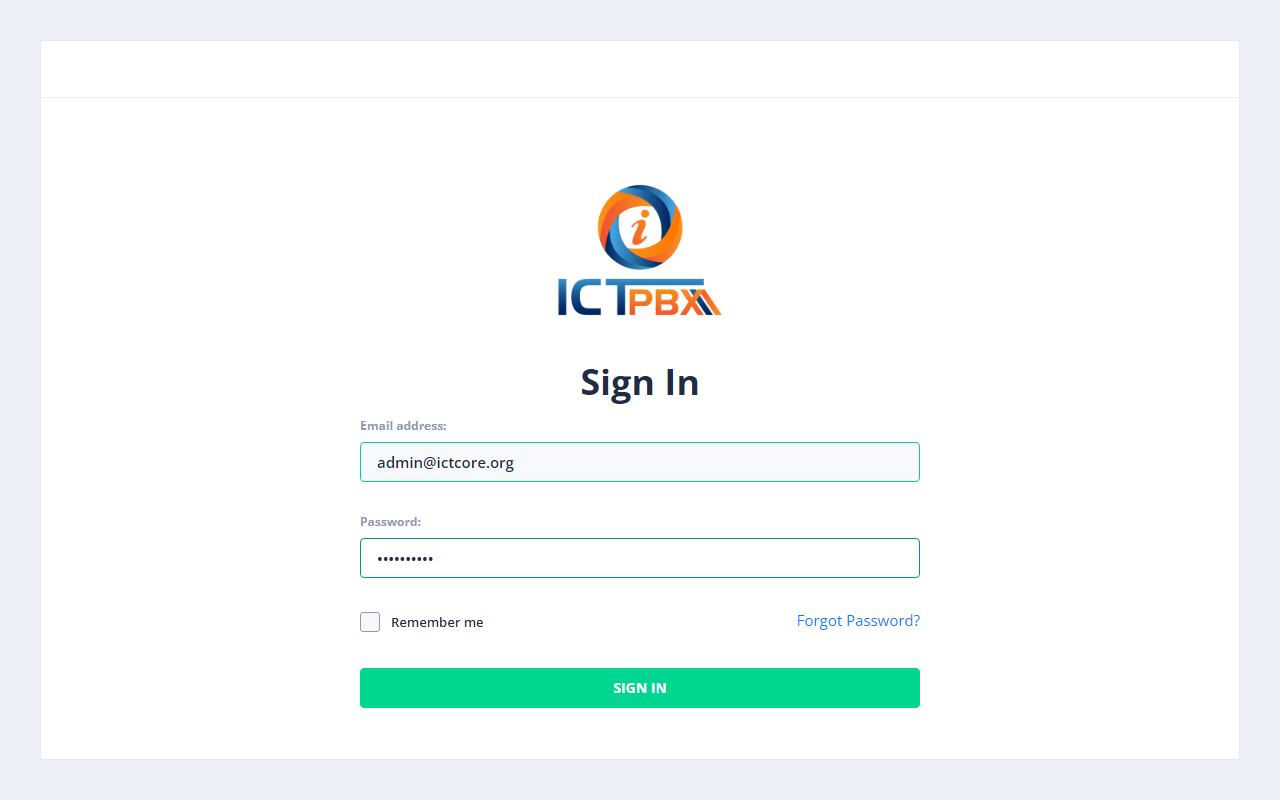
Fig 1-1 - Login pageEveryone logs in with one of three roles. Use the login your administrator gives you:
| Role | Username | Password | Access level |
|---|---|---|---|
| Super Admin | admin@example.com | <your password> | The whole platform: all menus, all tenants |
| Tenant Admin | tenant@example.com | <your password> | Their own organisation: PBX, fax, users, quota |
| End User | user@example.com | <your password> | Self-service: own extension, softphone, voicemail and fax, read-only DIDs and caller IDs |
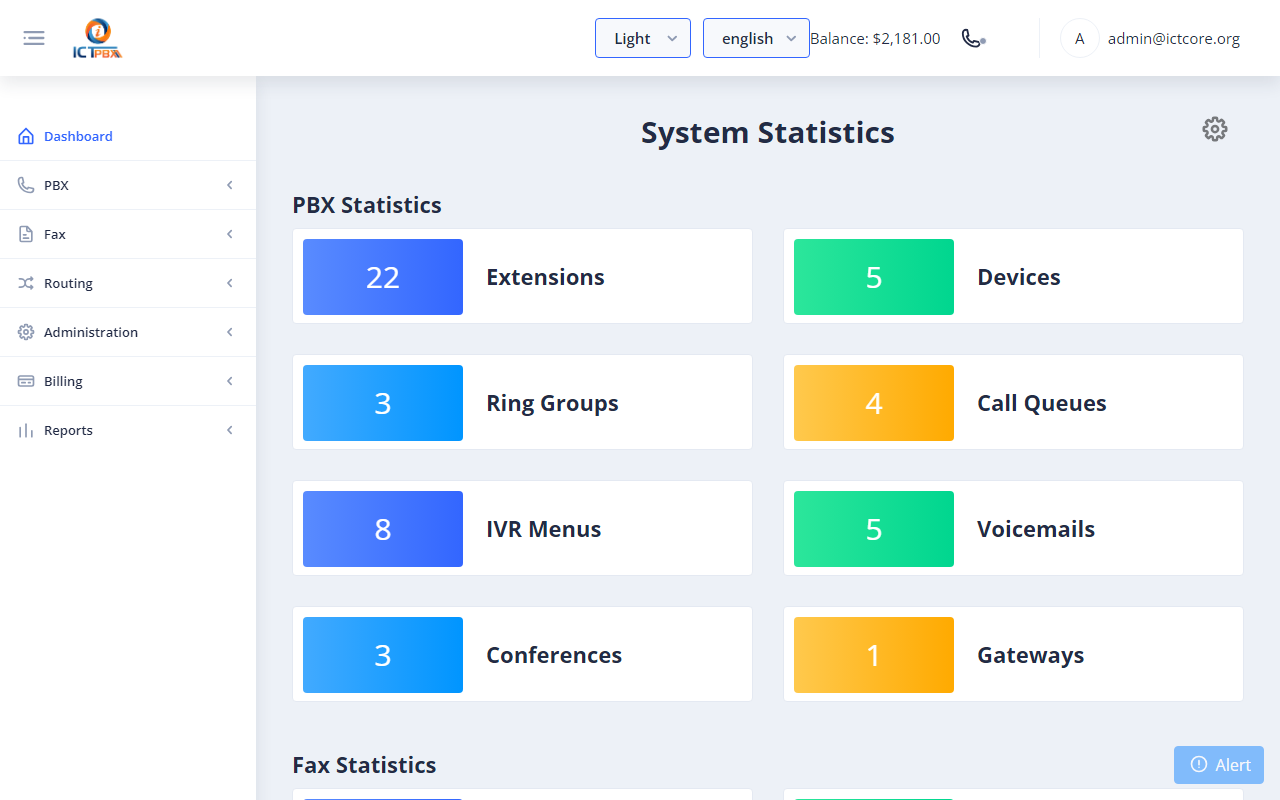
Fig 1-2 - Dashboard - admin view showing stat cards and full sidebar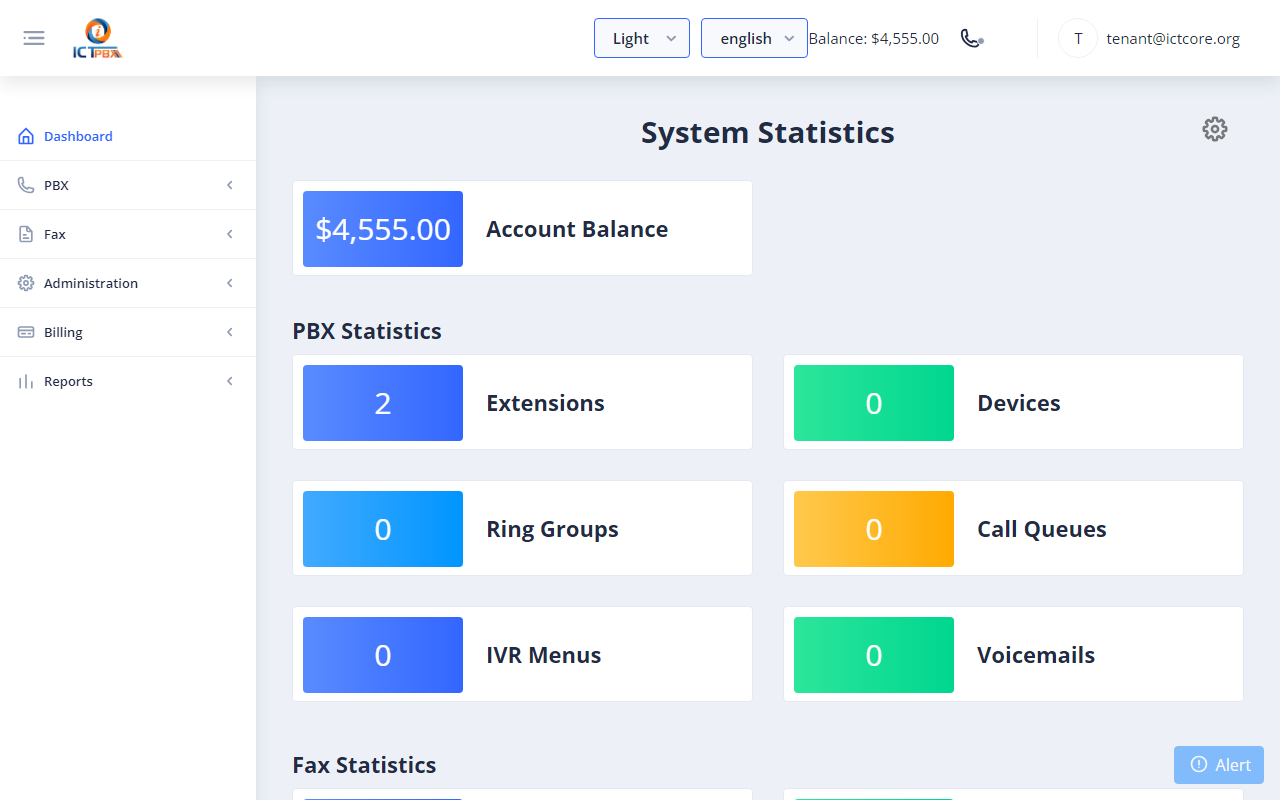
Fig 1-3 - Dashboard - tenant view (filtered sidebar, own stats only)
2. Multi-Tenant Management
ICTPBX is fully multi-tenant. Each tenant is an independent organisation with its own users, extensions, DIDs, fax lines and billing quota. Tenants cannot see each other's data.2a. Creating a Tenant
Note: Super Admin only.Go to Administration → Tenants → Add Tenant.| Field | Description |
|---|---|
| Company | Organisation name shown in reports and billing |
| Primary contact email | |
| Daily Limit | Most faxes this tenant can send in a day (−1 = unlimited) |
| Monthly Limit | Most faxes this tenant can send in a month (−1 = unlimited) |
| Permissions | Tick the features this tenant's users can have (see below) |
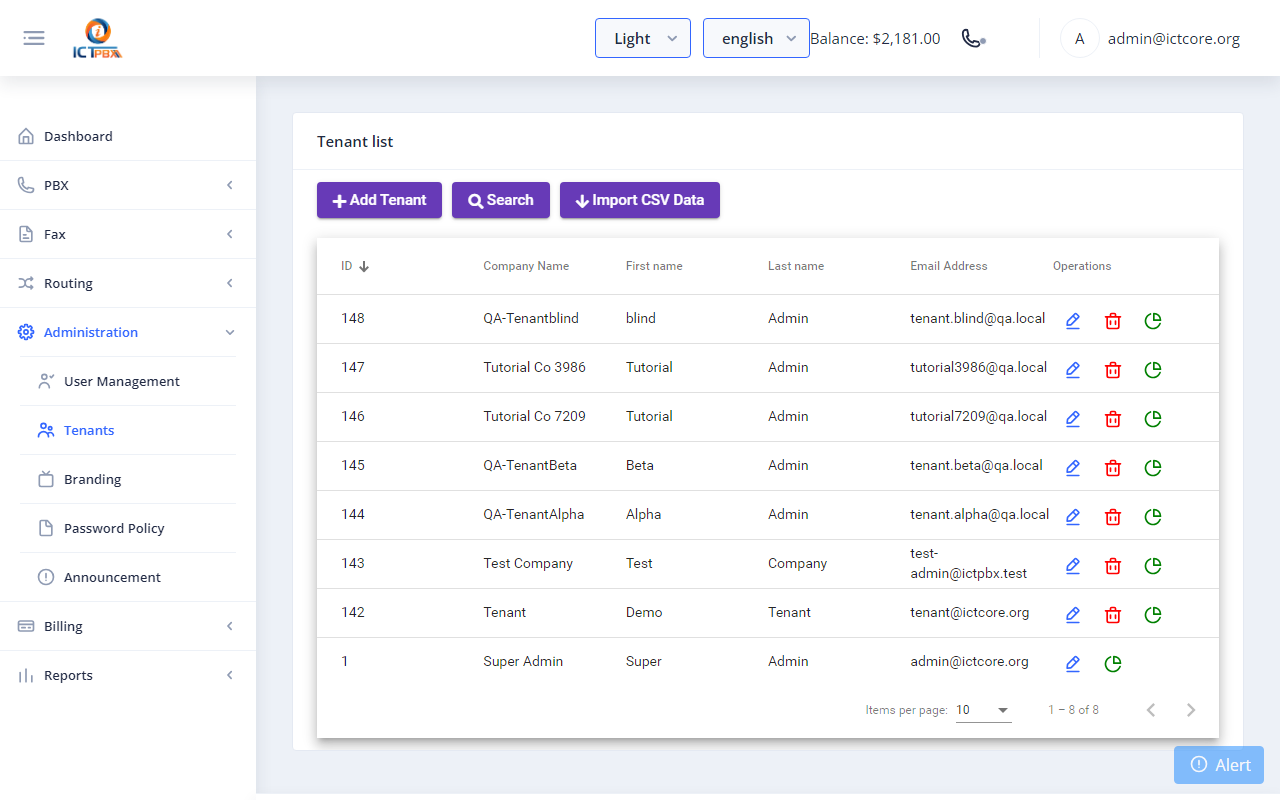
Fig 2-1 - Tenants list - each row shows company, limits, and assigned usageWhen you save, the tenant gets its own SIP domain automatically. A tenant has no login of its own, so add a Tenant Admin user for it next (see 2c).
2b. Tenant Permissions
Permissions control which features a tenant's users can access. They are set on the tenant and cascade down - a user can only be granted permissions their tenant already holds.| Permission token | Unlocks |
|---|---|
| send_fax | Fax → Send Fax, Bulk Fax |
| receive_fax | Fax → Receive Fax, My DIDs |
| fax_setting | Fax → Fax Settings |
| contacts | Fax → Contacts, Contact Groups, DNC |
| fpbx_extension | PBX → Extensions (foundation for all PBX features) |
| devices | PBX → Devices |
| ring_groups | PBX → Ring Groups |
| call_queues | PBX → Call Queues |
| ivr_menus | PBX → IVR Menus |
| voicemails | PBX → Voicemail |
| conferences | PBX → Conferences |
| follow_me | PBX → Follow Me |
| inbound_routes | PBX → Inbound Routes |
| realtime | PBX → Realtime Monitor |
2c. Creating Users Under a Tenant
Go to Administration → User Management → Add User.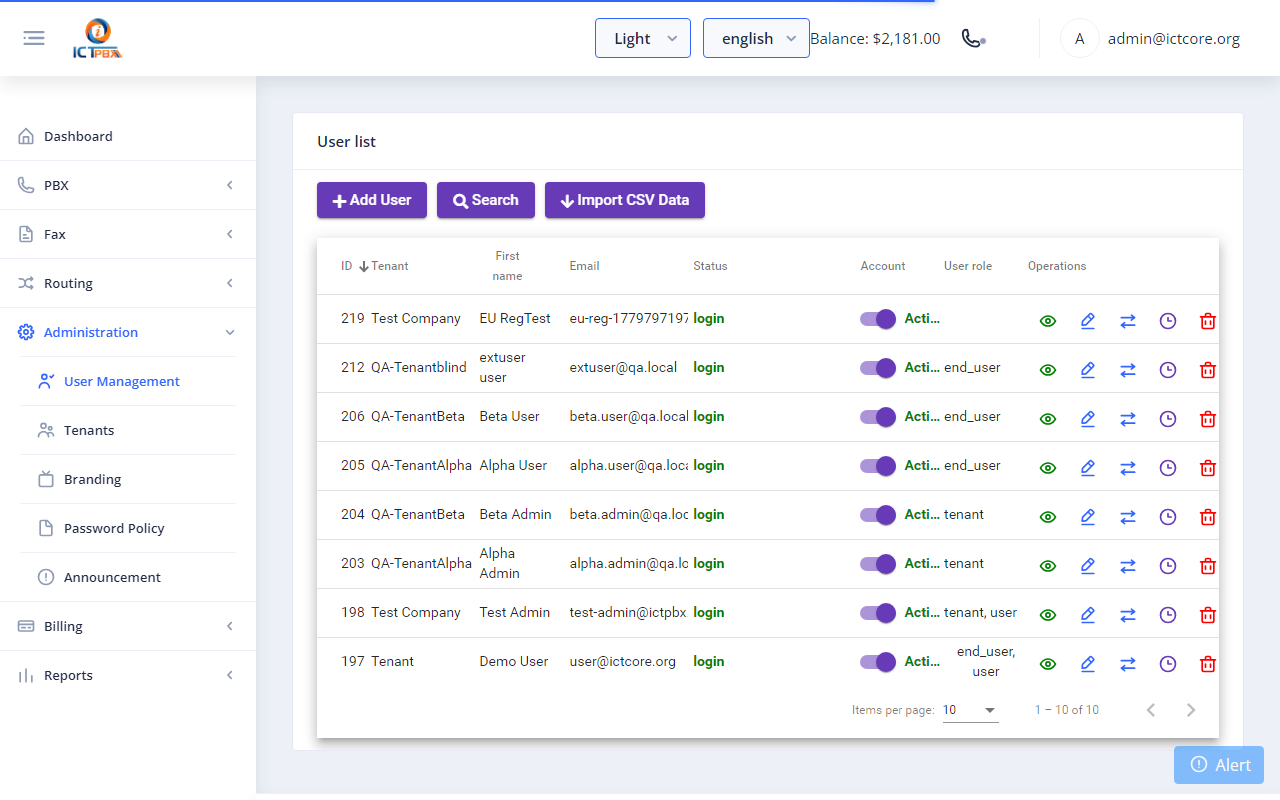
Fig 2-3 - User list showing role badges and tenant column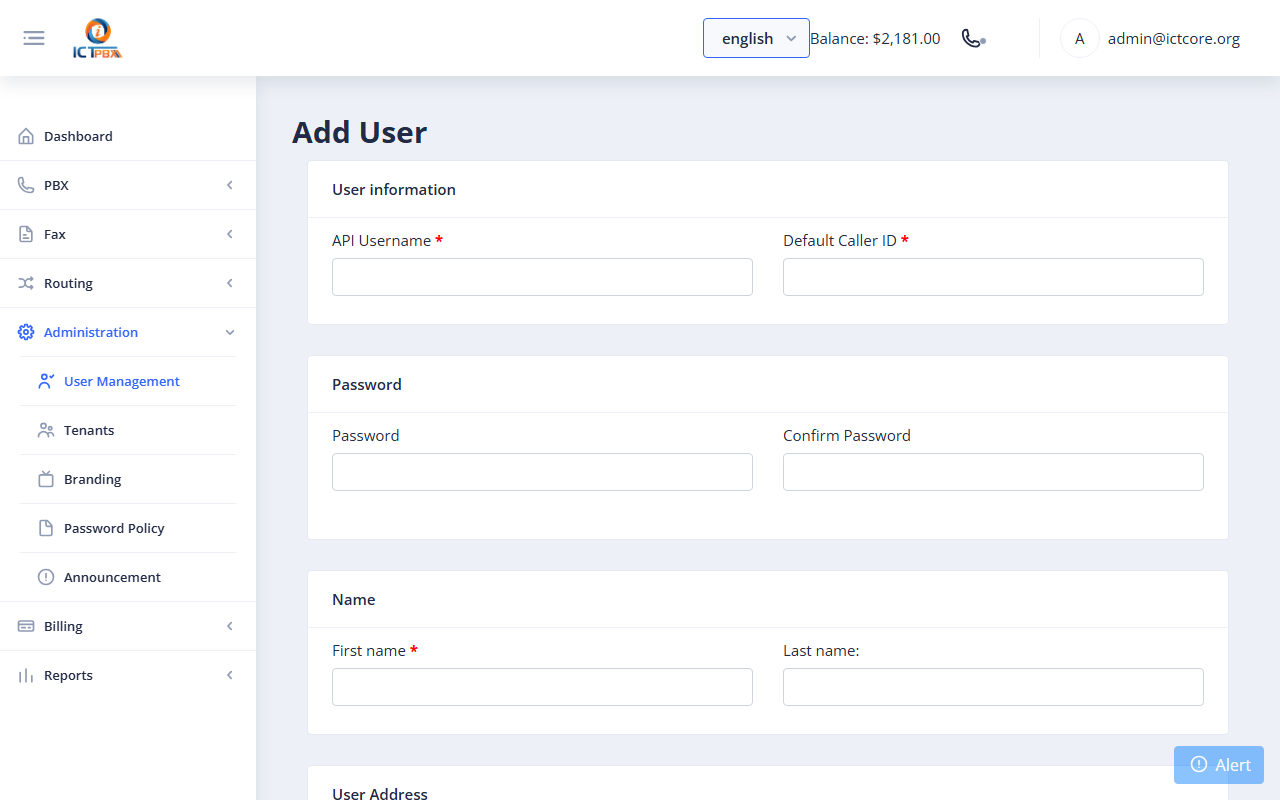
Fig 2-4 - Add User form - top section (name, password, contact)
Fig 2-5 - Role and Tenant selection sectionRole rules:
- Super Admin: runs the whole platform, including every tenant, trunks and billing.
- Tenant Admin: tick
tenantunder Select Role and tenant. This user manages PBX, fax and users inside one organisation. The Super Admin tenant isn't offered in the tenant dropdown for this role. - End User: tick
end_user. End users get self-service only: their own extension, softphone, voicemail and fax, with read-only DIDs and caller IDs. They can't create PBX objects.
Fig 2-6 - Permission checkboxes - grouped by Fax, PBX, and ContactsPermission inheritance:
- The permission checkboxes shown are filtered to only what the tenant already holds.
- Granting a child permission auto-enables its parent (e.g. ticking Devices auto-ticks Extensions).
- Unticking a parent auto-clears all dependent children.
- Users a Tenant Admin creates are always End Users, and they can only get permissions the Tenant Admin holds.
2d. PBX Resource Allocation
When PBX permissions are granted to a user, the admin also sets numeric slot limits - how many of each PBX object that user's tenant quota allows them to create.| Resource | Permission required | What it controls |
|---|---|---|
| Extensions | fpbx_extension | Max SIP extensions this user's quota covers |
| Devices | devices | Max SIP devices |
| Ring Groups | ring_groups | Max ring groups |
| Call Queues | call_queues | Max call queues |
| IVR Menus | ivr_menus | Max IVR menus |
| Voicemail Boxes | voicemails | Max voicemail boxes |
| Conferences | conferences | Max conference rooms |
| Music on Hold | music_on_hold | Max MOH entries |
3. Setting Up a SIP Trunk (Provider)
Note: Super Admin only.A Trunk connects your system to the PSTN via a SIP carrier for outbound calls and inbound DID delivery. Only the Super Admin manages trunks, and they live under Routing → Trunks. When you save a trunk it's applied straight away, with no FreeSWITCH restart. If the trunk will carry fax, turn on Supports Fax (T.38 / G.711 pass-through).Go to Routing → Trunks → Add Provider.| Field | Example | Notes |
|---|---|---|
| Name | MyCarrier | Friendly label |
| Host | sip.mycarrier.com | SIP proxy / registrar from carrier |
| Username | 15551234567 | SIP auth username |
| Password | (SIP password) | |
| Caller ID | +15551234567 | Outbound caller ID presented to PSTN |
| Active | Yes |
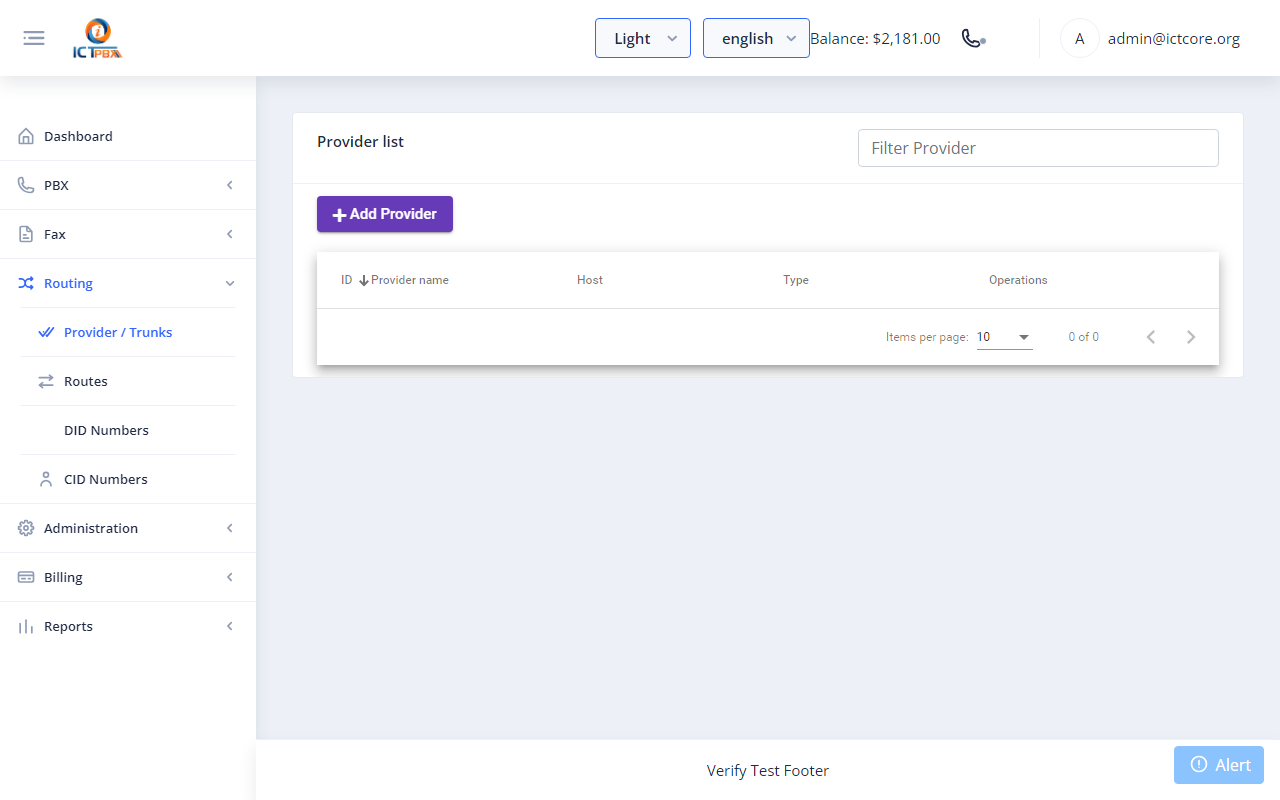
Fig 3-1 - Trunks list - Status column shows REGED when registered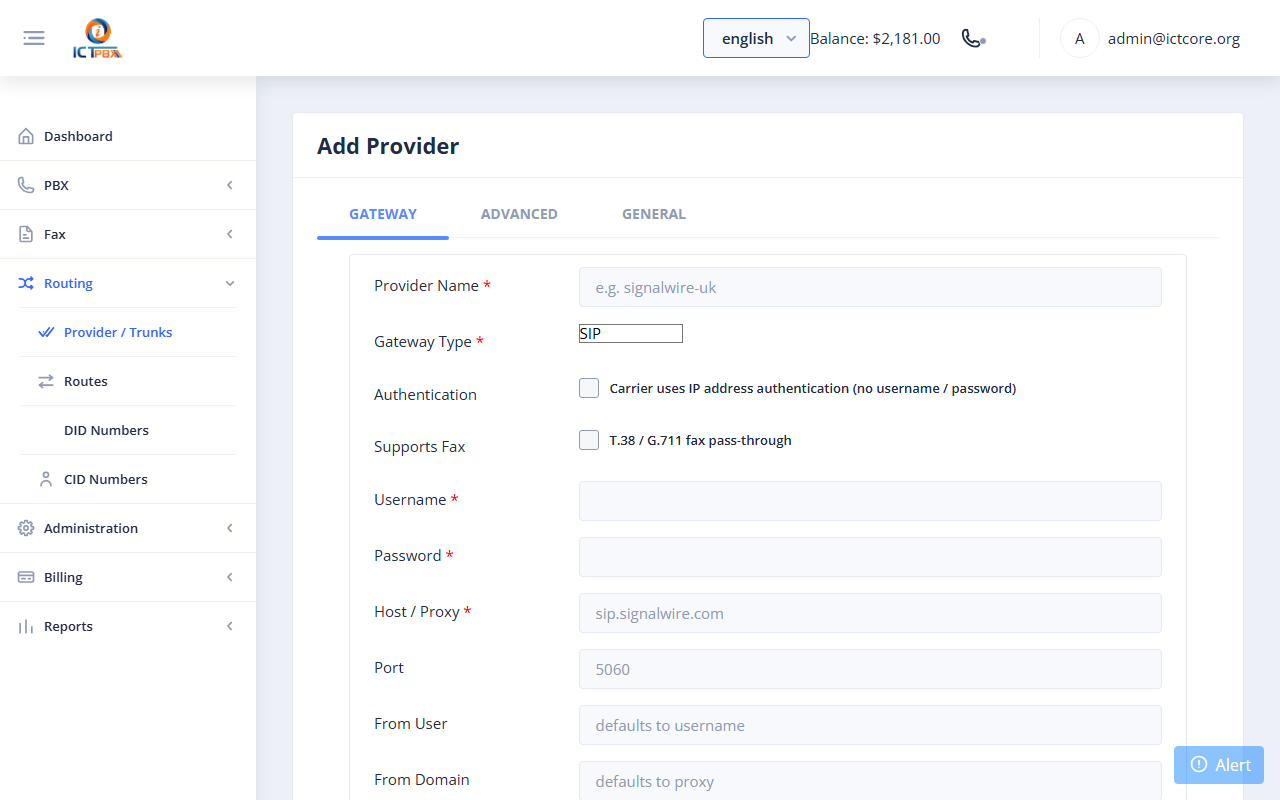
Fig 3-2 - Add Provider form
Outbound Route
Go to Routing → Routes → Add Route. Select the service (fax/voice), provider, and destination pattern.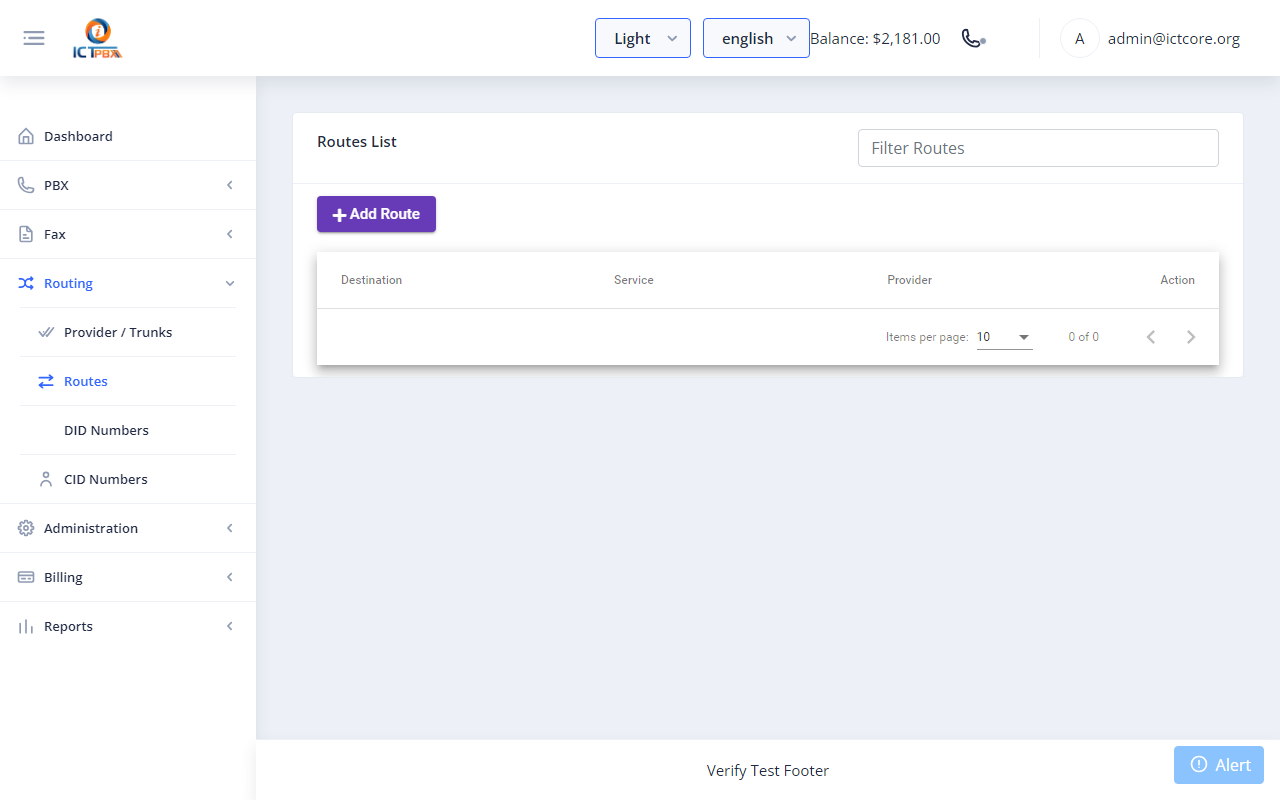
Fig 3-3 - Routes list with delete action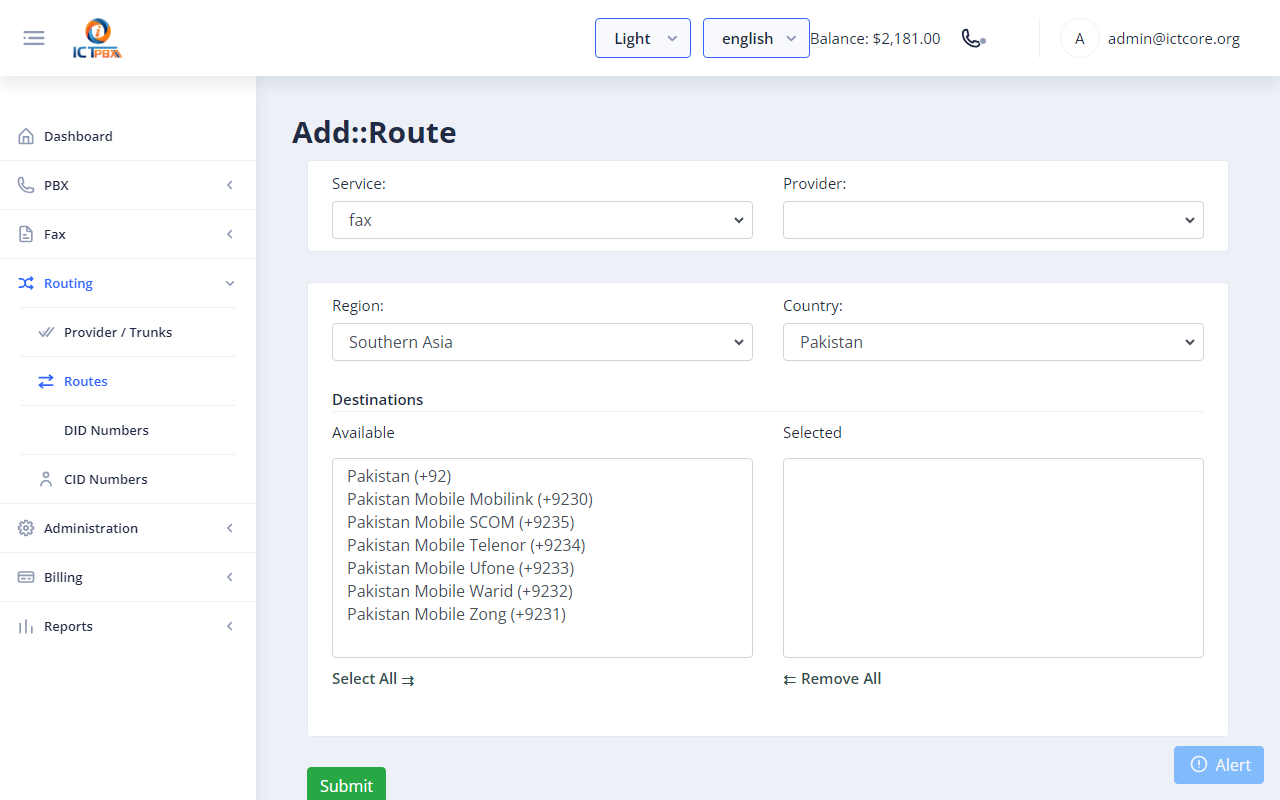
Fig 3-4 - Add Route - destination pickerTo check the trunk has registered, look at the Status column on Routing → Trunks. It shows REGED once registration works.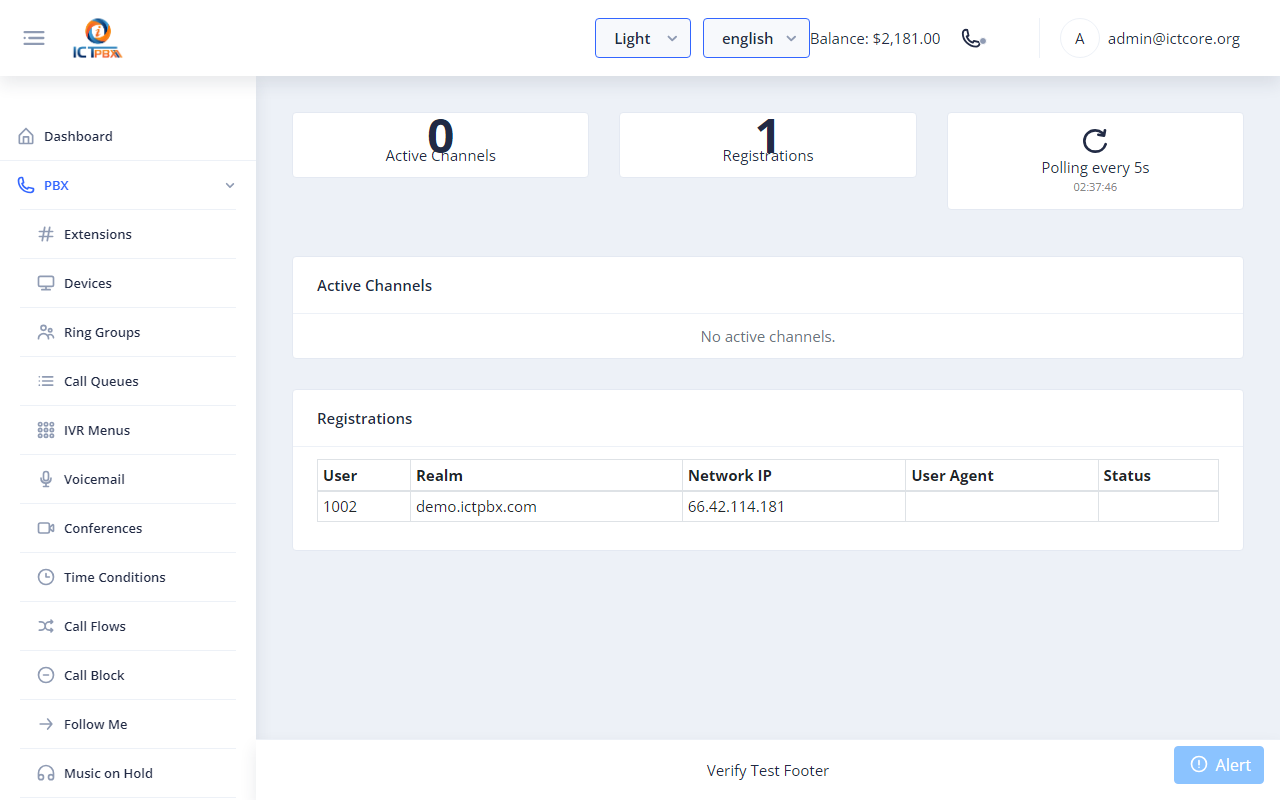
Fig 3-5 - Realtime page from an earlier release. Trunk status now shows on Routing → Trunks.
4. Adding a DID Number
Note: Admin only. Obtain the number from your SIP carrier first.Go to Routing → DID Numbers → Add DID.| Field | Example |
|---|---|
| DID Number | +12125550199 |
| Provider | MyCarrier |
| Tenant | Acme Corp |
| Description | Main Office Line |
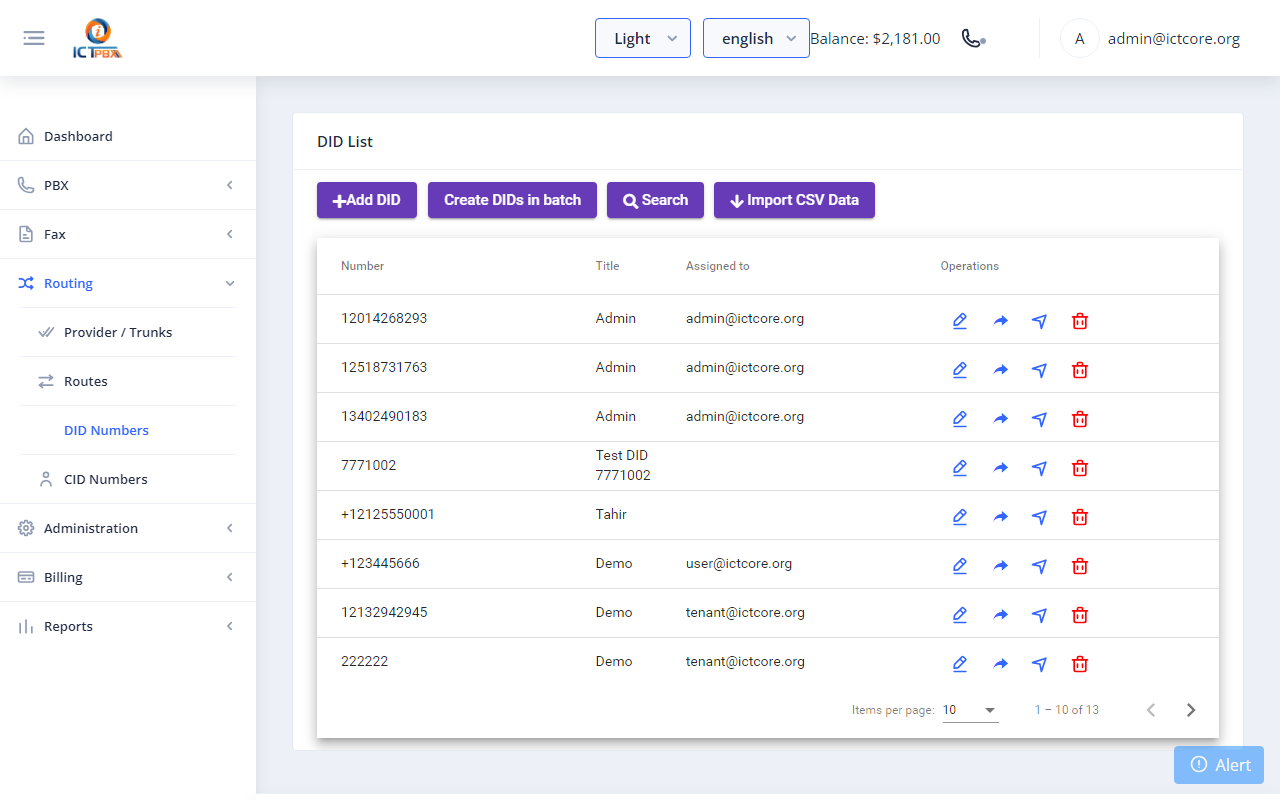
Fig 4-1 - DID Numbers list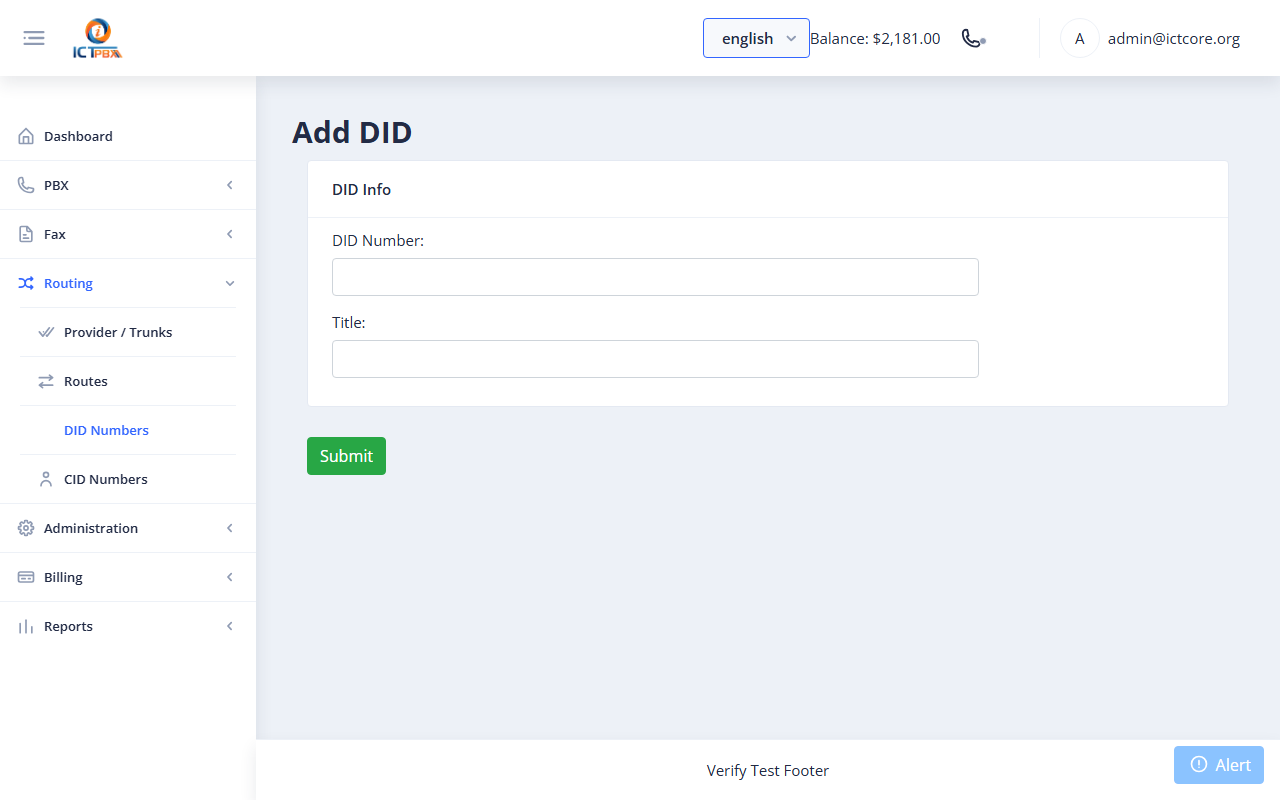
Fig 4-2 - Add DID formAfter saving, the DID is registered but not yet routed. Set its destination in Section 10 (Inbound Routes). For a fax number, use Section 13b instead.
5. Creating Extensions
An extension is a 4-6 digit SIP endpoint. Go to PBX → Extensions → Add Extension.| Field | Notes |
|---|---|
| Extension | 4-6 digits, unique within the tenant domain |
| Caller ID tab | The name and number people see when this extension calls them |
| Password / SIP Auth | SIP registration password used by the phone/softphone |
| Extension Type | Voice (default) or Fax. A fax extension also needs a Fax Delivery Email. |
| Voicemail | Extensions have no voicemail fields. Create a box under PBX → Voicemail (Section 9), then pick it as the No Answer or Busy destination on the Forwarding tab. |
| Assign to User | Links the extension to a user, who then sees it on PBX → My Extension |
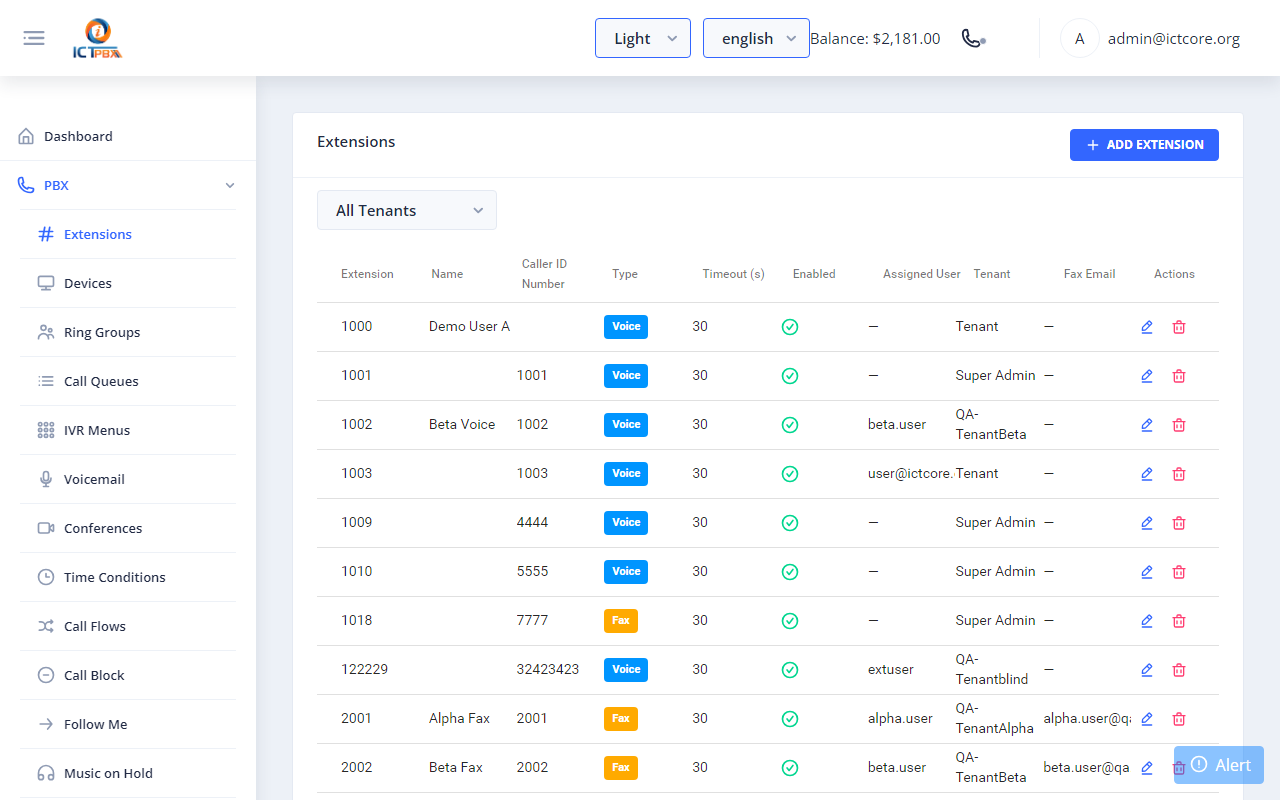
Fig 5-1 - Extensions list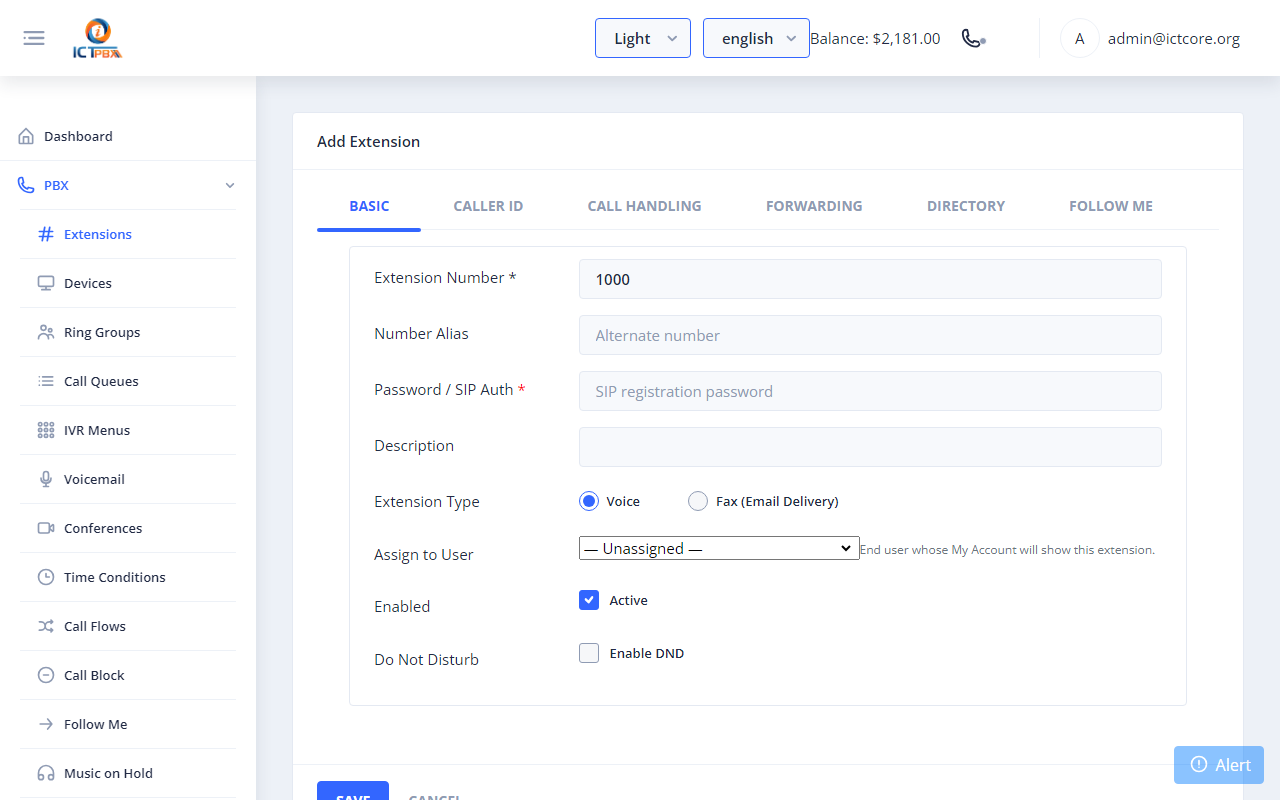
Fig 5-2 - Add Extension formFreeSWITCH reloads its XML configuration automatically after each save or delete.
6. Registering a WebPhone (Device)
The built-in browser softphone uses WebRTC/JsSIP, so you don't need a plugin. It connects overwss://<your-host>/ws/ on port 443, which means the portal has to run on HTTPS with a domain name. You don't need a device record for it. Devices are for desk phones.6a. Desk Phones Need a Device and a Line
If the extension will also ring a desk phone, go to PBX → Devices → Add Device and save the device. Then open it, click Add Line and pick the extension. A device with no line gets a blank configuration and never registers. Section 15 walks through it.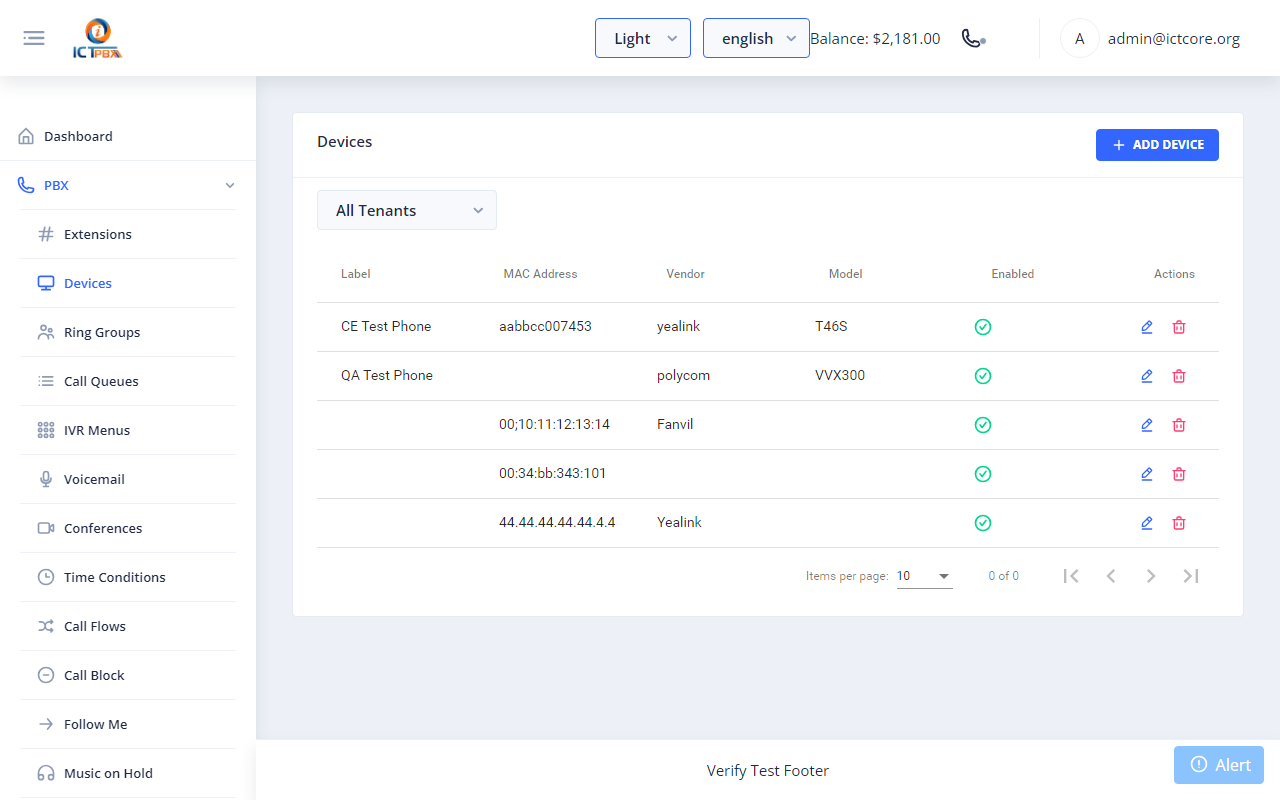
Fig 6-1 - Devices list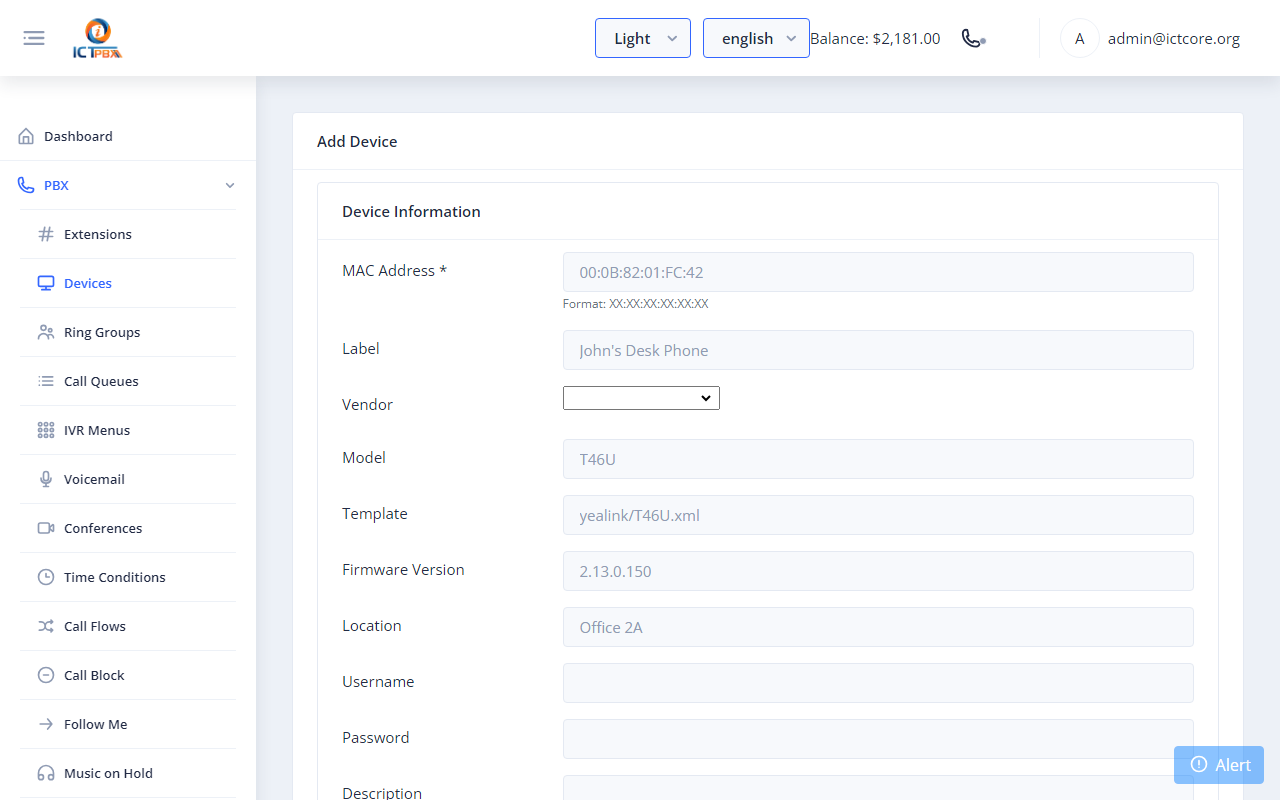
Fig 6-2 - Add Device form
6b. Connect the Browser Softphone
- Click the phone icon in the top navigation bar.
- Enter your extension and SIP password. Domain and WebSocket fill in automatically, and you can't edit Domain.
- Click Connect. The status indicator turns green when you're registered.
Fig 6-3 - Softphone panel - registered and readyTip: Open two browser windows (or use incognito) - register a different extension in each - to test extension-to-extension calls without needing a second physical device.
7. Setting Up a Ring Group
A Ring Group makes multiple extensions ring when a number is dialled. Go to PBX → Ring Groups → Add Ring Group.| Field | Notes |
|---|---|
| Name | Friendly label (e.g. Sales Team) |
| Extension | Internal dial number to reach this group |
| Strategy | simultaneous rings everyone at once, sequence rings one at a time in order. You can also pick random, rollover or enterprise. |
| Timeout (sec) | Seconds to ring before going to the no-answer destination |
| No-Answer Action | Voicemail, extension, or IVR to forward unanswered calls |
| Members | Extension numbers to include |
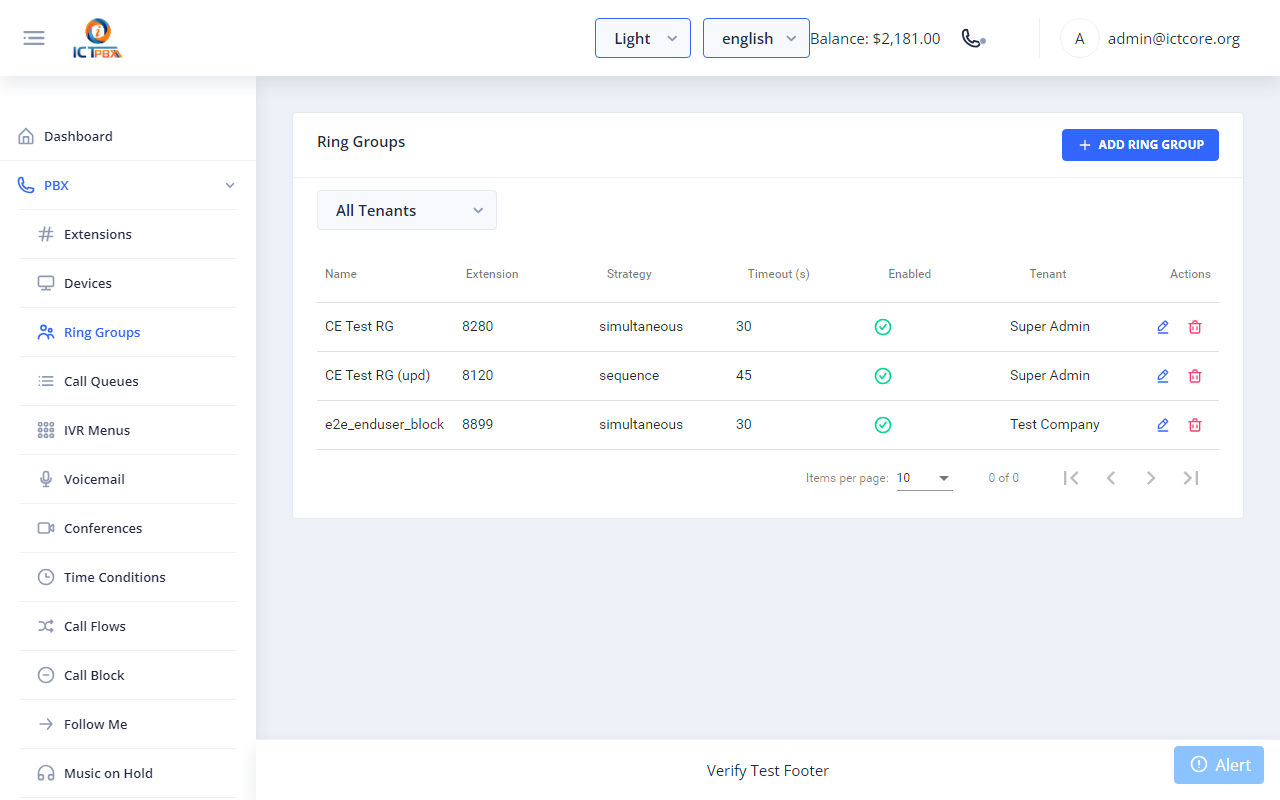
Fig 7-1 - Ring Groups list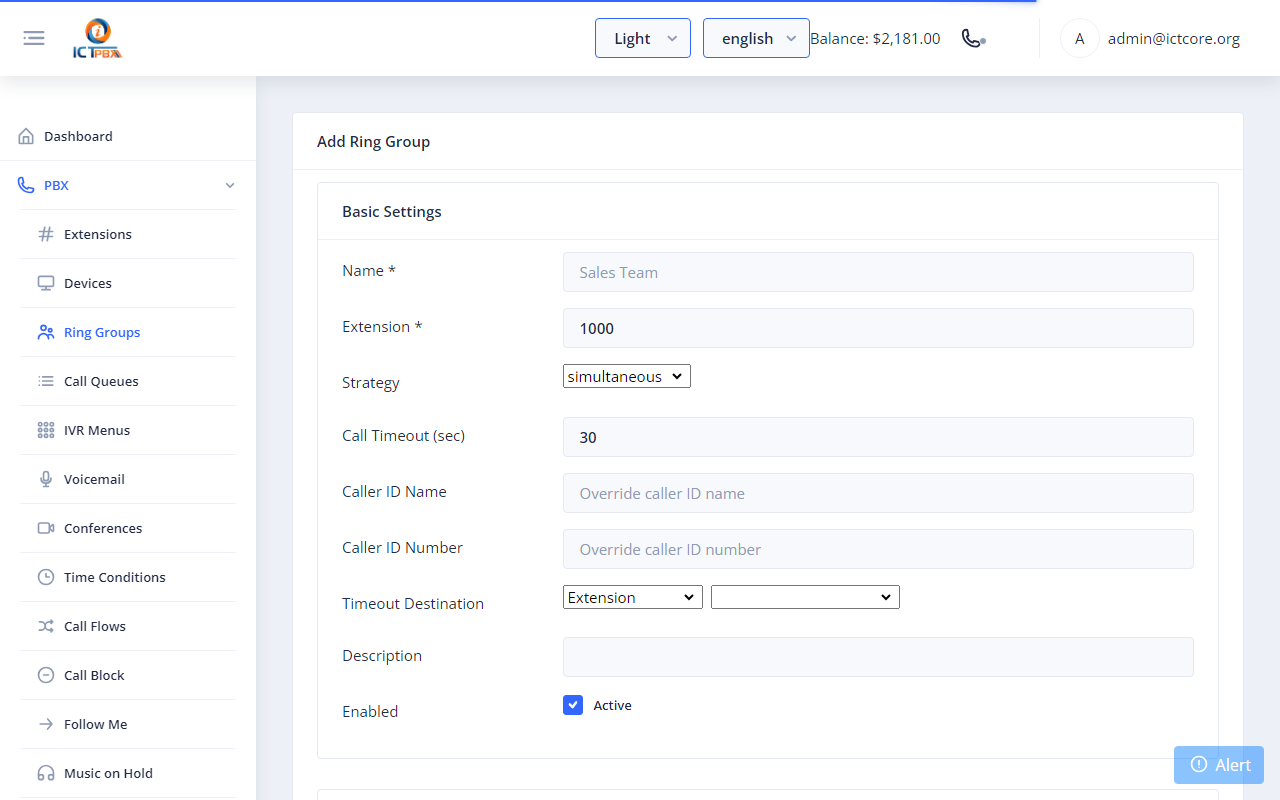
Fig 7-2 - Add Ring Group form
8. Setting Up an IVR Menu
An IVR (Interactive Voice Response) menu plays a greeting then routes callers by key press. Go to PBX → IVR Menus → Add IVR Menu.| Field | Notes |
|---|---|
| Name | Friendly label |
| Extension | Internal dial number |
| Greeting (long) / Greeting (short) | The long greeting plays when a caller enters the menu. The short one plays on repeat. |
| Timeout (ms) | How long to wait for a key press, in milliseconds (10000 = 10 seconds) |
| Invalid Action | What to do when caller presses an unmapped key |
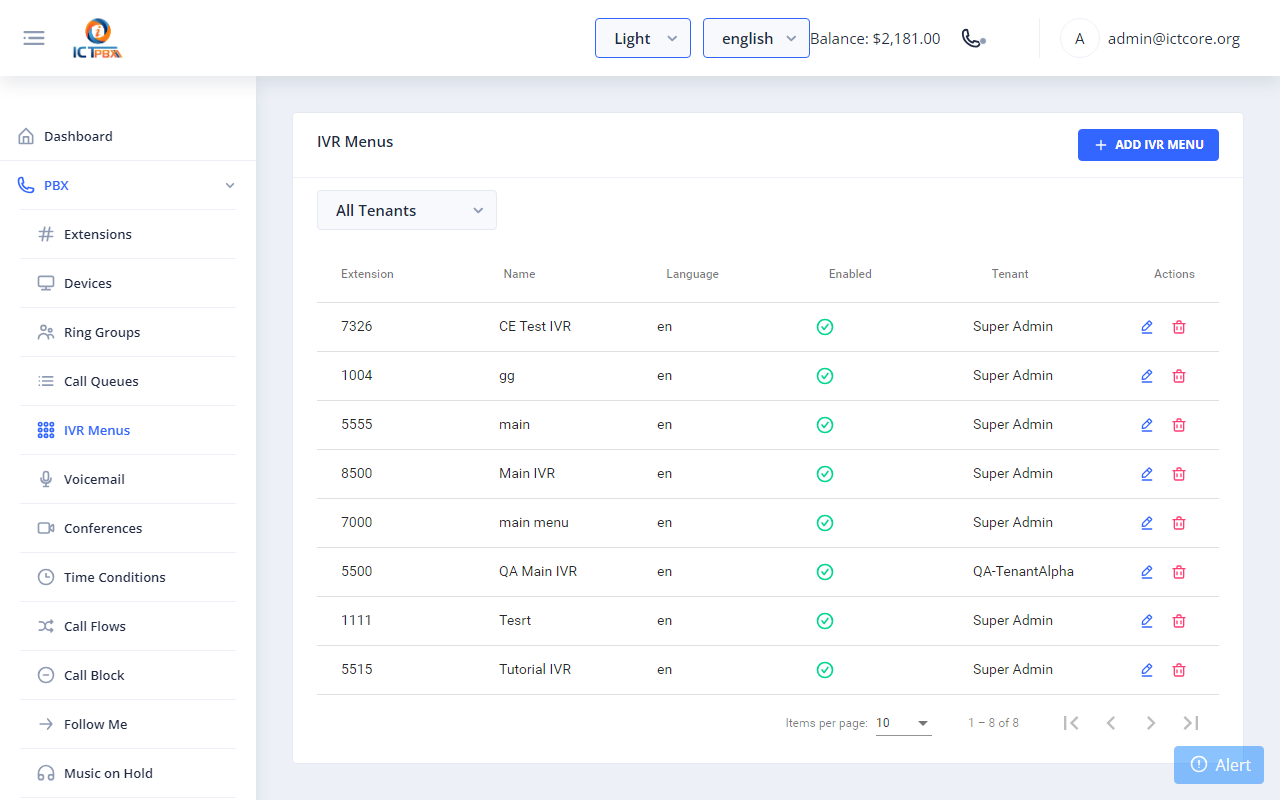
Fig 8-1 - IVR Menus list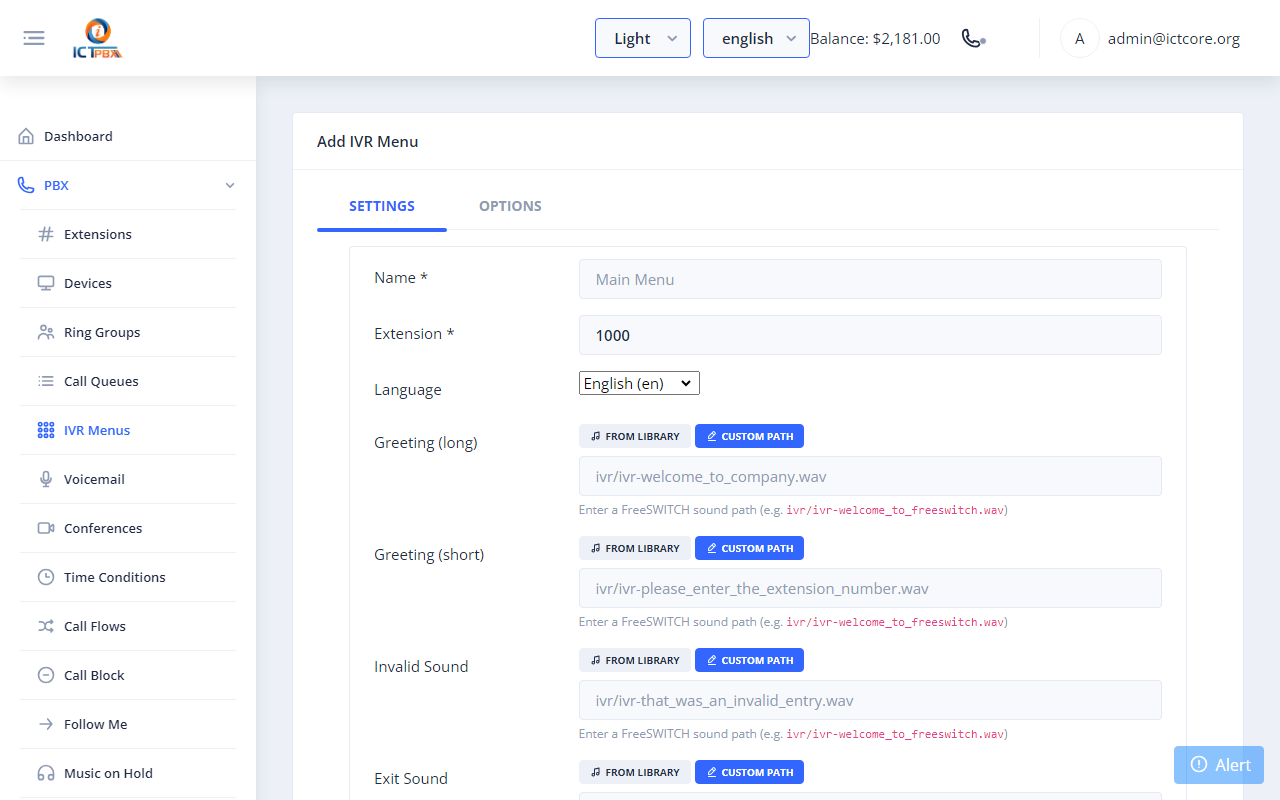
Fig 8-2 - IVR Menu form - top (name, extension, greeting)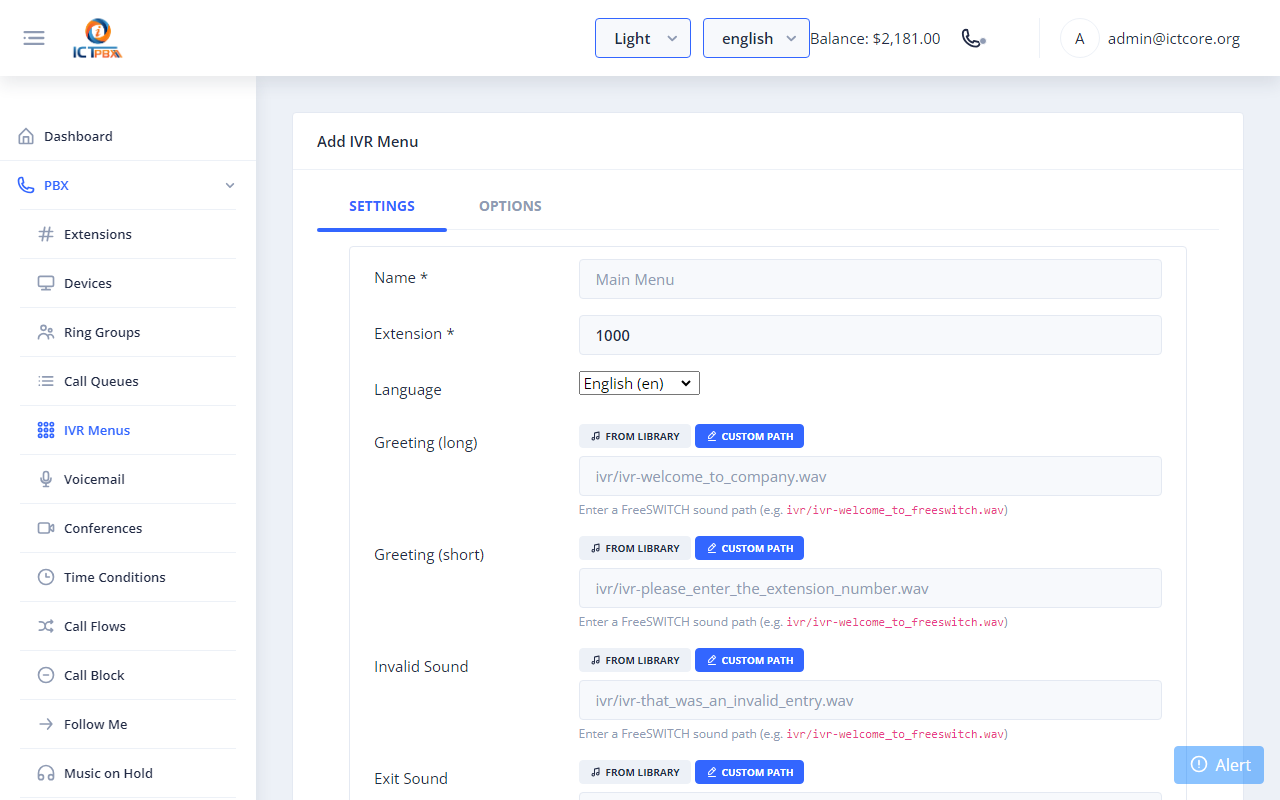
Fig 8-3 - IVR options table - digit to destination mappingExample digit mapping:
| Digit | Destination type | Destination |
|---|---|---|
| 1 | Ring Group | Sales Team |
| 2 | Ring Group | Support |
| 0 | Extension | Operator |
| 9 | Voicemail | General Voicemail |
9. Setting Up Voicemail
Go to PBX → Voicemail → Add Voicemail.| Field | Notes |
|---|---|
| Voicemail Number | Usually matches the extension number |
| Password (PIN) | Numeric PIN you enter when you check messages |
| Display Name | Shown on email notifications |
| Receives audio attachment of every message left | |
| Greeting | After saving, open the box again to upload a greeting (WAV, MP3 or OGG). Without one, the default greeting plays. |
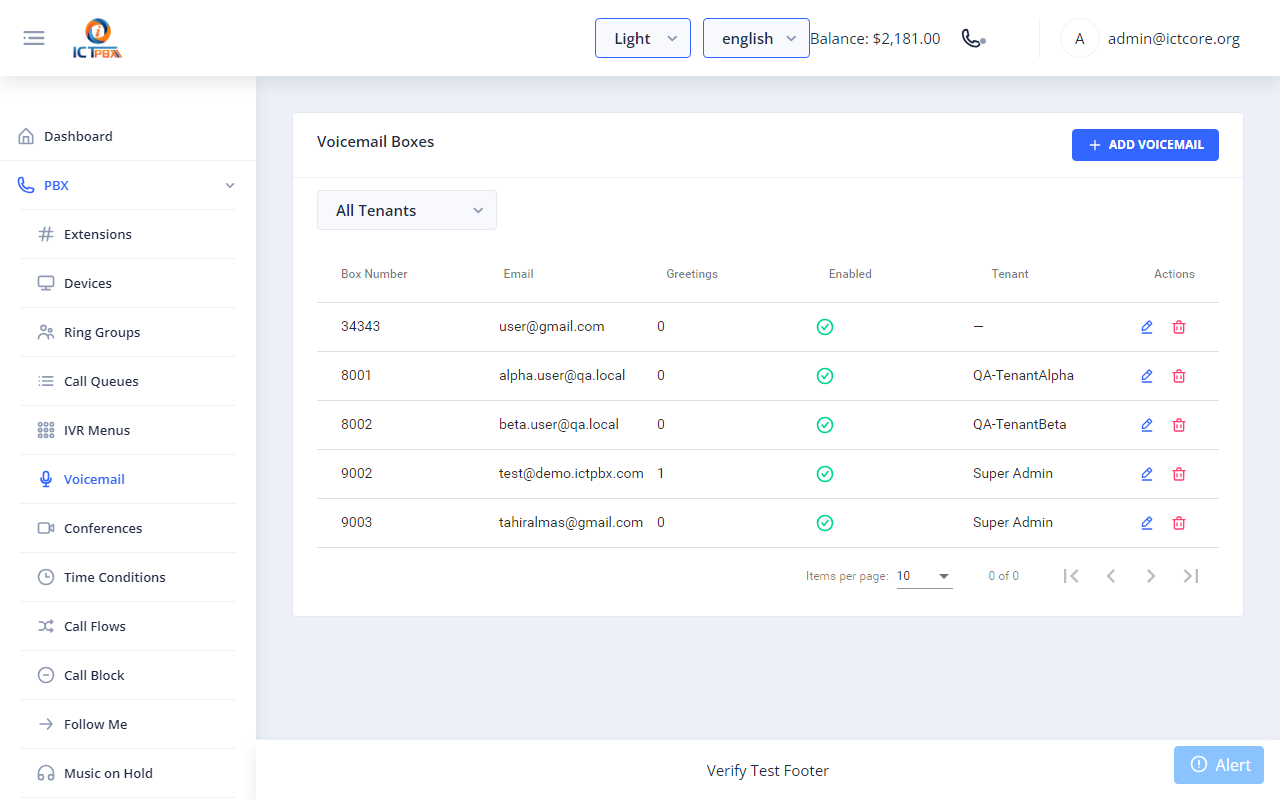
Fig 9-1 - Voicemail list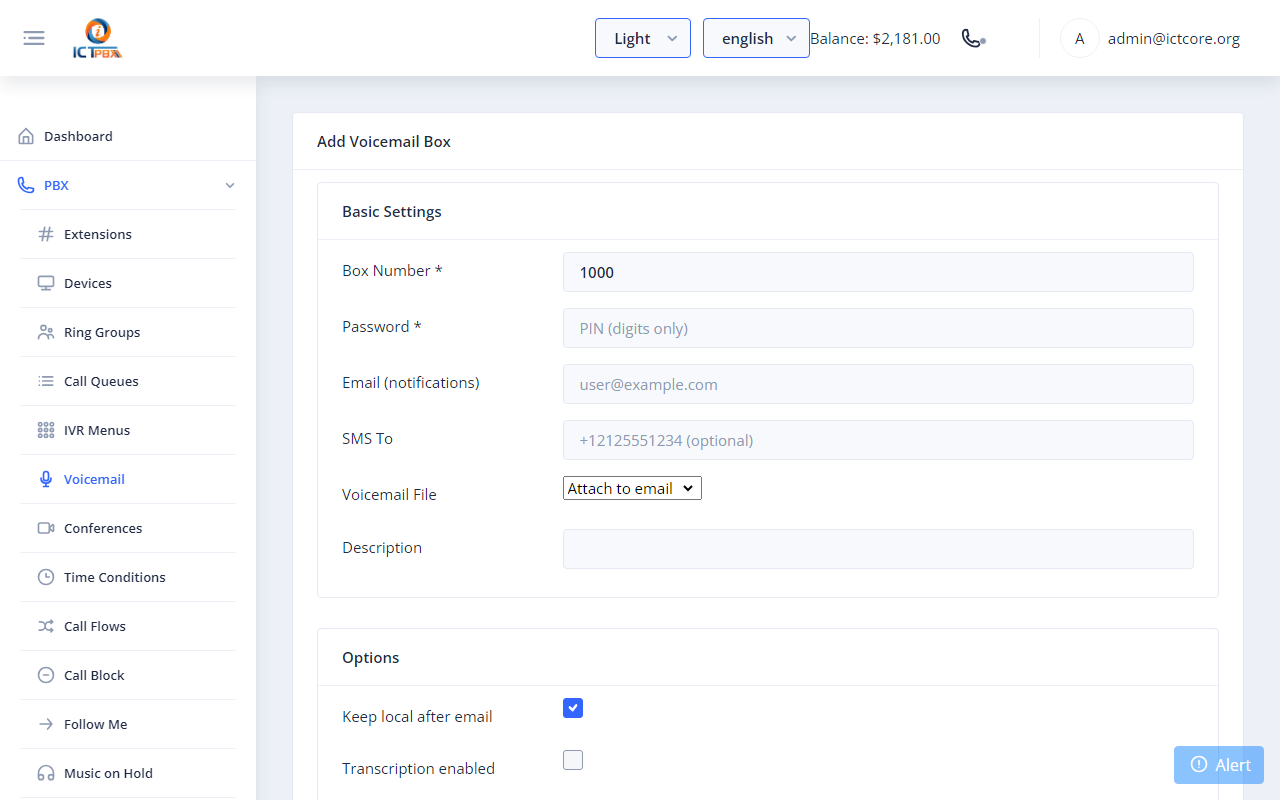
Fig 9-2 - Add Voicemail formTo check your messages, dial *99 followed by your mailbox number from any registered extension (for example *991001), then enter your PIN.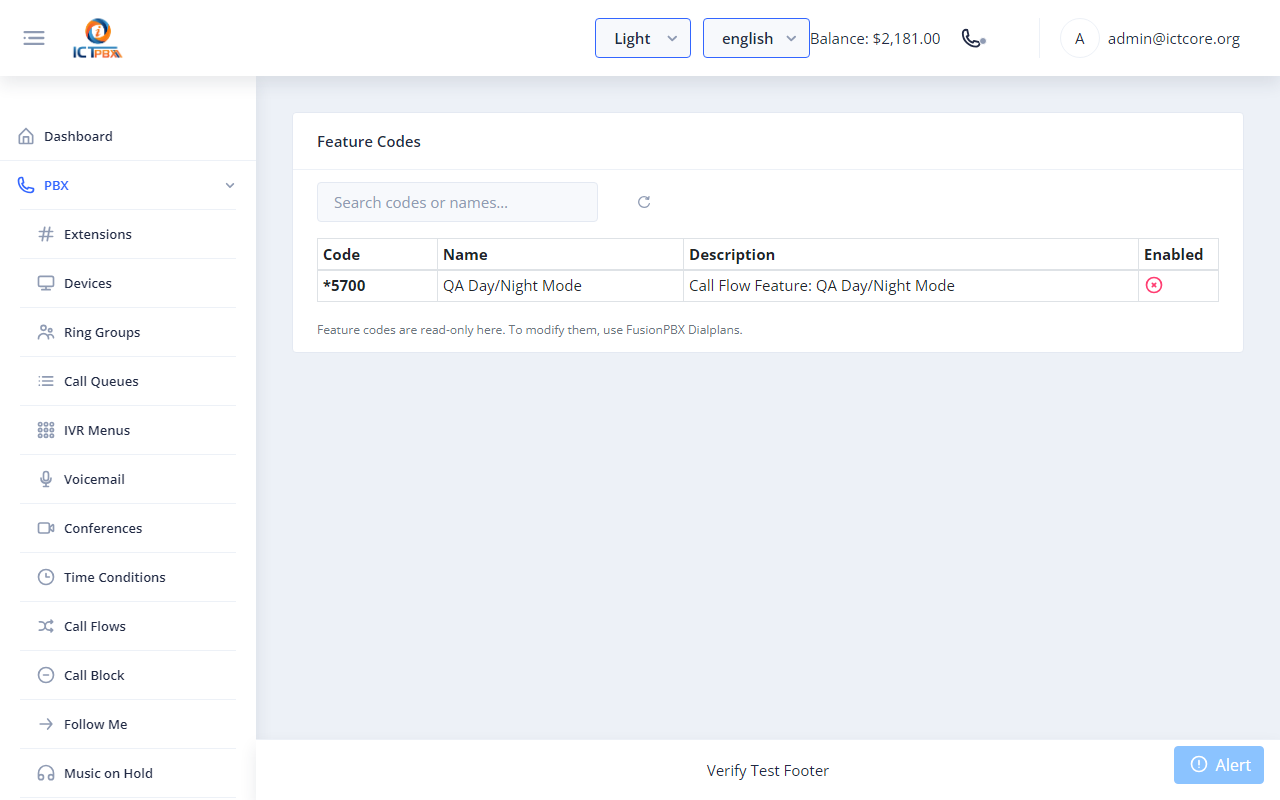
Fig 9-3 - Feature Codes page. It's a read-only list, and not every code on it is active. Use *99 plus your mailbox number to check voicemail.
10. Routing Your DID (Inbound Route)
Map each DID to a destination. Go to PBX → Inbound Routes → Add Inbound Route.| Field | Notes |
|---|---|
| DID Number | Must match exactly as stored in Routing → DID Numbers |
| Destination Type | IVR Menu, Ring Group, Extension, or Voicemail |
| Destination | The specific object to route to |
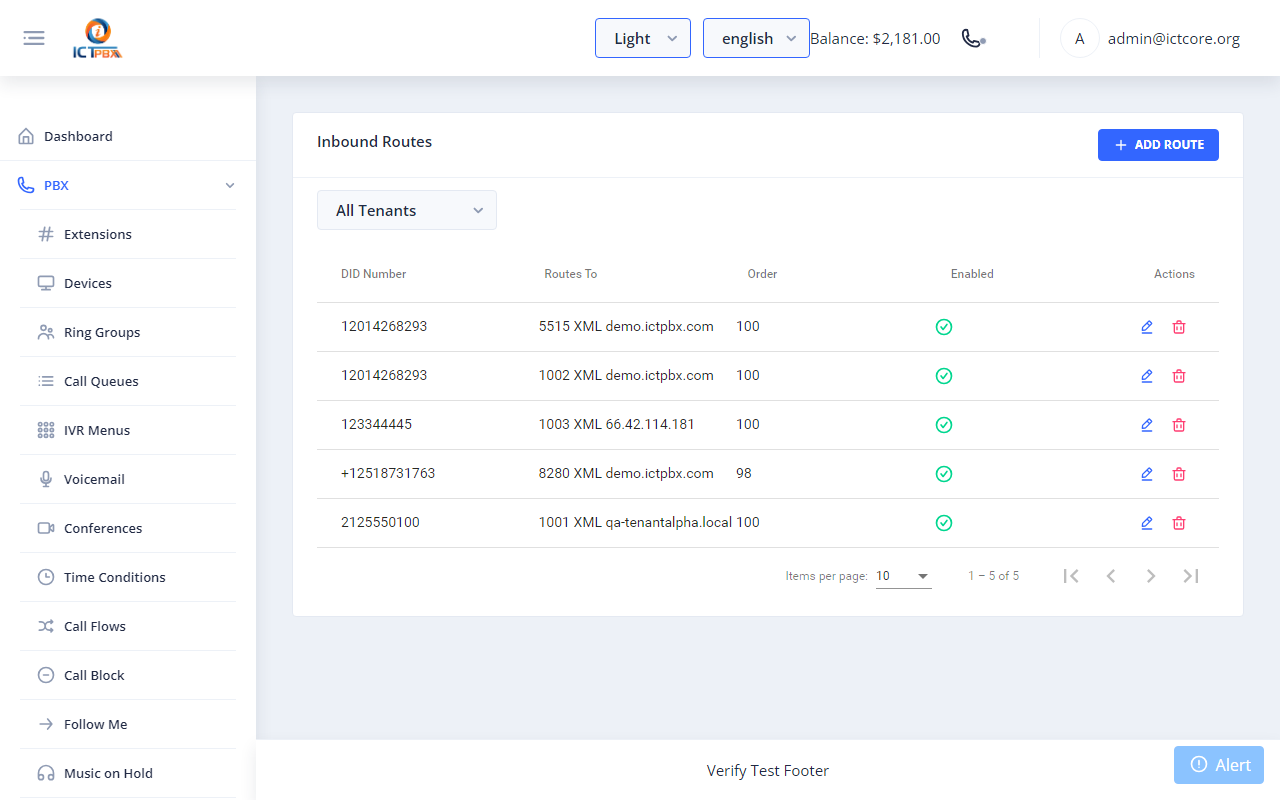
Fig 10-1 - Inbound Routes list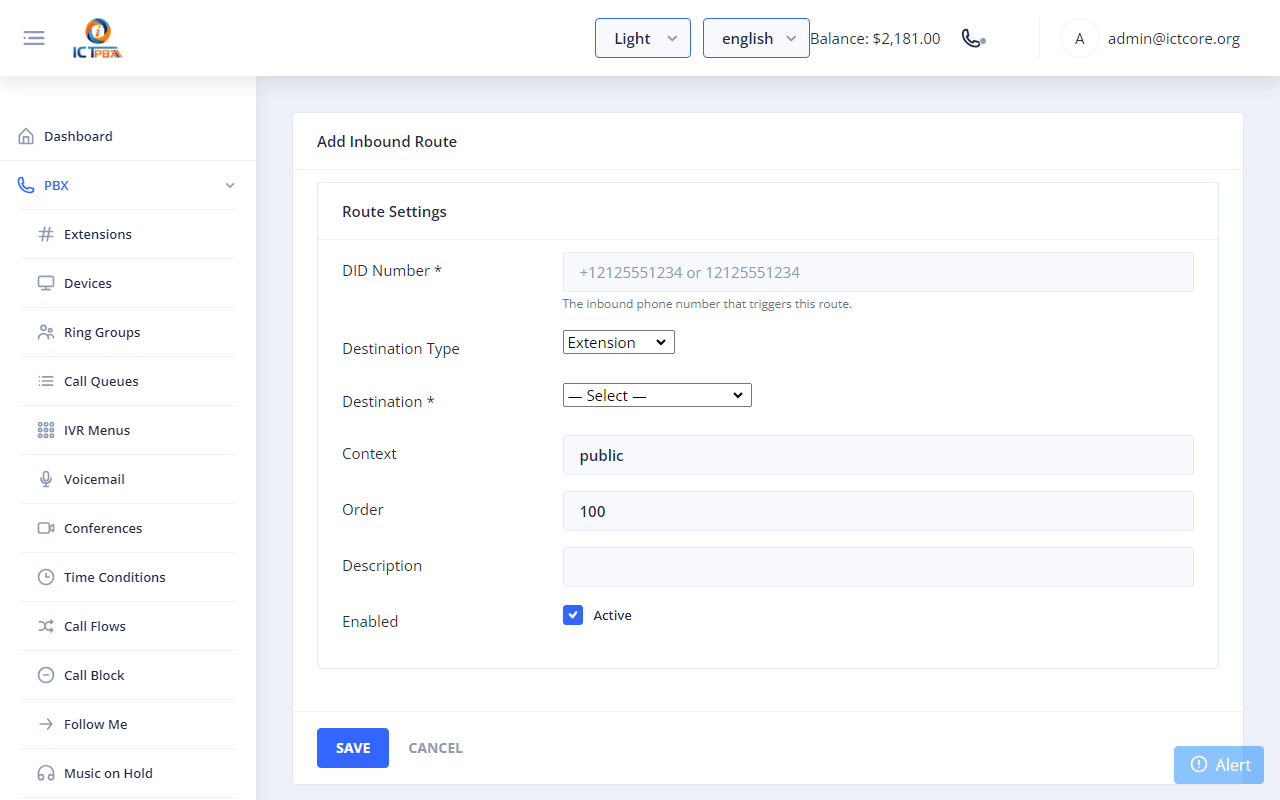
Fig 10-2 - Add Inbound Route formEach DID can have only one inbound route, and a second route for the same number is rejected. To send callers to a queue or a conference, route the DID to an IVR menu or ring group that leads there. Don't add an inbound route for a fax number, because a voice route wins and the fax never arrives.
| Scenario | DID routes to |
|---|---|
| Auto-attendant | IVR Menu |
| Team hunt | Ring Group |
| Direct line | Single Extension |
| Always-voicemail line | Voicemail |
11. Making & Transferring Calls via WebPhone
Extension-to-Extension Call
Open the softphone dialpad, type the target extension number, and click Call. The receiving extension rings in its softphone panel - click Answer to connect.Outbound PSTN Call
Type the number in E.164 format (e.g. +12125550100) in the dialpad and click Call. The system selects the matching outbound route and trunk automatically.Call Transfer
| Type | How | What happens |
|---|---|---|
| Blind | Click Transfer → Blind → enter ext → confirm | Call immediately forwarded; you disconnect |
| Attended | Click Transfer → Attended → enter ext → announce | You speak to recipient first, then complete or cancel |
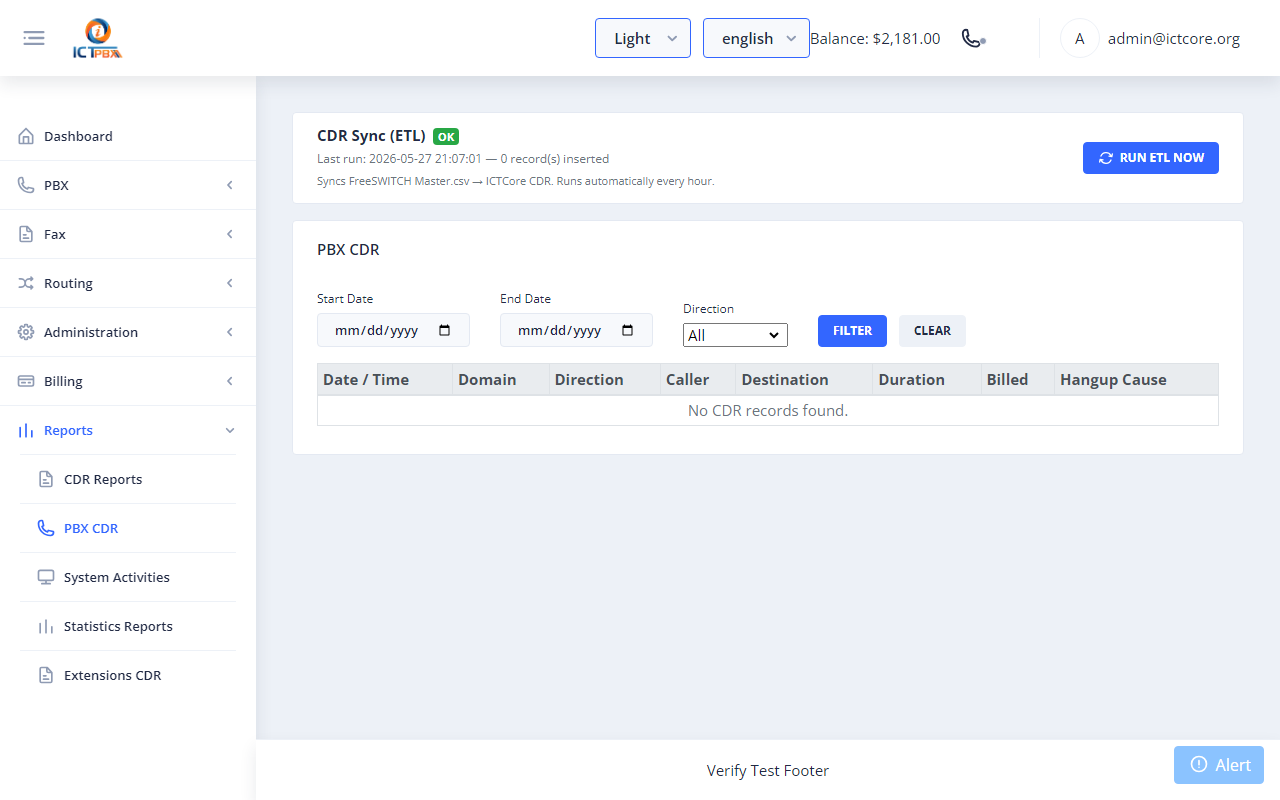
Fig 11-1 - PBX CDR showing call direction, duration, and disposition
12. Follow Me
Follow Me also rings other phones, such as your mobile, when someone calls your extension. Go to PBX → Follow Me, or use the Follow Me tab on the extension.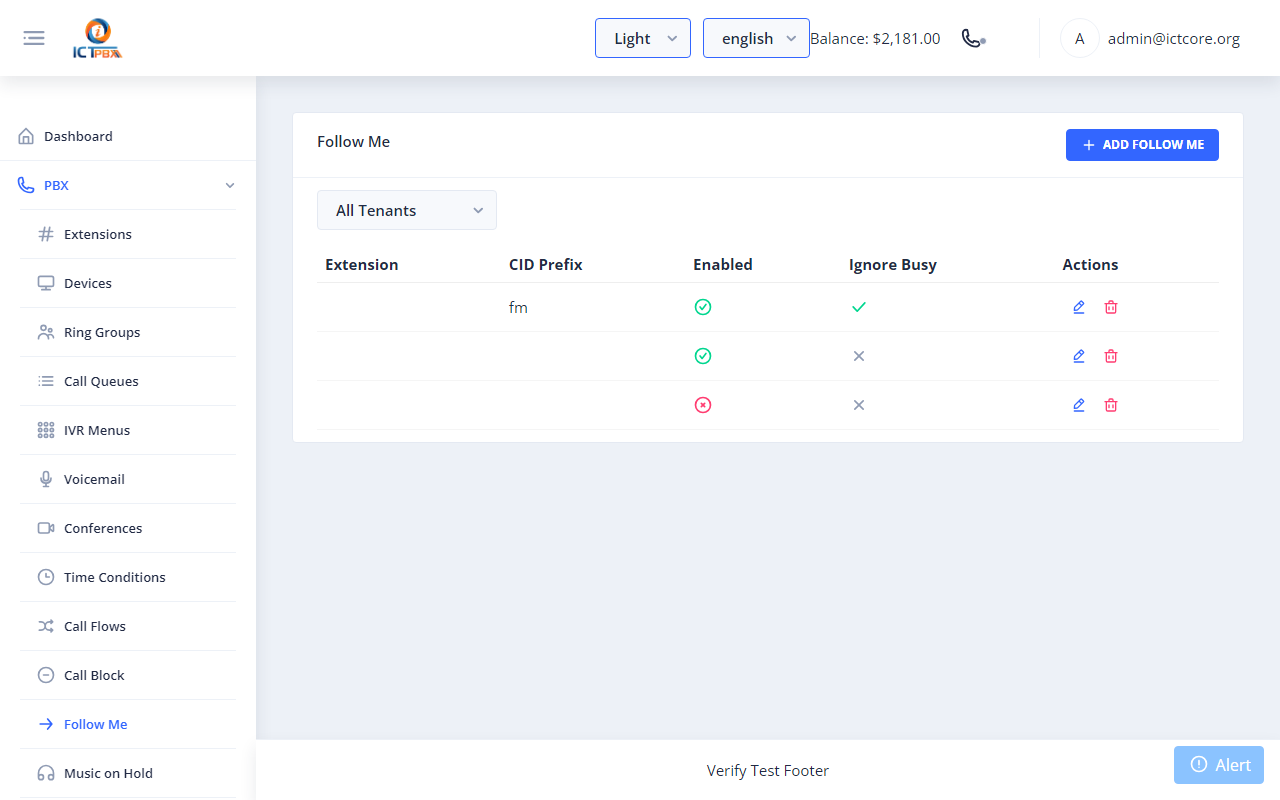
Fig 12-1 - Follow Me listEach entry belongs to one extension. Click Add Destination to add an extension or an external number, each with its own delay, timeout and order. It works for direct calls, ring group calls and IVR transfers. External numbers go out through your outbound routes and are billed as normal outbound calls.
13. Sending and Receiving Fax
13a. Send a Fax
- Go to Fax → Send Fax and click New Outbound Fax.
- Enter a title, then upload a document or pick one from Fax Documents.
- Choose your Caller ID (one of your own fax lines) and the recipient. Add a cover page if you want one.
- Submit. The fax joins the queue and goes out shortly after.
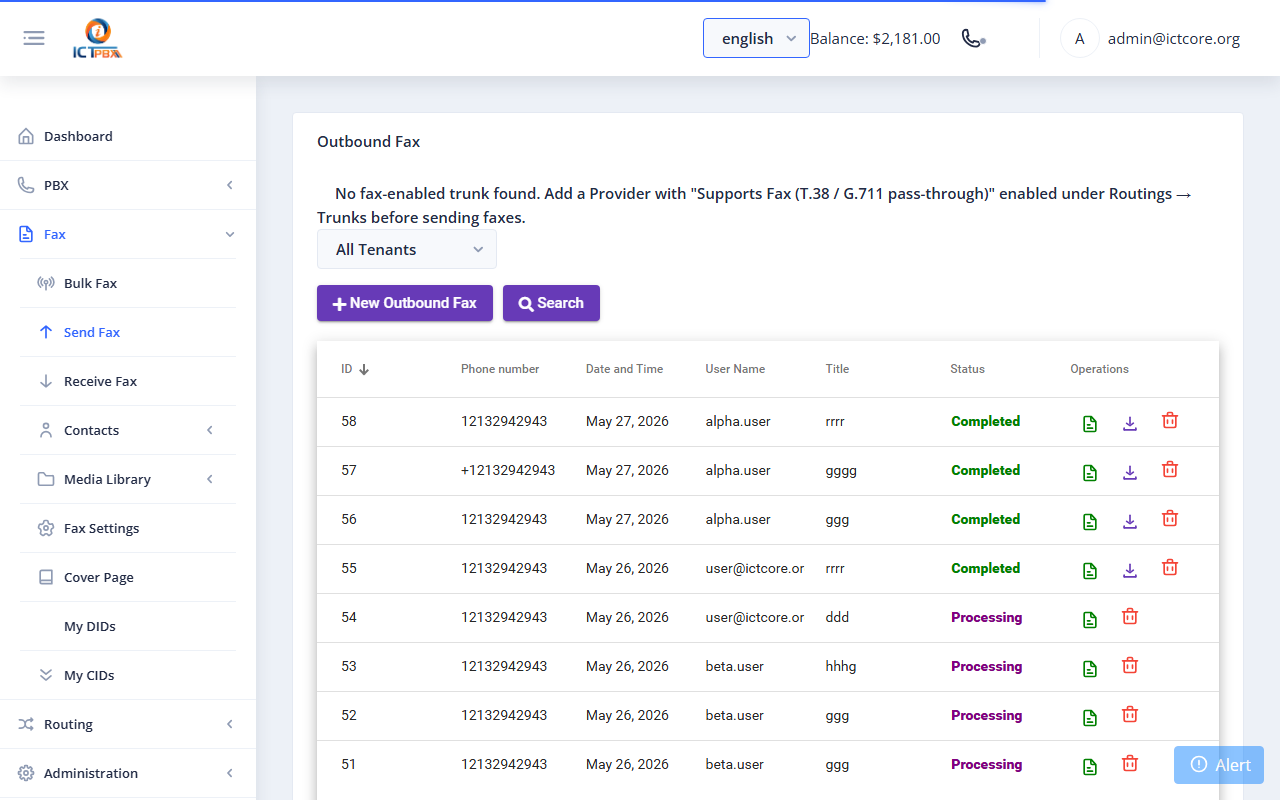
Fig 13-1 - Send Fax pageUpload documents you send often at Fax → Media Library → Fax Documents, so you don't have to upload them each time.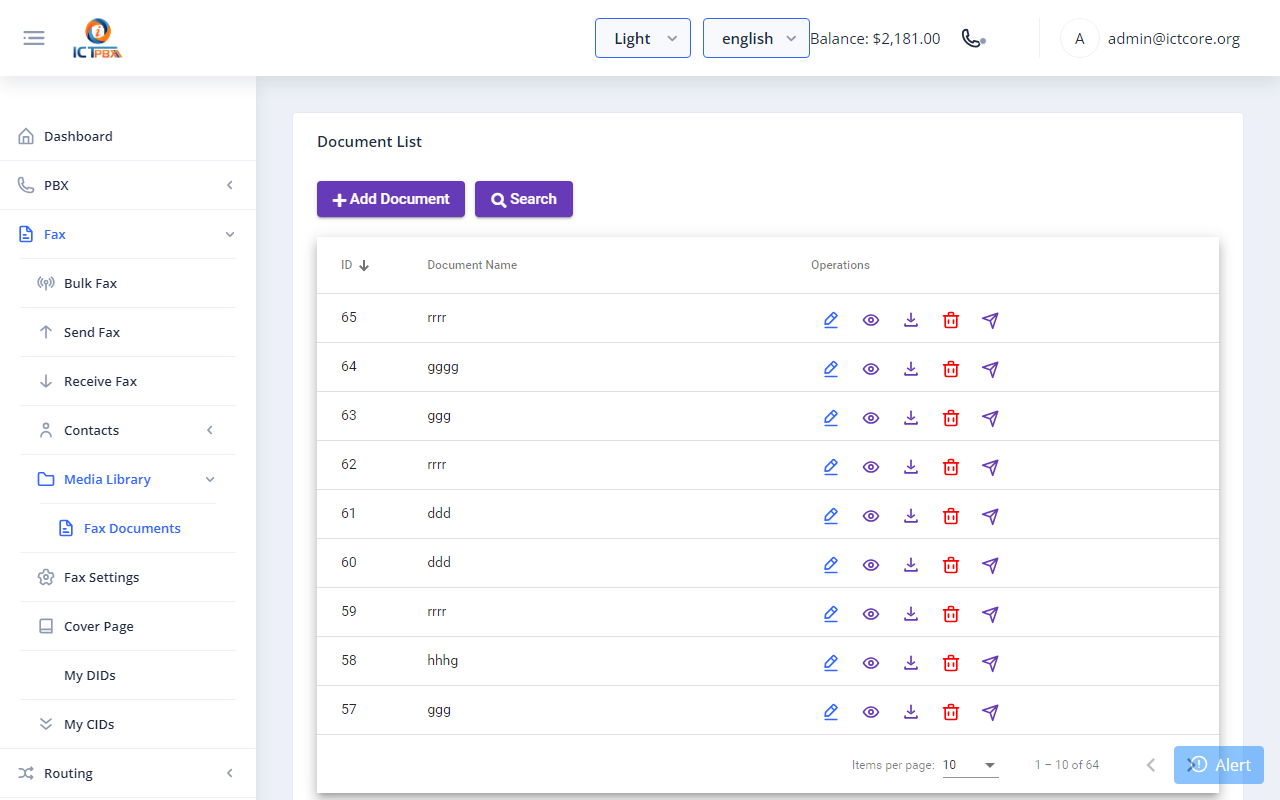
Fig 13-2 - Fax Documents library
13b. Receive a Fax
A fax line is an extension with its type set to Fax.- Go to PBX → Extensions → Add Extension. Set Extension Type to Fax and enter a Fax Delivery Email.
- Go to Fax → My DIDs (admins can also use Routing → DID Numbers) and click Forward on the number.
- Choose Forward to Extension and pick the fax extension, or choose Fax to Email and enter an address.
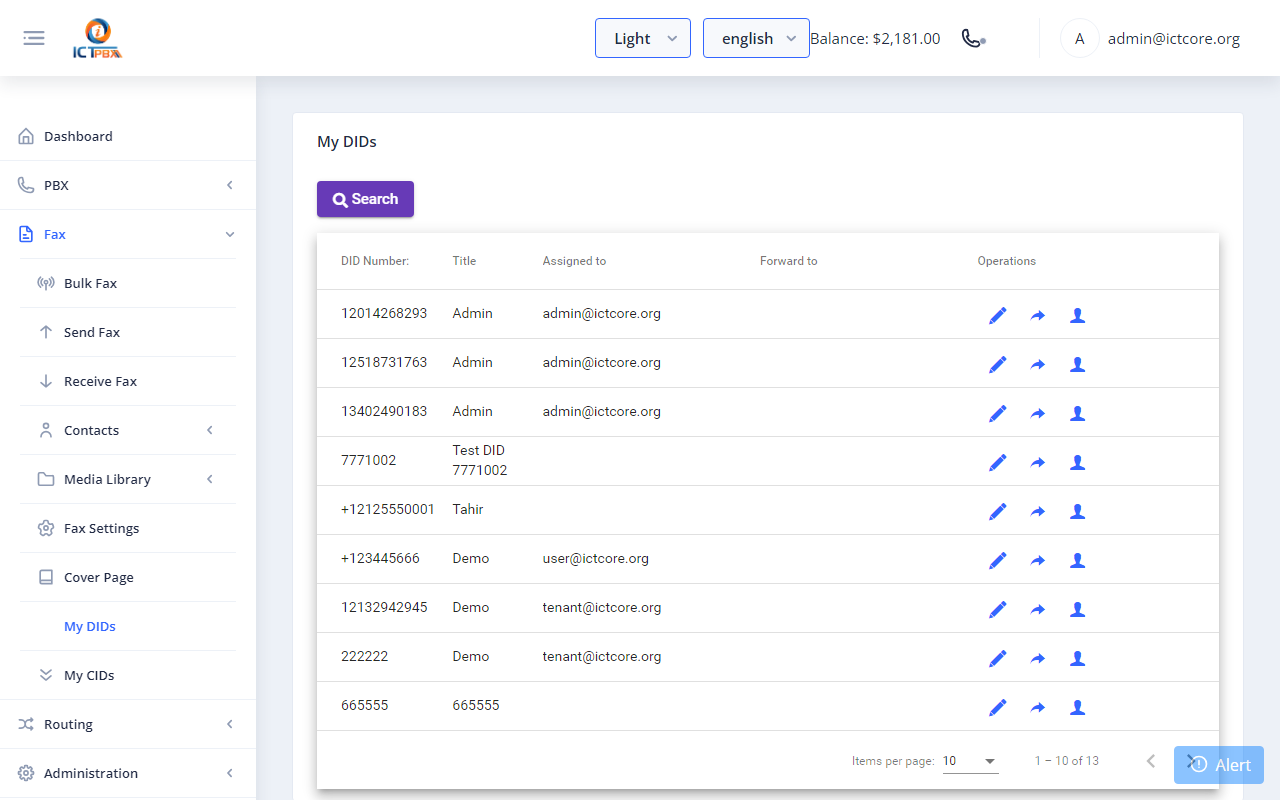
Fig 13-3 - My DIDs - click Forward on a number to send its faxes to a fax extension or an email address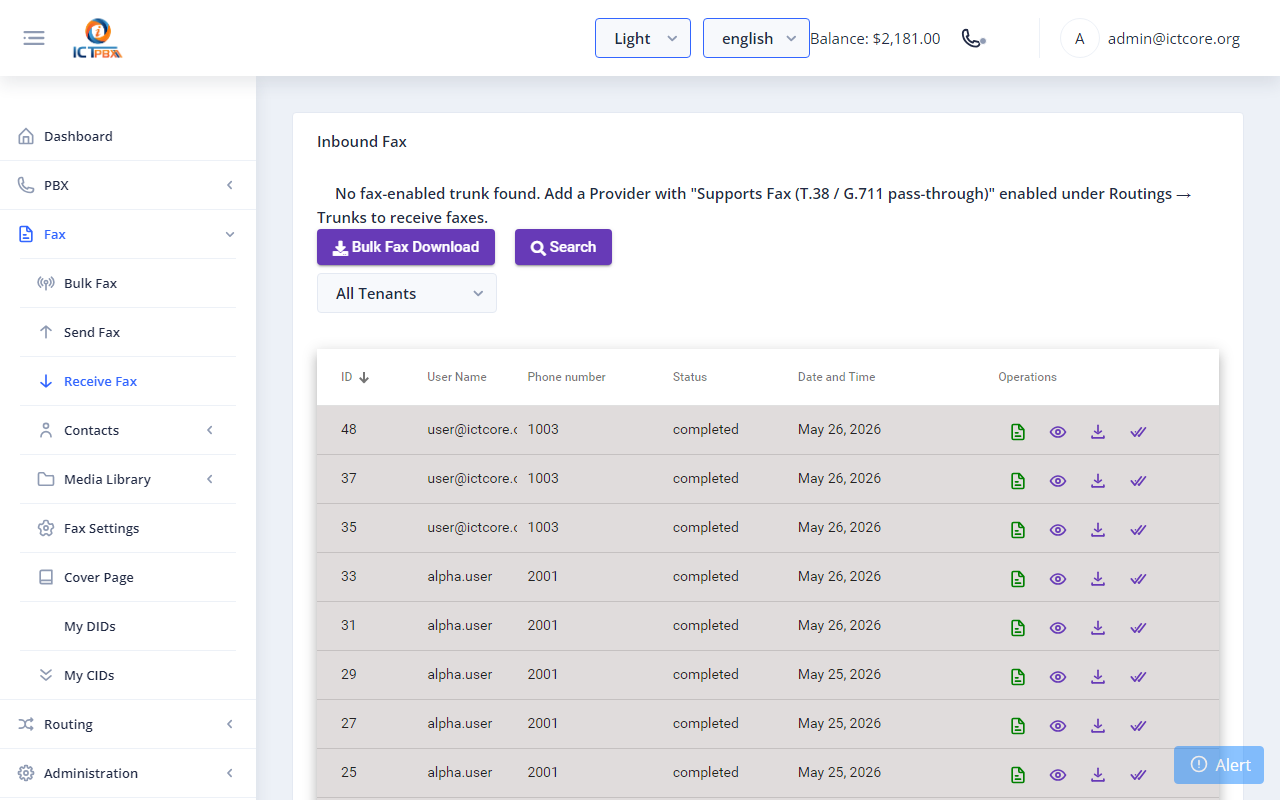
Fig 13-4 - Receive Fax list - download or preview each fax as PDF
13c. Email Delivery
A received fax is emailed as an attachment when the fax extension has a Fax Delivery Email, or when the DID is forwarded with Fax to Email. Fax → Fax Settings holds your sending defaults: the cover page, sending an email's body as a page, and the retry interval.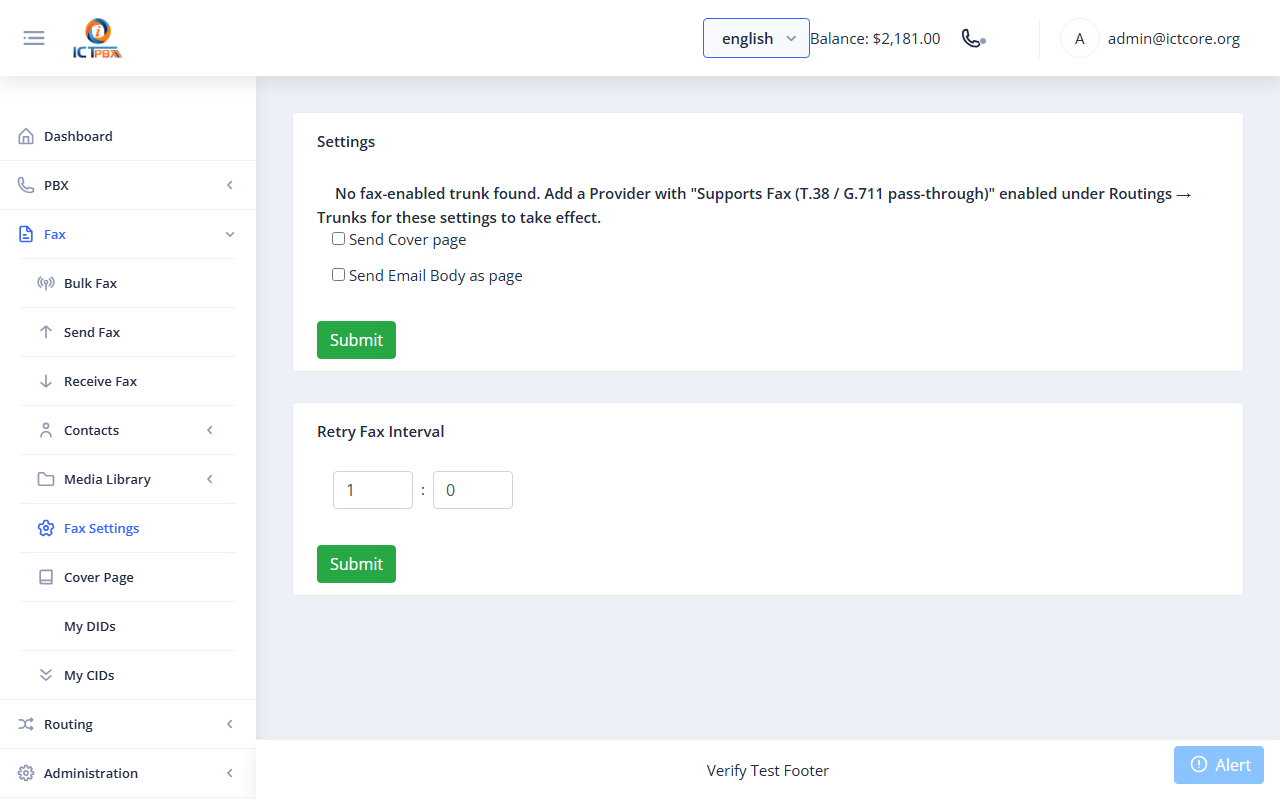
Fig 13-5 - Fax Settings page
14. Billing - Overview
ICTPBX Service Provider Edition includes a full billing engine covering packages, resource quotas, usage tracking, and credit-based deductions. Community Edition does not include billing.| Concept | Description |
|---|---|
| Package | A named bundle of PBX slot limits (extensions, ring groups and so on) plus the voice minutes, fax pages and conference minutes included free each month |
| Subscription | Assigns a Package to a Tenant - one active subscription per tenant at a time |
| Quota | Per-tenant resource counters derived from the assigned package |
| Rate | Per-minute (voice) or per-page (fax) charge applied above the free-tier included in the package |
| Credit | Pre-paid balance held on the tenant; deducted when billable usage exceeds free-tier quota |
| Payment | Manual credit top-up recorded by admin against a tenant |
14a. Packages (Admin only)
A Package defines what a tenant can use. Go to Billing → Packages → Add Package.| Resource slot | Resource ID | Notes |
|---|---|---|
| Extensions | 15 | Max SIP extensions |
| Devices | 16 | Max SIP devices |
| Ring Groups | 7 | Max ring groups |
| Call Queues | 8 | Max call queues |
| IVR Menus | 17 | Max IVR menus |
| Voicemail Boxes | 9 | Max voicemail boxes |
| Conferences | 10 | Max conference rooms |
| Music on Hold | 11 | Max MOH entries |
| Voice Minutes/mo | 12 | Free minutes included per month before per-minute billing applies |
| Fax Pages/mo | 13 | Free pages included per month before per-page billing applies |
| Conference Min/mo | 14 | Free conference minutes included per month |
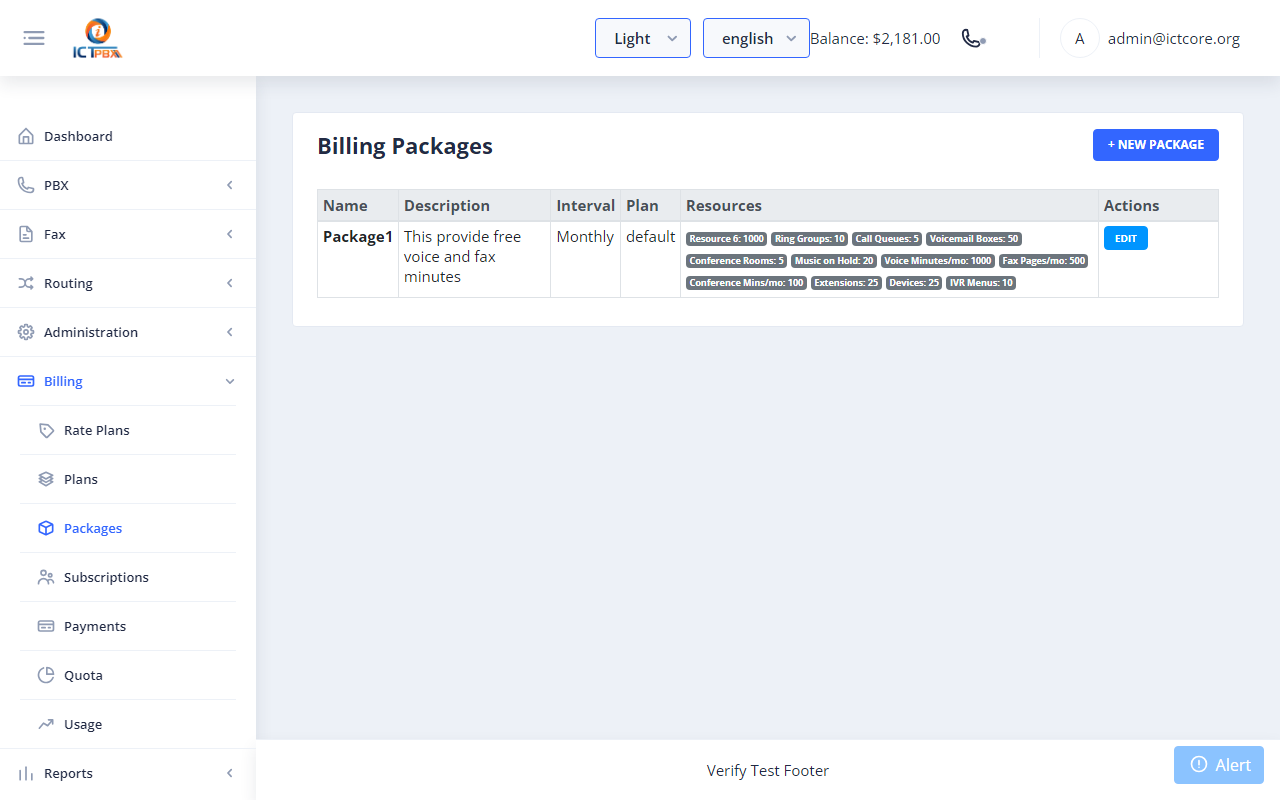
Fig 14-1 - Packages list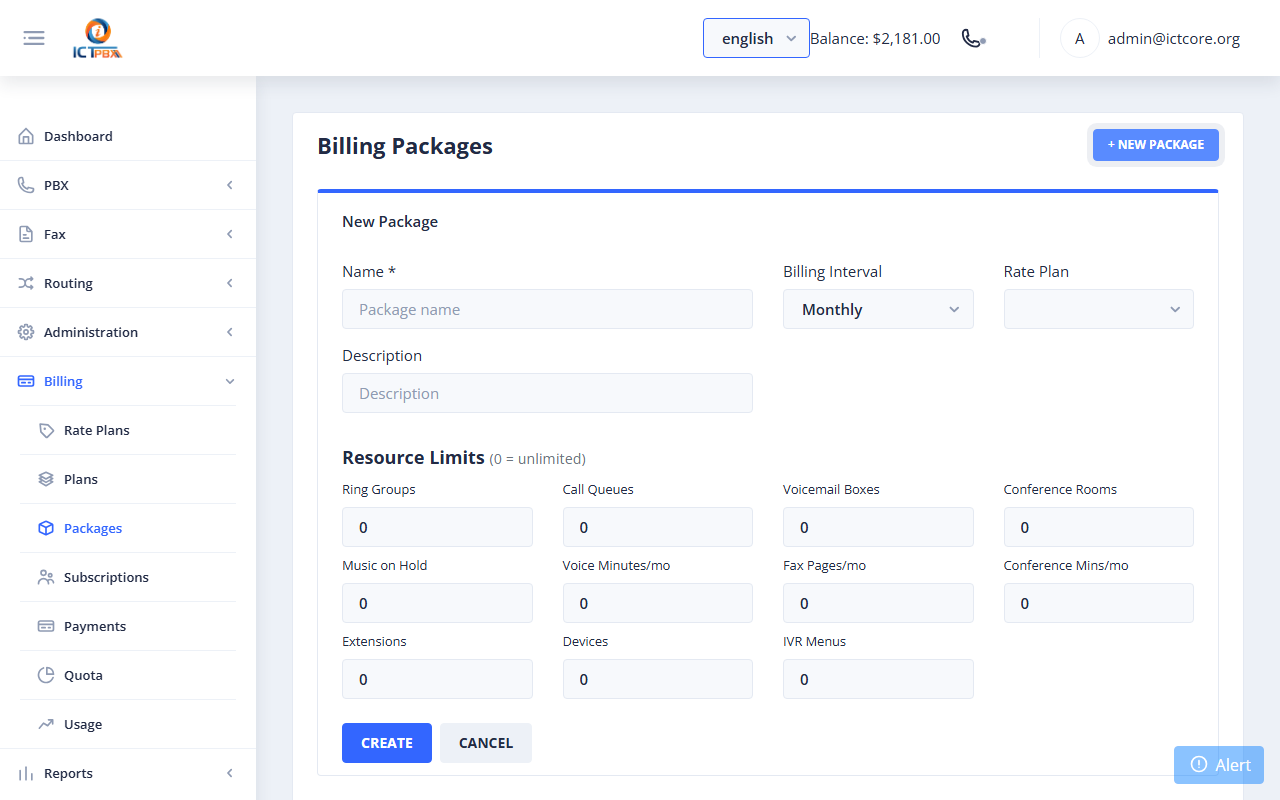
Fig 14-2 - Add Package form - 11 resource limits in a grid
14b. Subscriptions (Admin only)
Assign a Package to a Tenant. Go to Billing → Subscriptions. Each row shows the tenant and their current package. Click Change Package on a row to move the tenant to another package, or use Suspend and Activate.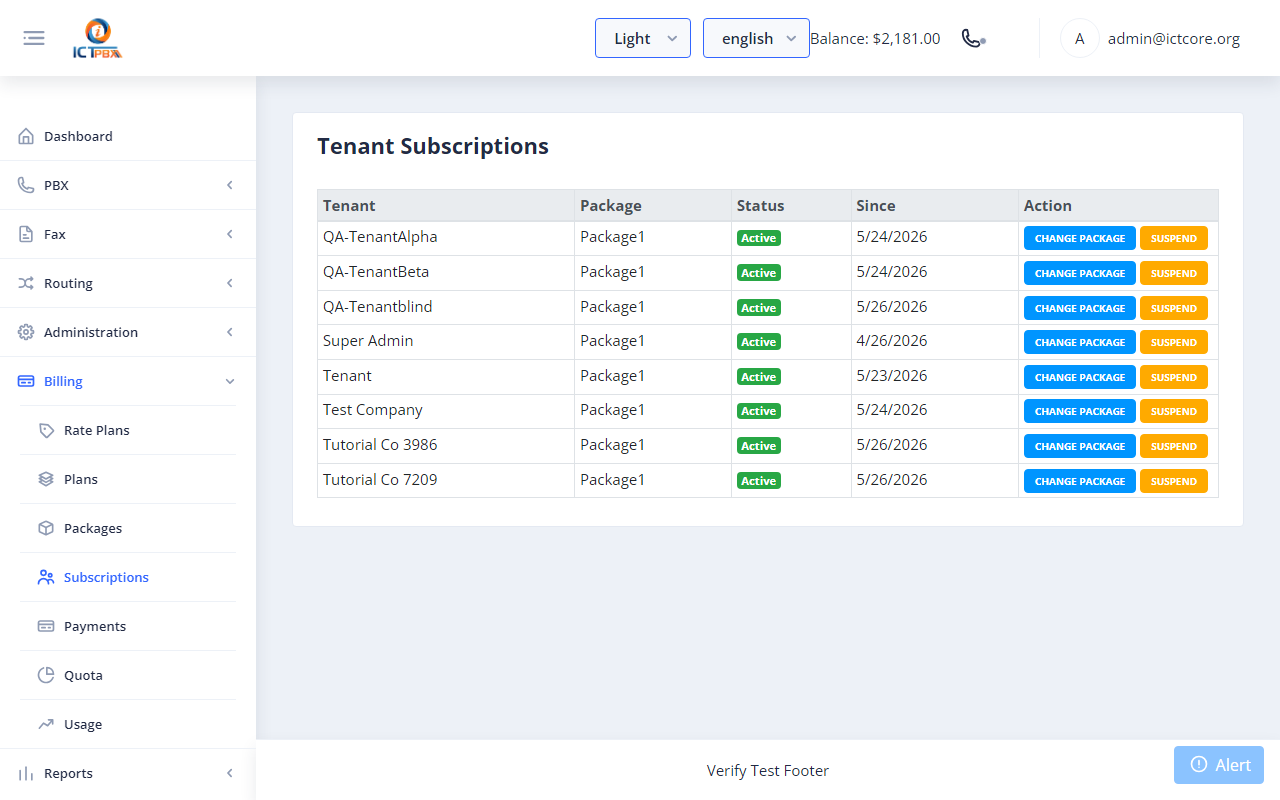
Fig 14-3 - Subscriptions page - inline package reassignment per tenantNote: Reassigning a package deactivates the old subscription and immediately seeds new quota rows from the new package.
14c. Rate Plans (Admin only)
Rate plans set the per-unit charge for usage above the free tier, by service and billing block. Go to Billing → Rate Plans.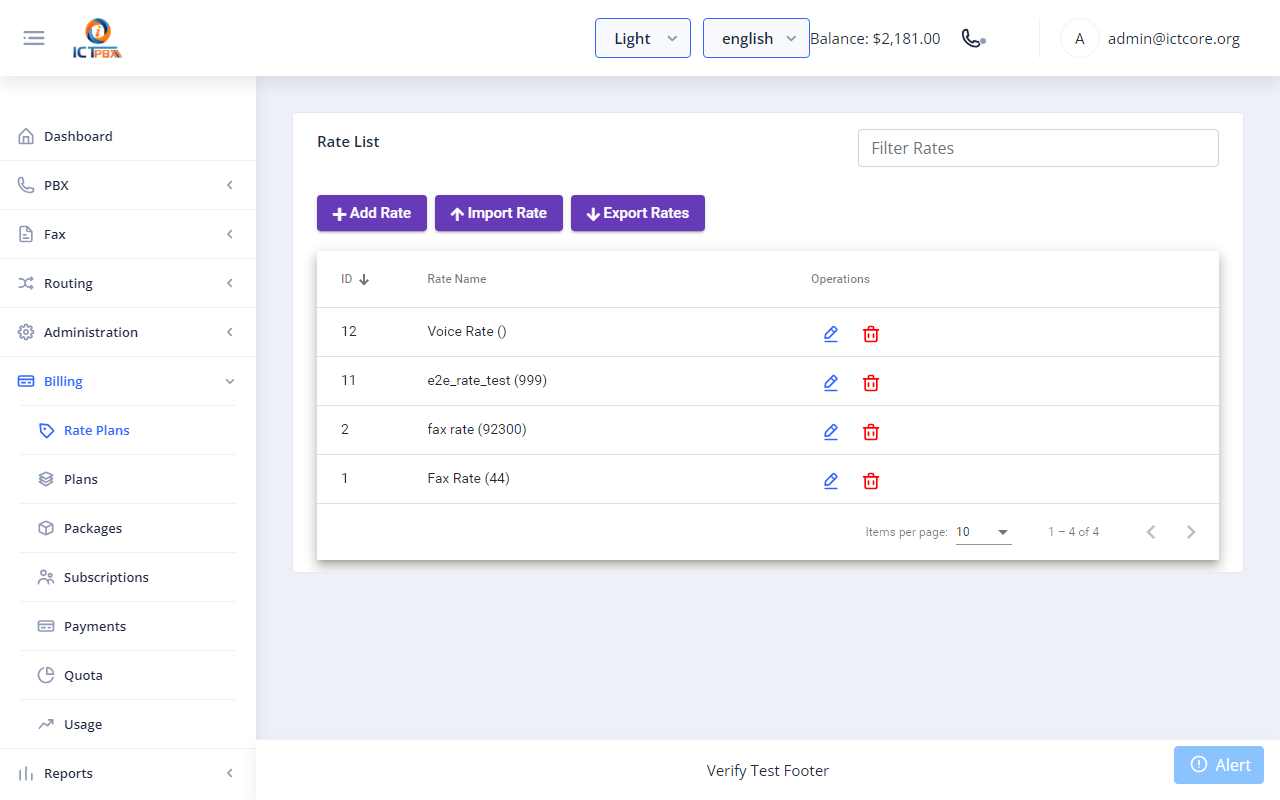
Fig 14-4 - Rate Plans list
14d. Plans (Admin only)
Plans group rates together, and you assign a plan to a package. Go to Billing → Plans.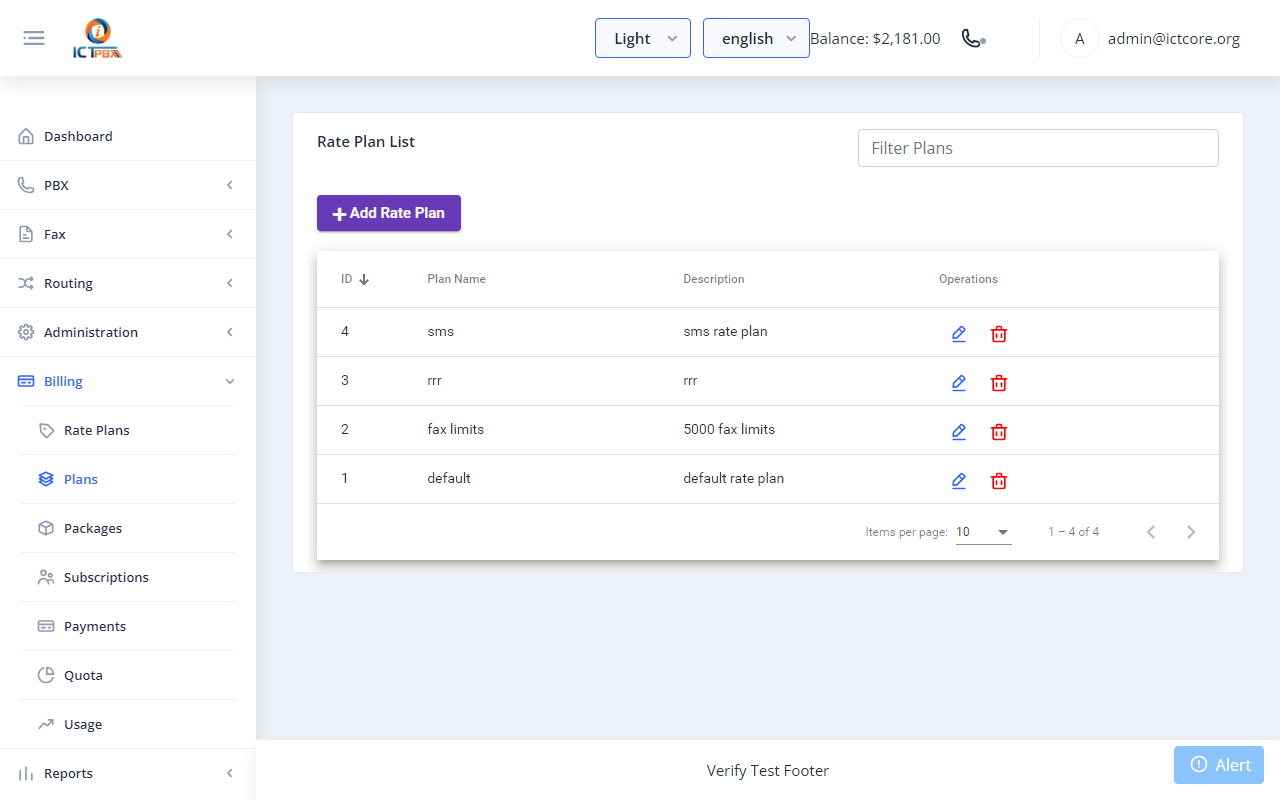
Fig 14-5 - Plans list
14e. Payments (Admin only)
Payments are manual credit top-ups applied to a tenant account. Go to Billing → Payments → Add Payment.| Field | Notes |
|---|---|
| Tenant | Select the organisation to credit |
| Amount | Credit amount to add to the tenant balance |
| Note | Optional reference (invoice number, payment method) |
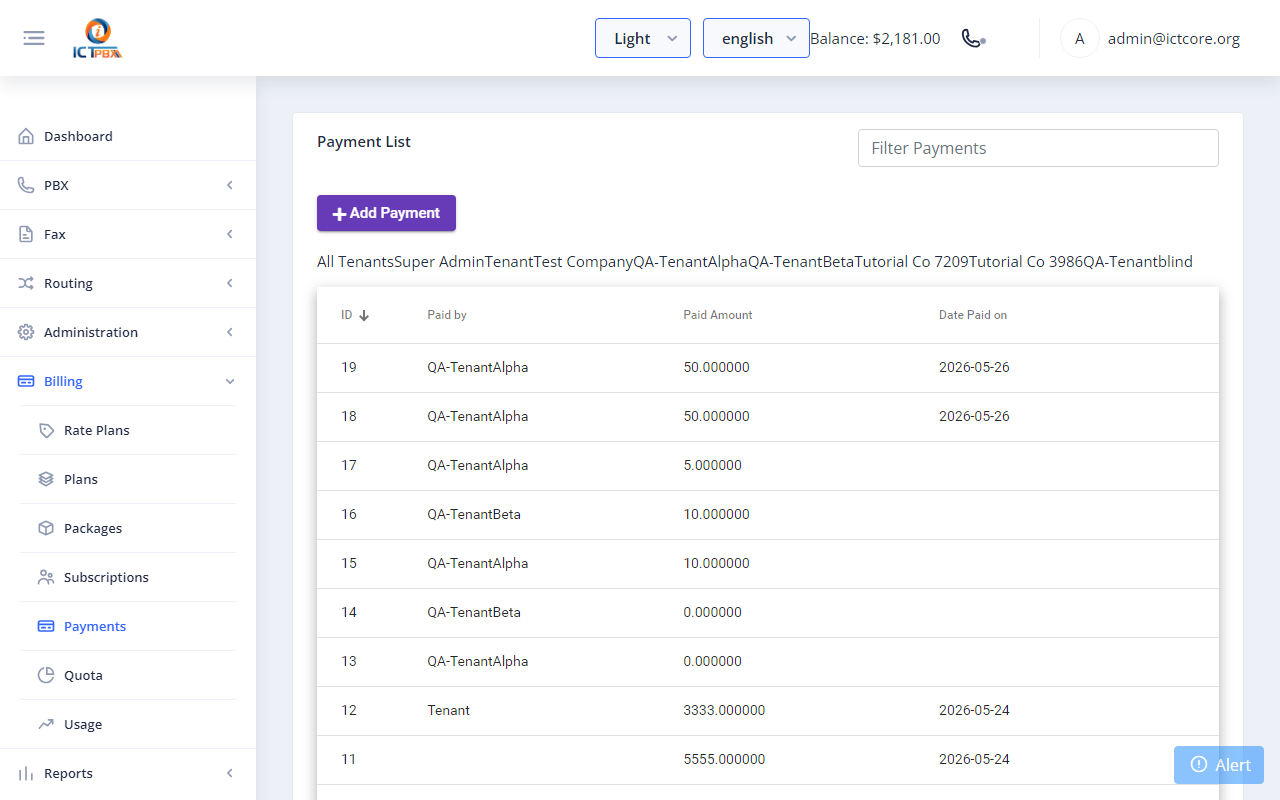
Fig 14-6 - Payments list - each row shows tenant, amount, and date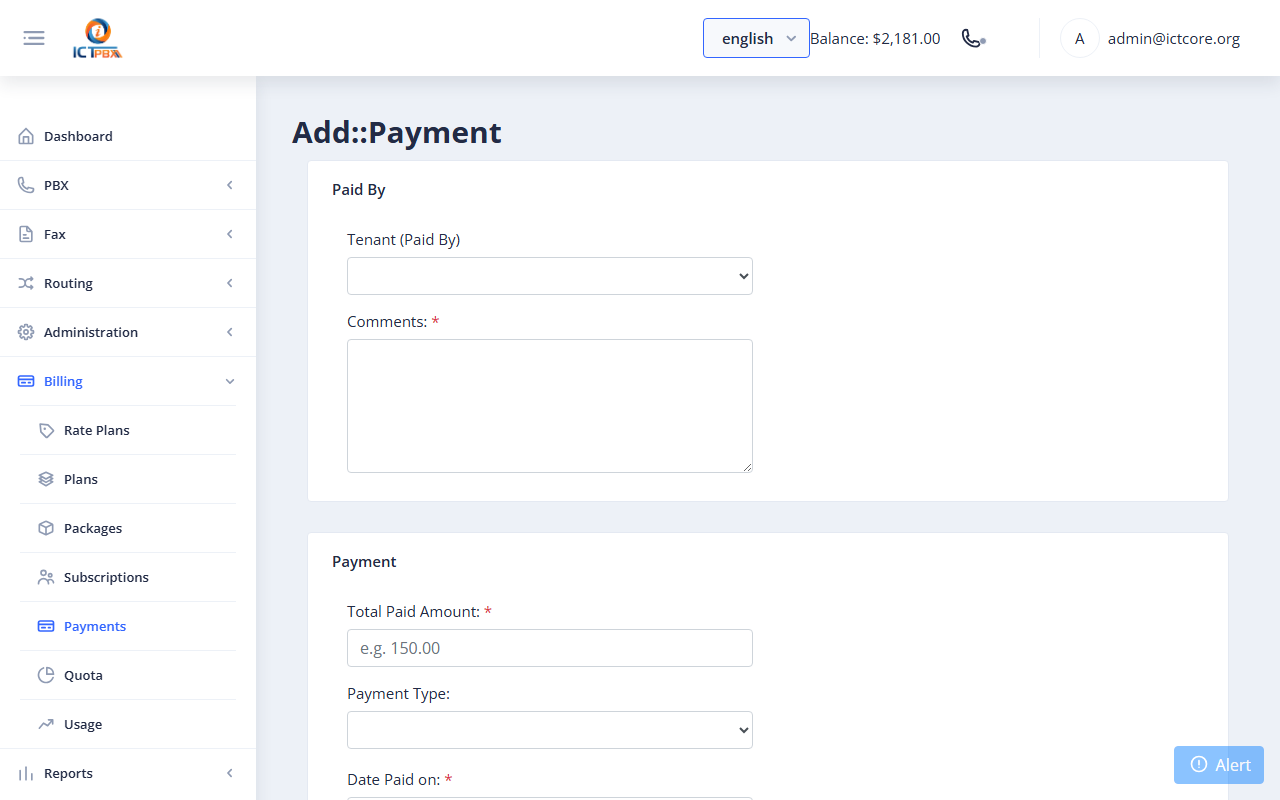
Fig 14-7 - Add Payment form
14f. Quota (Admin, Tenant Admin, End User)
Go to Billing → Quota (end users: My Quota). You'll see slot usage against the package limits for each PBX resource, plus this month's voice, fax and conference usage against the free allowance.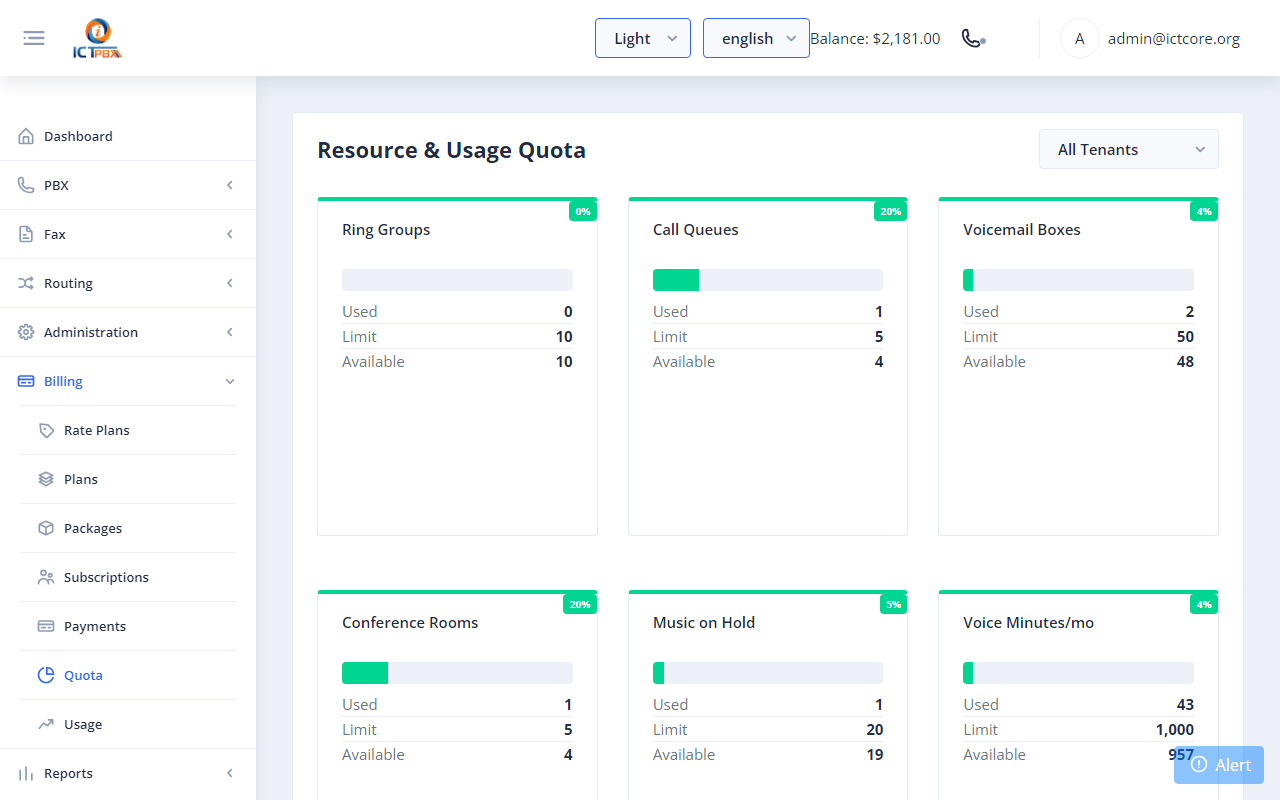
Fig 14-8 - Quota page - slot cards and usage cards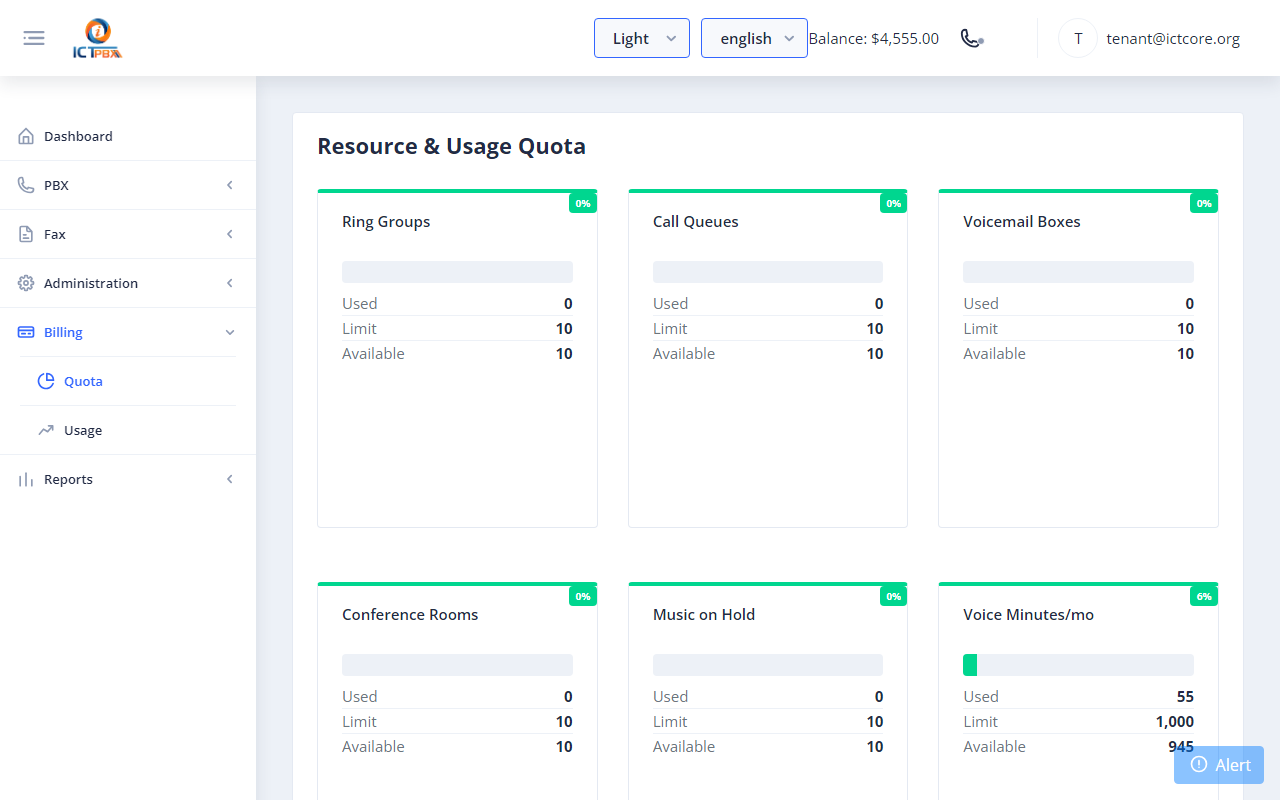
Fig 14-9 - Quota page - tenant view (scoped to own tenant)
14g. Usage (Admin, Tenant Admin, End User)
Go to Billing → Usage (end users: My Usage) for a breakdown of actual usage and charges: calls made, faxes sent and minutes used in the current billing period.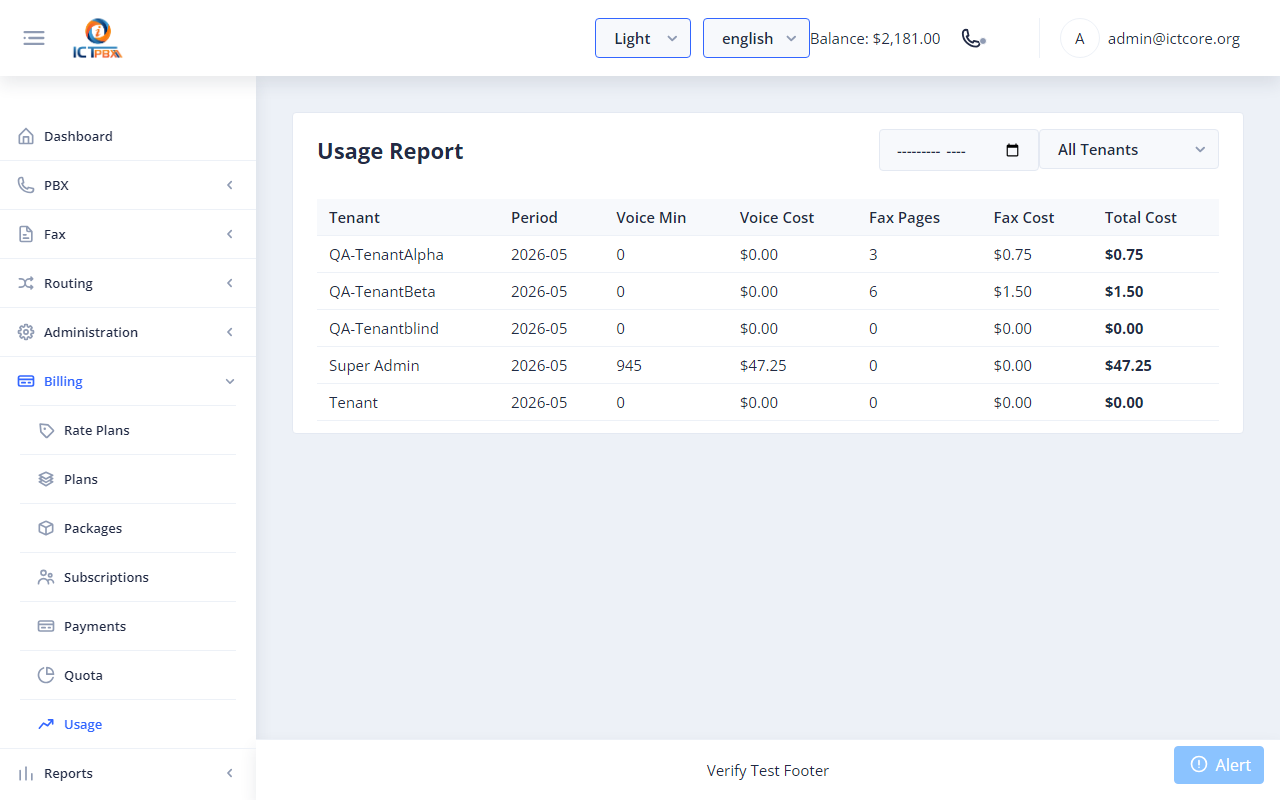
Fig 14-10 - Usage page
14h. How Credit Deduction Works
ICTPBX uses an "Option A" deduction model:- Each package includes a free-tier quota (e.g. 100 voice minutes/month, 50 fax pages/month).
- Usage within the free tier is tracked but no credit is deducted.
- Usage above the free tier is billed at the per-unit rate and deducted from
tenant.credit. Usage is processed hourly. - At the start of each new billing month,
quota_usedresets to 0 automatically. - Calls aren't cut off when a tenant's credit reaches zero. Set a low-credit alert threshold on the tenant (Section 17) so you hear about it in time.
15. Devices & Provisioning
ICTPBX auto-provisioning lets IP phones fetch their full configuration - SIP credentials, codecs, feature keys - automatically when they boot. No manual programming is needed on each phone.This section covers the end-to-end workflow for both Administrators and Tenant Administrators:- Creating a Device Profile - shared configuration template for a group of phones
- Registering a Device - linking a phone's MAC address to the PBX
- Adding a SIP Line - binding the device to an extension so it can call
- Using the Provisioning URL - the URL you enter (or push via DHCP option 66) to auto-configure the phone
15a. Key Concepts
Device Profile
A Device Profile is a reusable template of shared settings (codecs, DTMF mode, timezone, feature keys) applied to many phones of the same type. Updating a profile immediately affects all phones using it on their next reboot.Device
A Device is a single physical IP phone registered by its MAC address. Each device stores a label, vendor, model, optional profile, and one or more SIP Lines.SIP Line
A SIP Line links a device to a PBX extension. ICTPBX auto-fills the extension number, SIP password, server address, and display name into the phone's config file when it provisions. Every desk phone needs at least one line. A device with no line gets a blank configuration and never registers.Provisioning URL
After saving a device, ICTPBX generates a unique URL:https://<your-host>/provision/aabbccdd1122The 12-character suffix is the phone's MAC address (lowercase, no separators). Enter this in the phone's Auto Provision settings or DHCP option 66.15b. Administrator Workflow
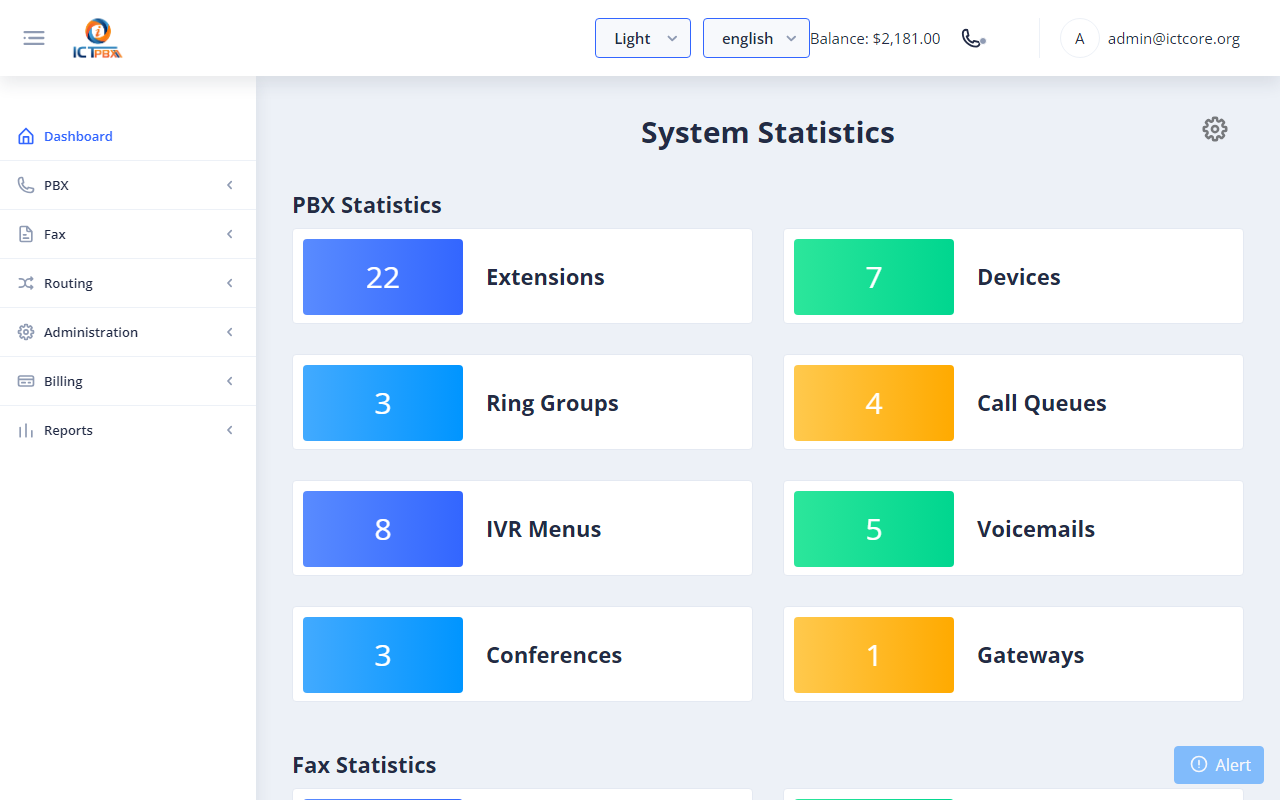
Fig 15-1 - Admin dashboard with PBX section in sidebar
Create a Device Profile
Step 1: PBX → Device Profiles → click Add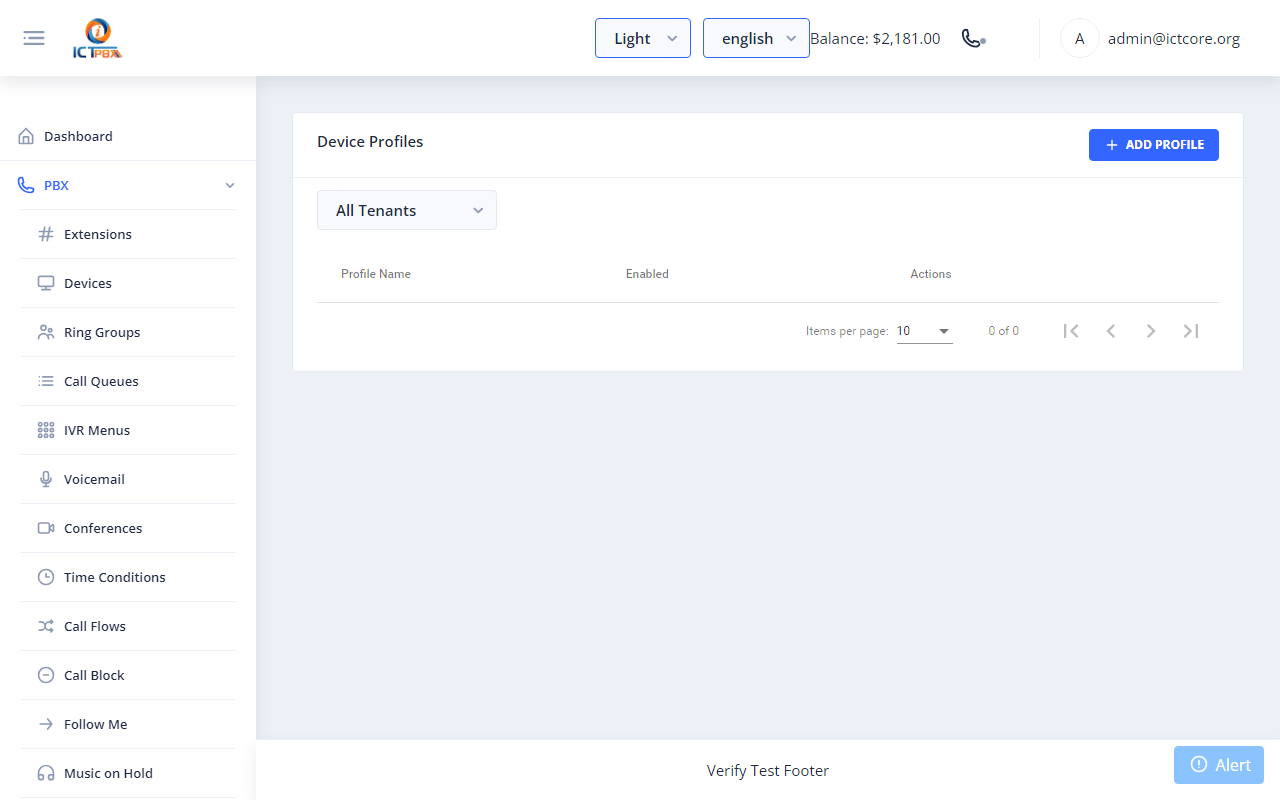
Fig 15-2 - Device Profiles listStep 2: Enter a Profile Name and Description, then click Save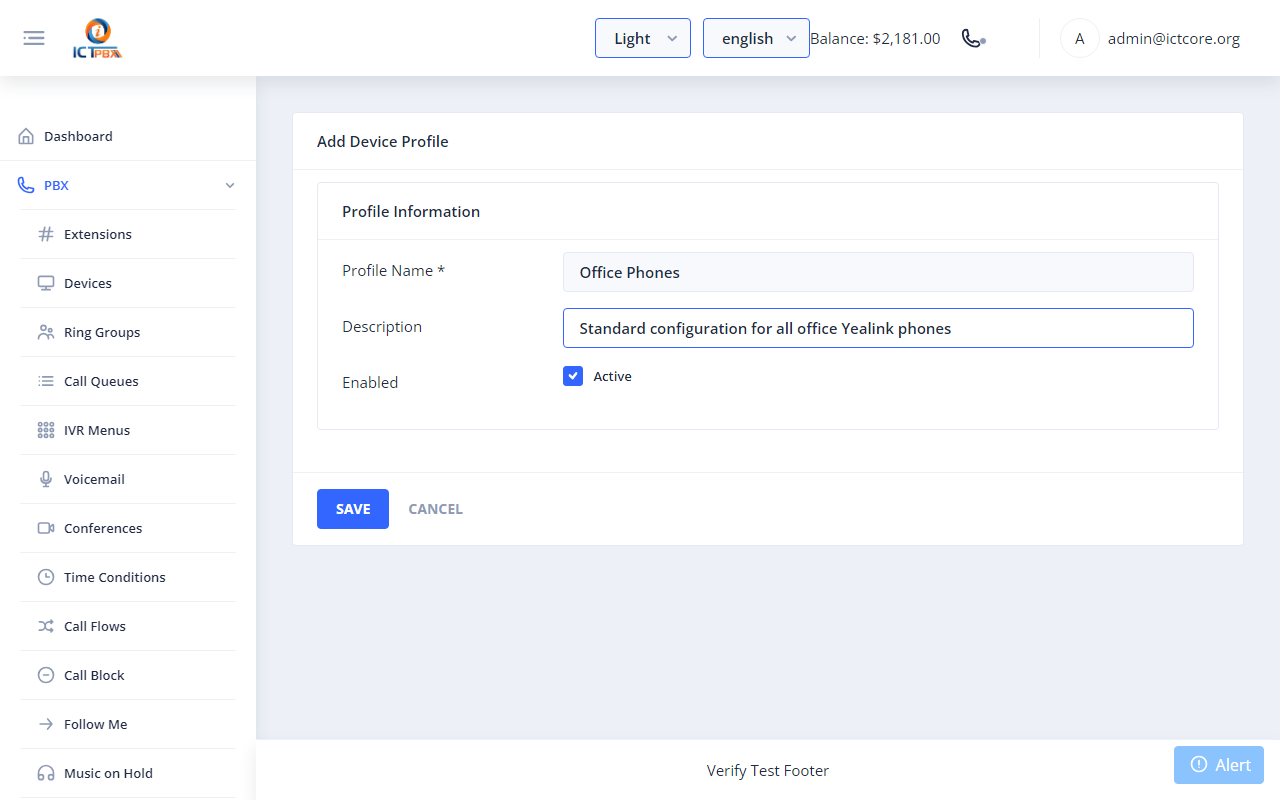
Fig 15-3 - Profile form filled in ("Office Phones")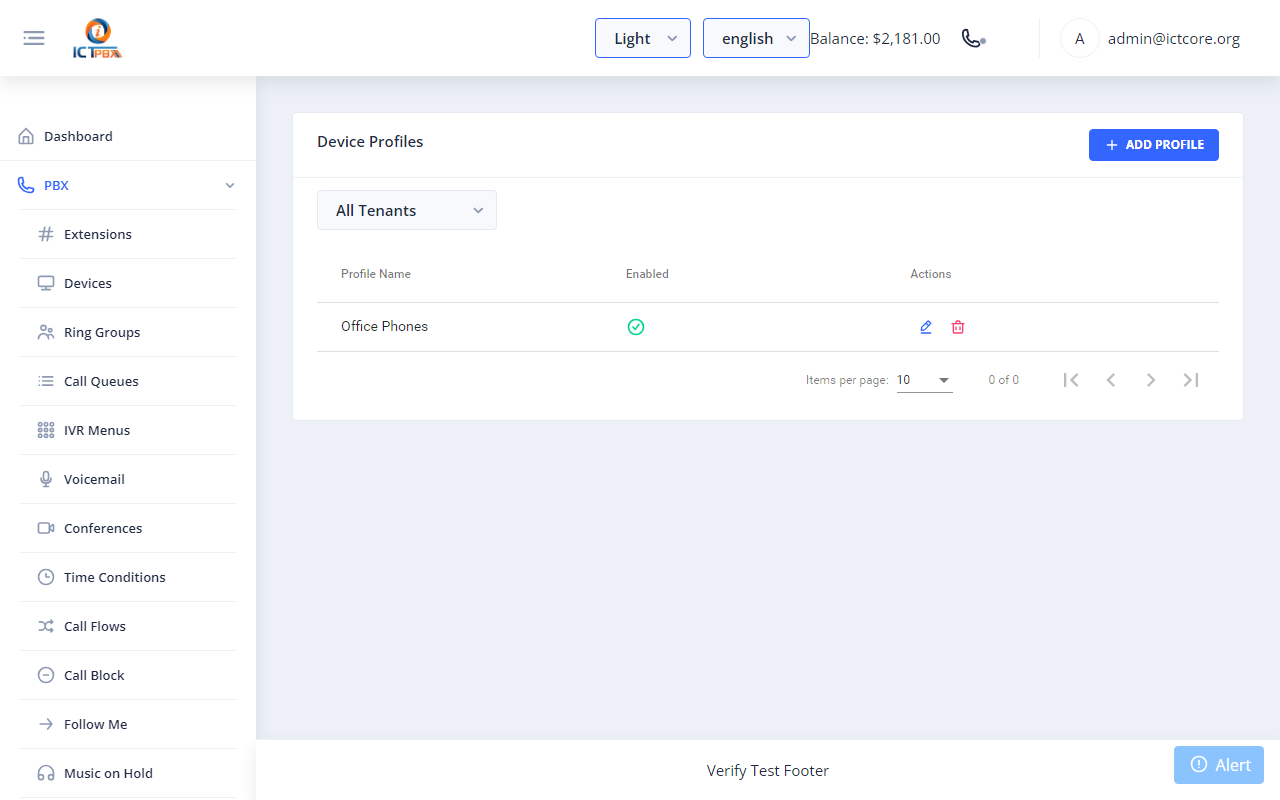
Fig 15-4 - Profile saved confirmation
Add a Device
Step 1: PBX → Devices → click Add Device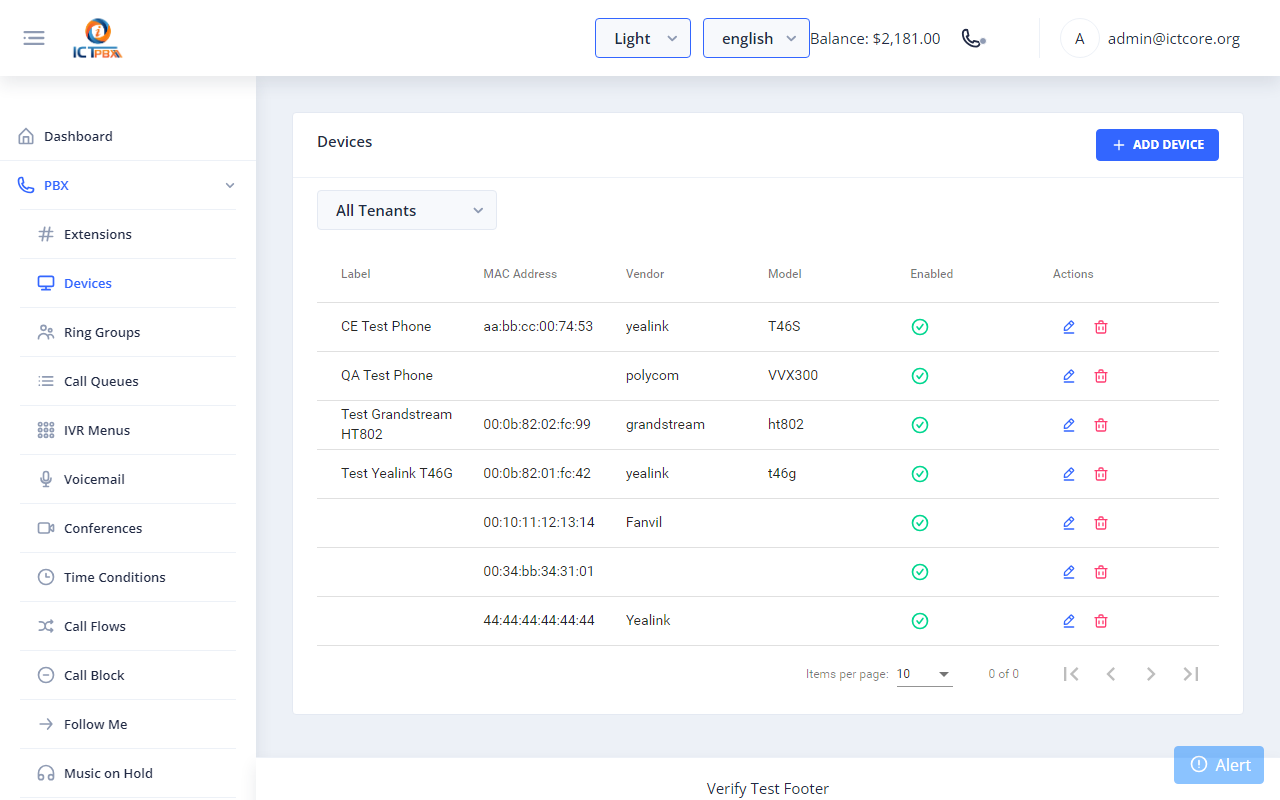
Fig 15-5 - Devices listStep 2: Enter MAC address and a descriptive labelAny MAC format is accepted: AA:BB:CC:11:22:33 or AABBCC112233 or aa-bb-cc-11-22-33. ICTPBX normalises to lowercase hex on save.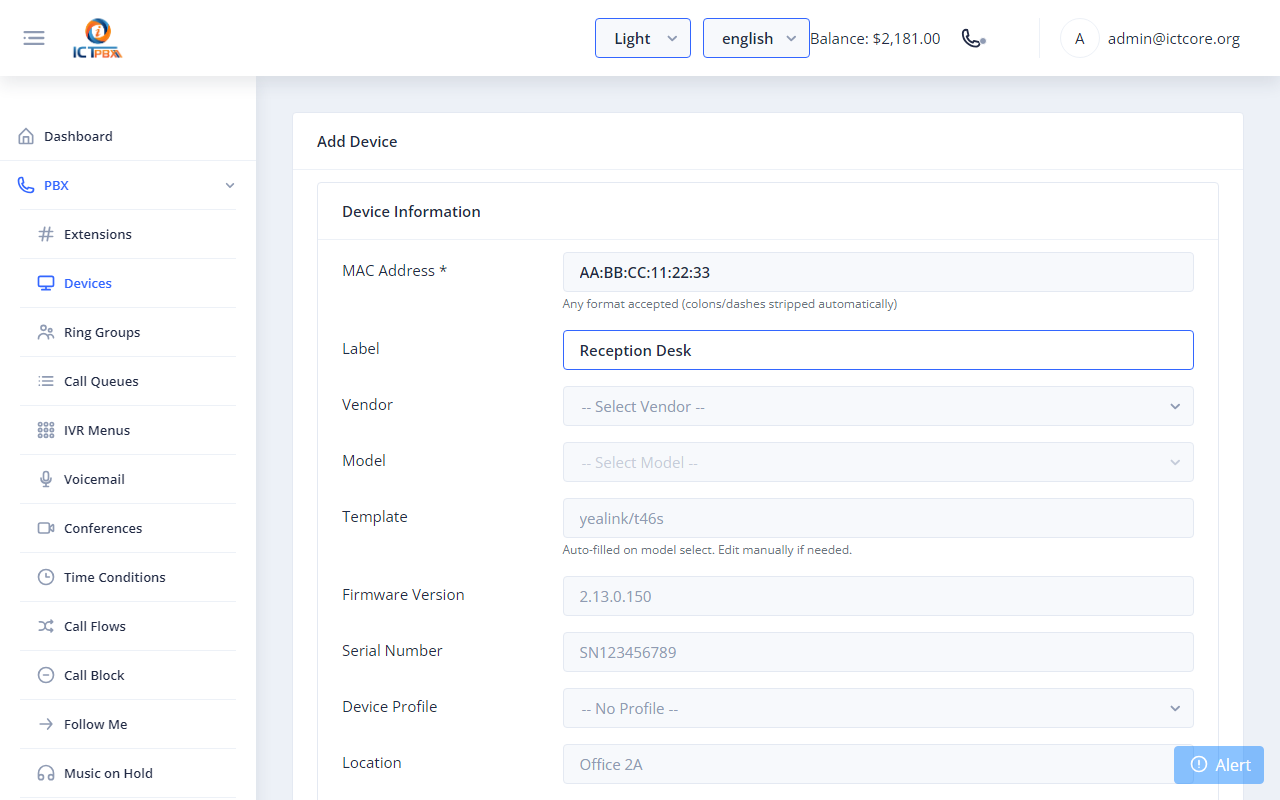
Fig 15-6 - MAC address and device label enteredStep 3: Select Vendor, then select ModelThe Model dropdown populates after the vendor is chosen. The Template field fills in automatically.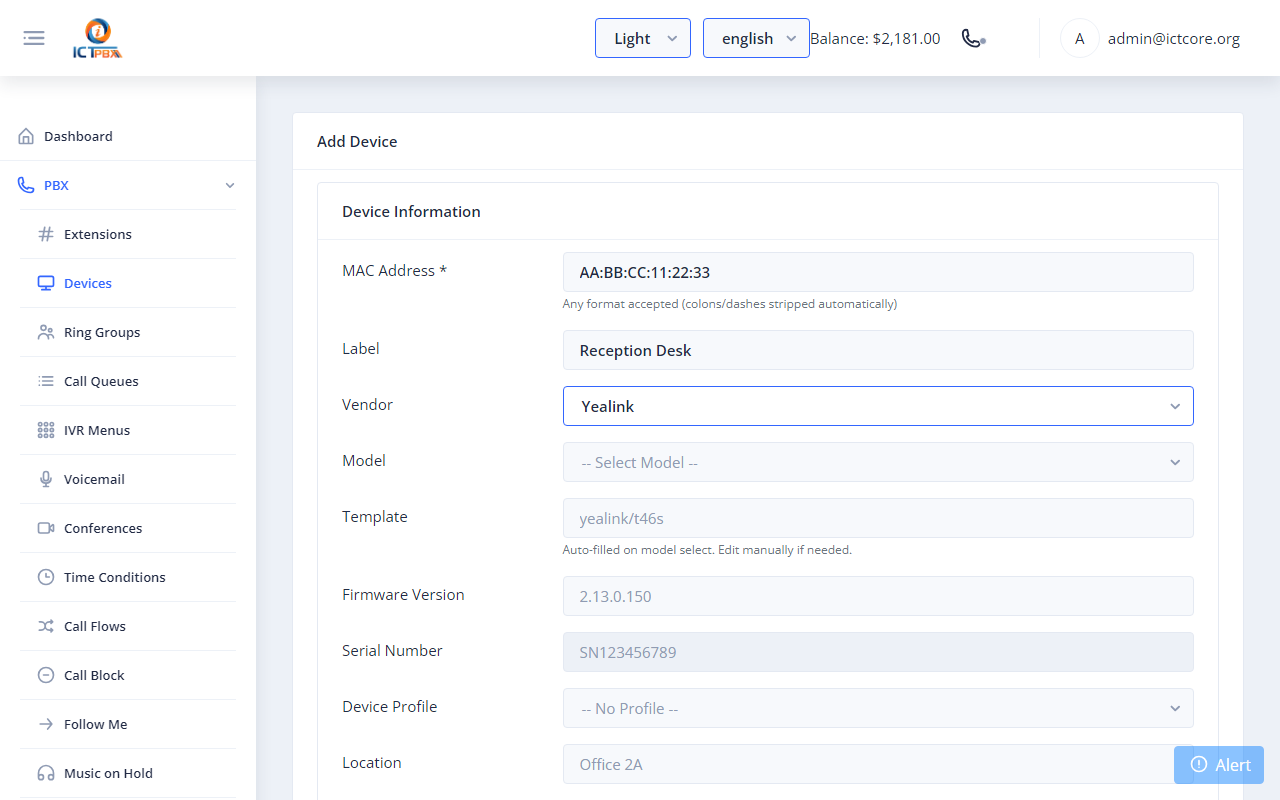
Fig 15-7 - Vendor selected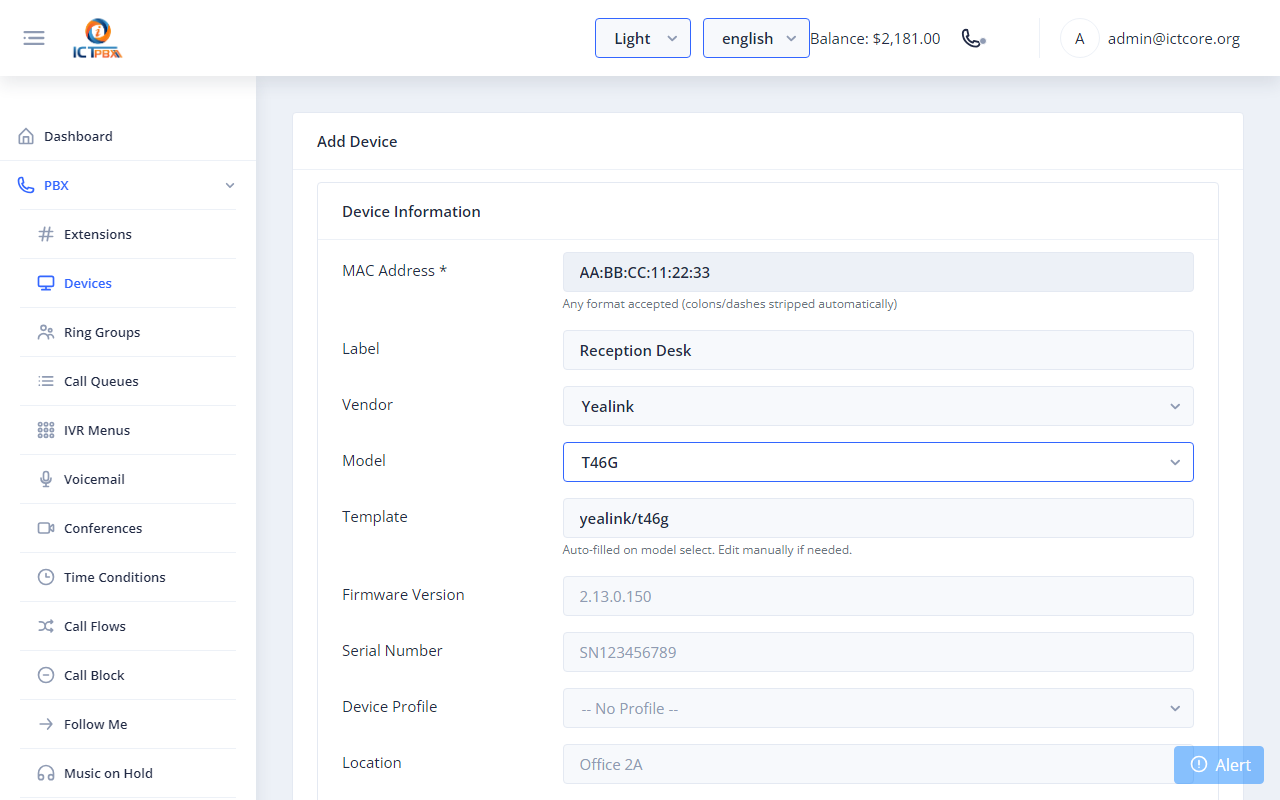
Fig 15-8 - Model selected; template auto-filled
Add a SIP Line
Step 1: Click "Add Line" in the SIP Lines section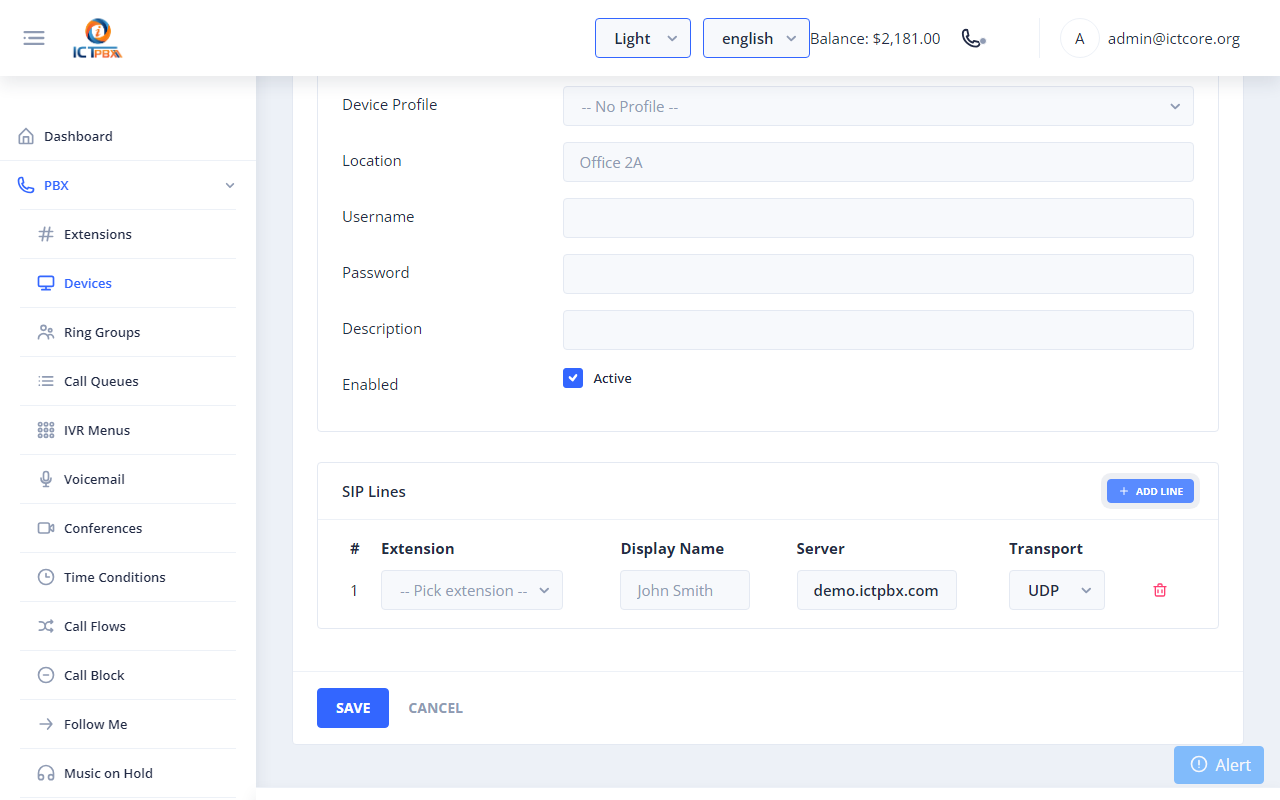
Fig 15-9 - SIP Lines section with one empty rowStep 2: Click the Extension dropdown and select an extension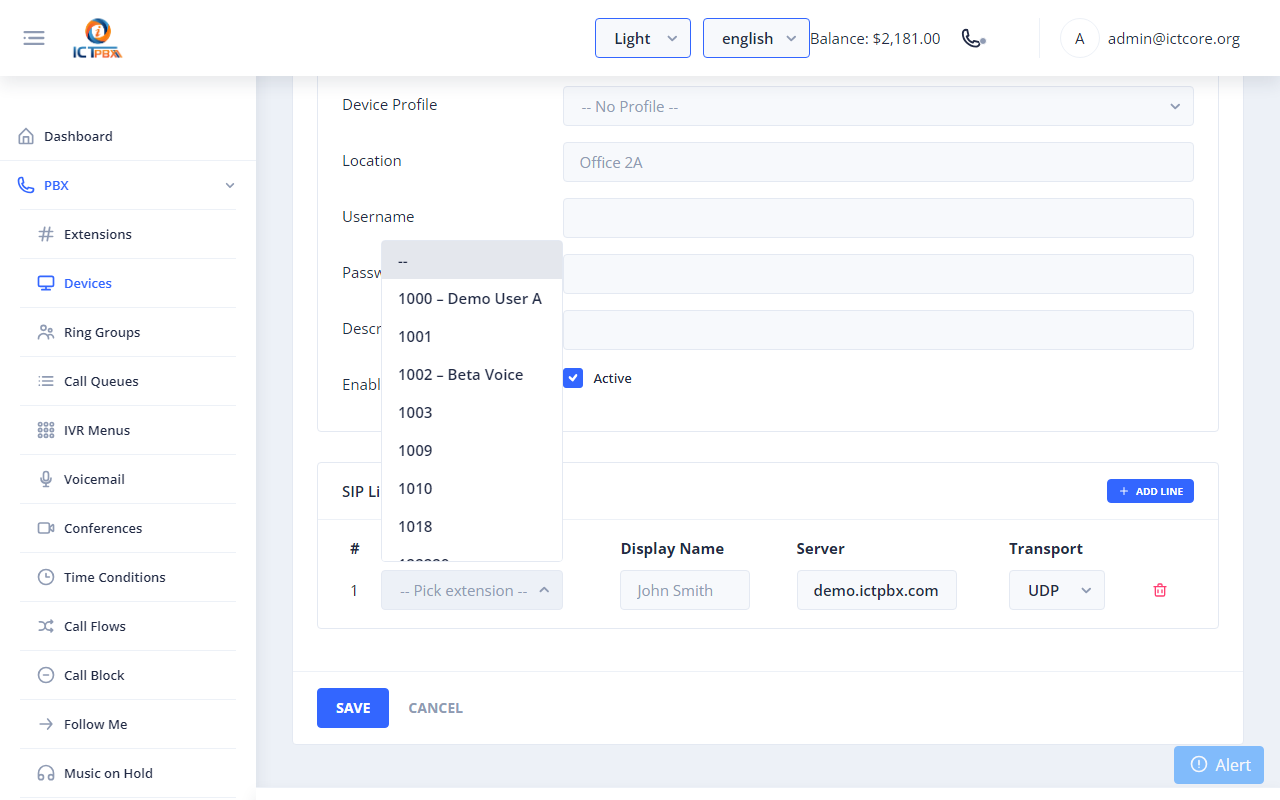
Fig 15-10 - Extension picker open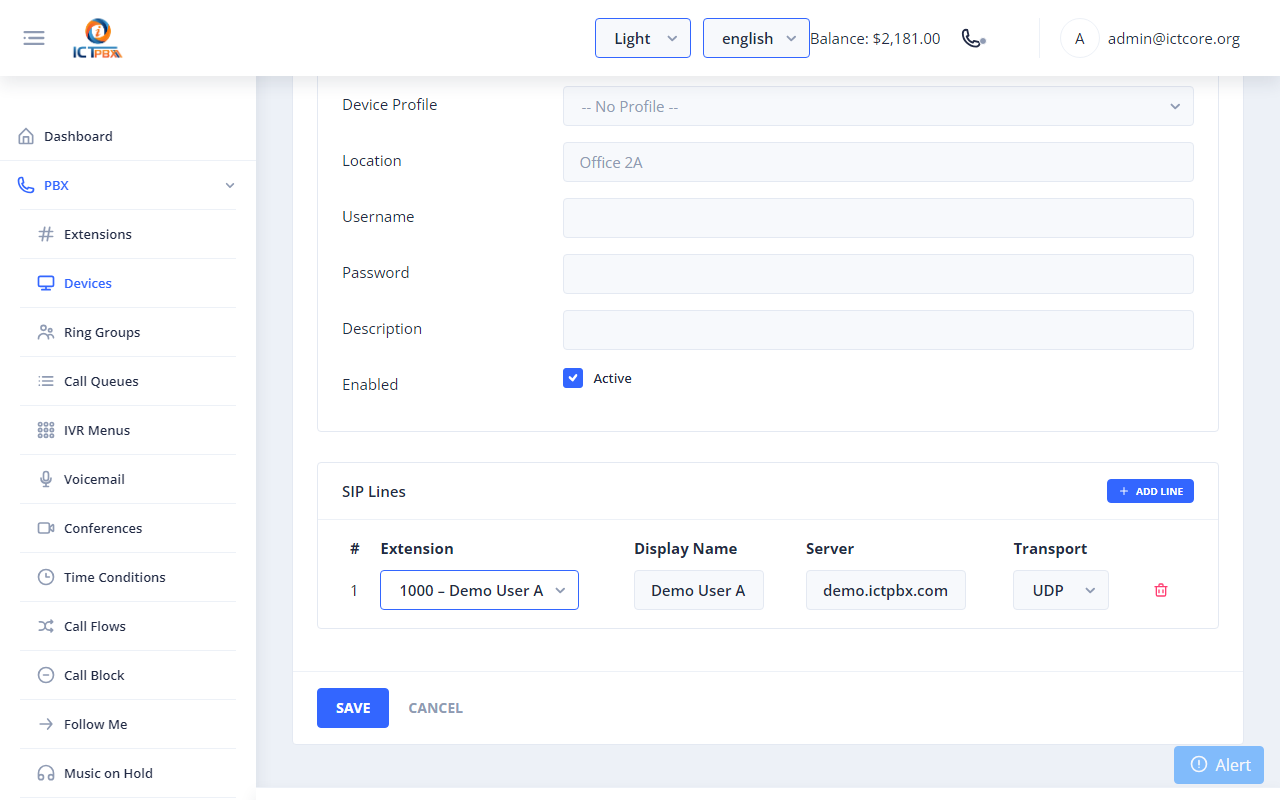
Fig 15-11 - Extension selected; server address pre-filledTip: The Server Address field is pre-filled with the PBX hostname. SIP credentials are written automatically from the extension record - no manual password entry needed. Transport defaults to UDP and the SIP port is 5080 (the port FreeSWITCH listens on); leave both as set.Step 3: Click Save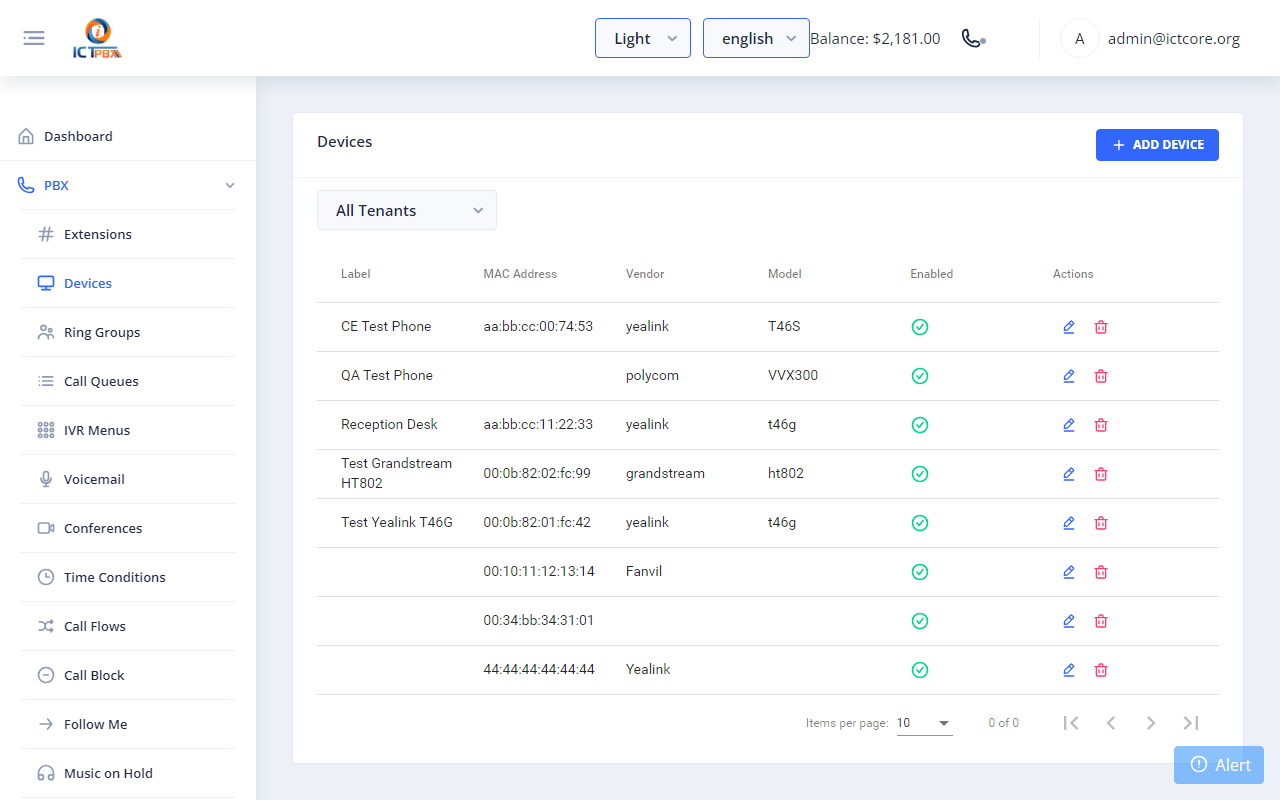
Fig 15-12 - Device saved
Retrieve the Provisioning URL
Open the device's edit page (pencil icon in the list). The provisioning URL appears in a read-only field at the top.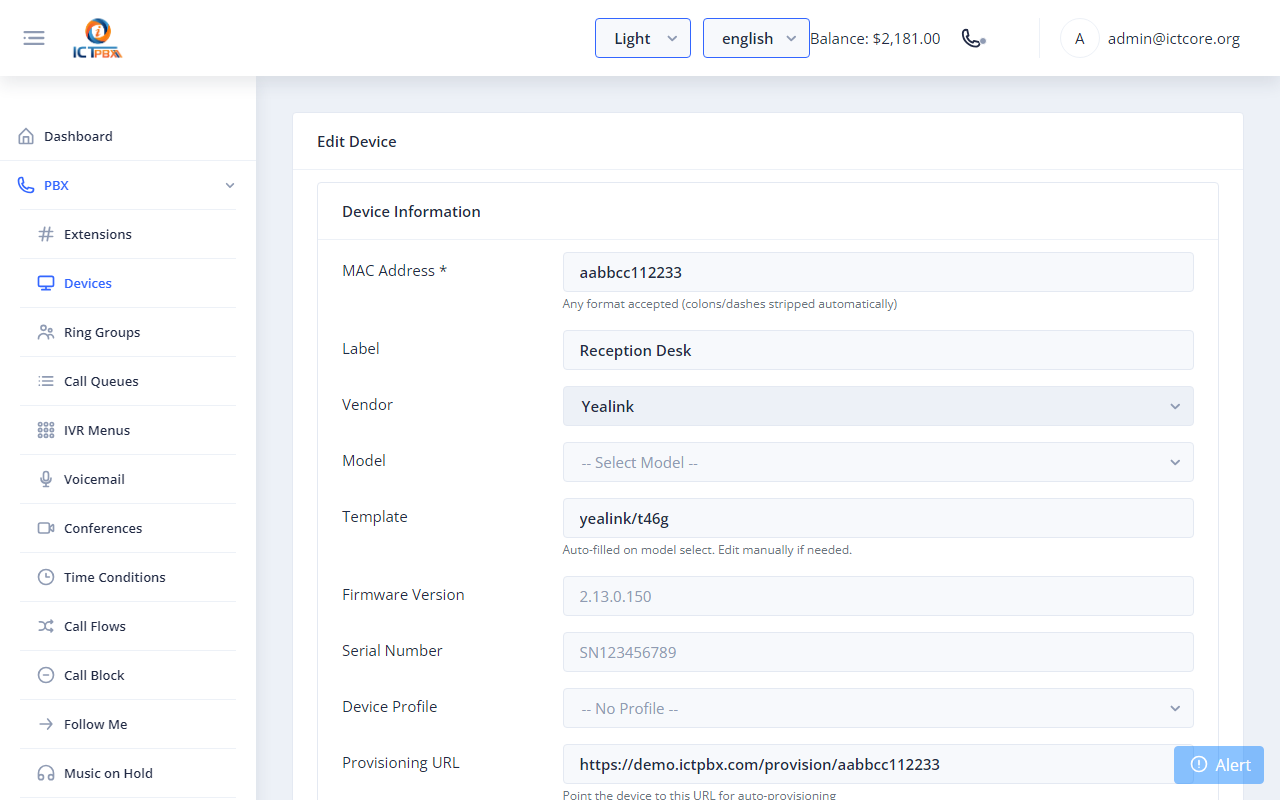
Fig 15-13 - Provisioning URL on device edit pageNote: Copy this URL and enter it in the phone's Auto Provision settings. The phone will download its config and register on the next reboot. Provisioning also sets the phone's admin password, so if you change it on the phone, it's put back on the next reboot.
15c. Tenant Workflow
Tenant Administrators follow exactly the same steps as Admin. The only difference is scope: only extensions and devices belonging to their own tenant are visible.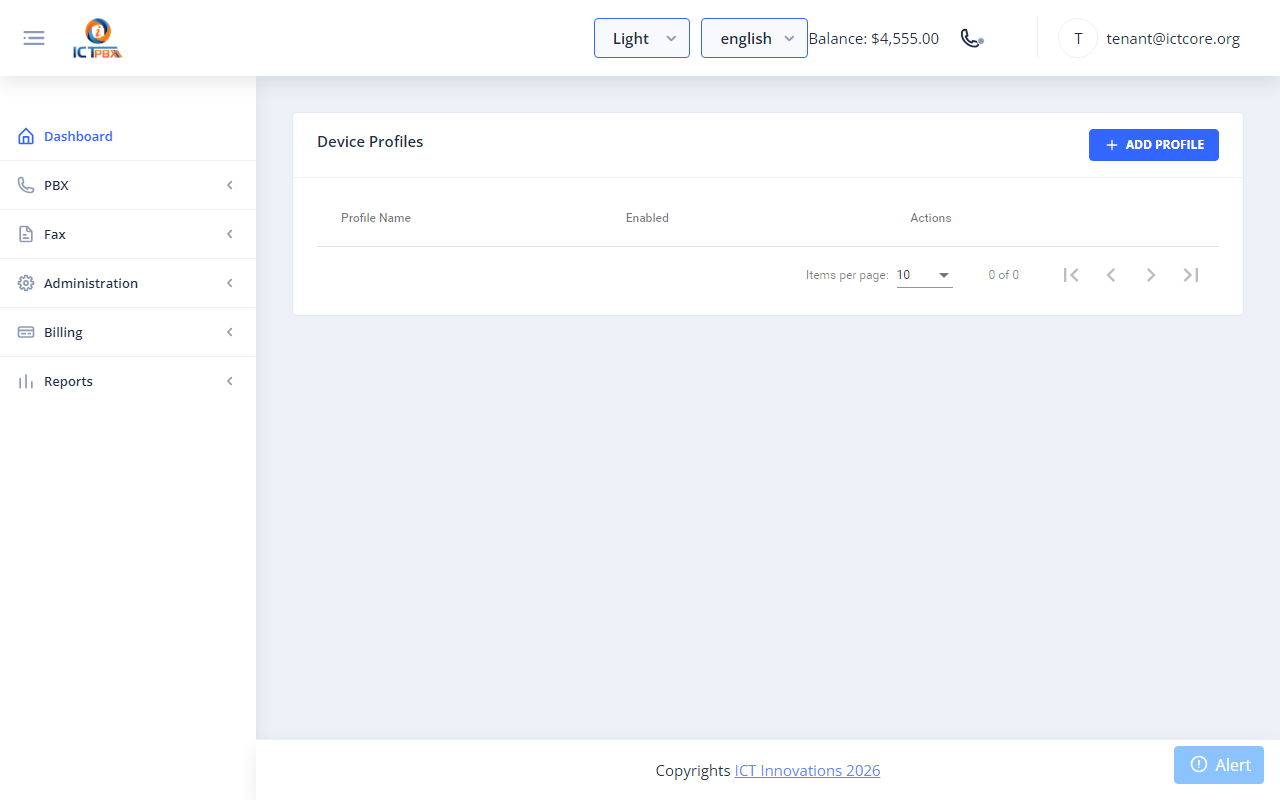
Fig 15-14 - Tenant view: Device Profiles list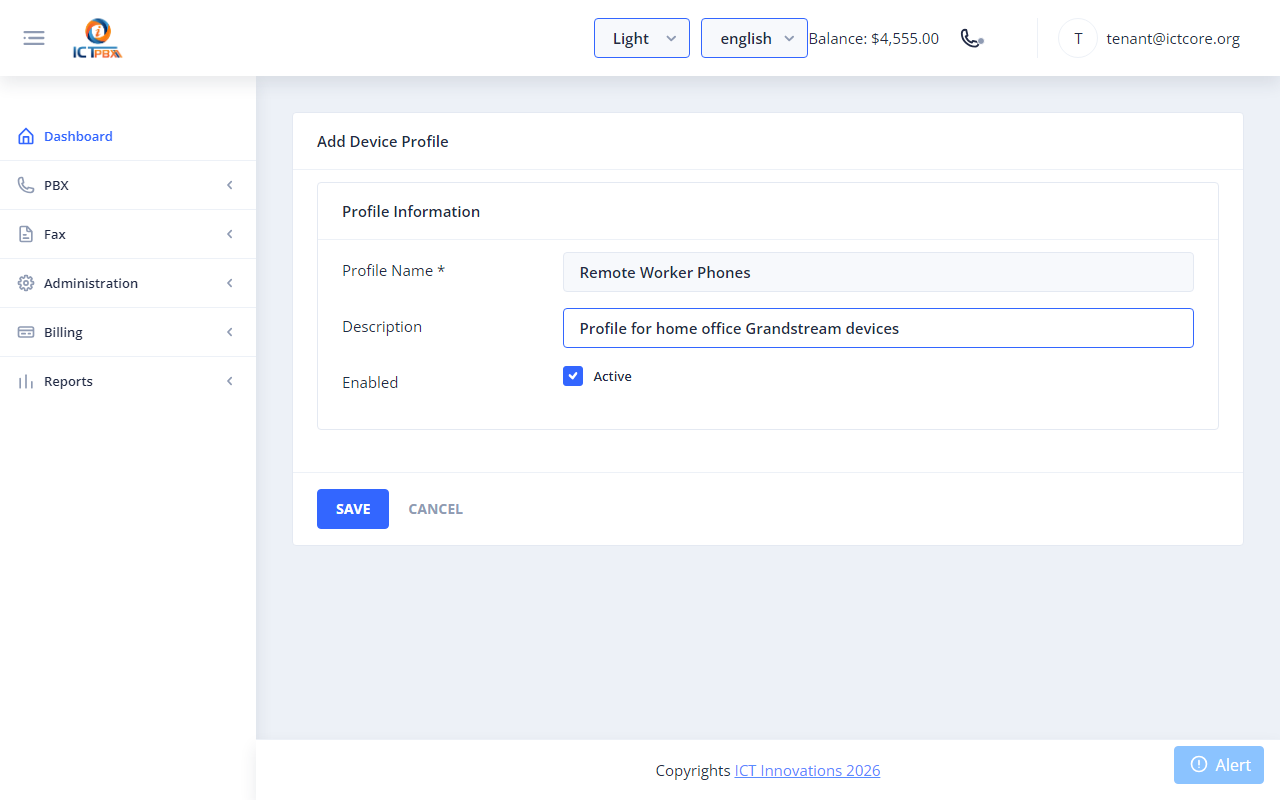
Fig 15-15 - Tenant: profile form filled in ("Remote Worker Phones")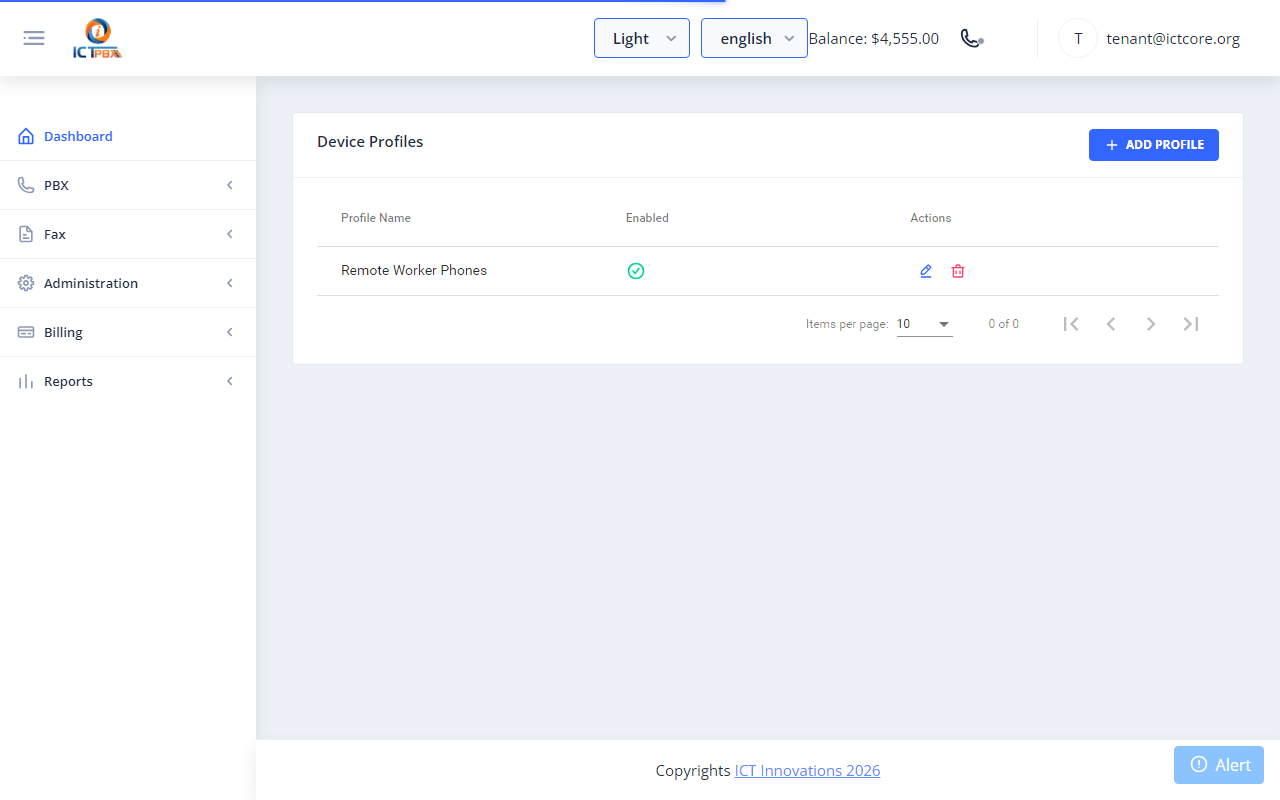
Fig 15-16 - Tenant: profile saved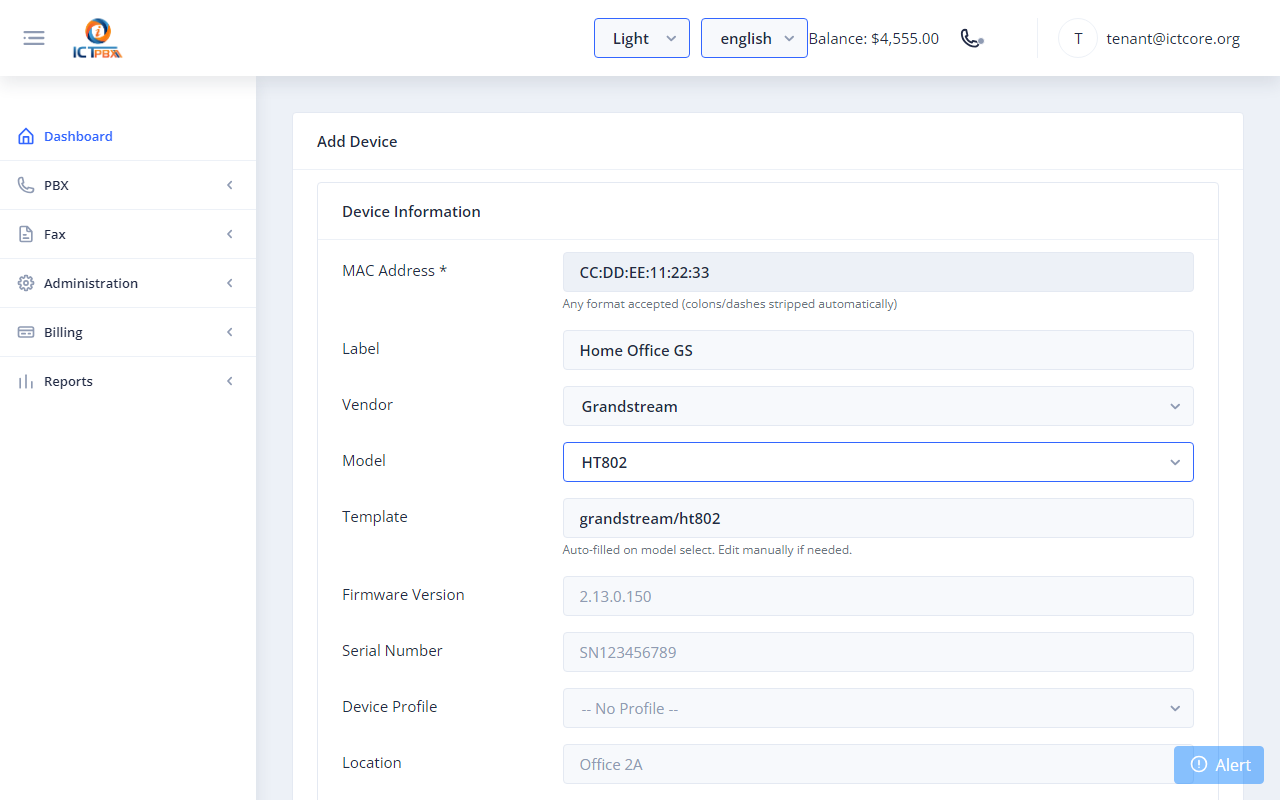
Fig 15-17 - Tenant: Grandstream HT802 selected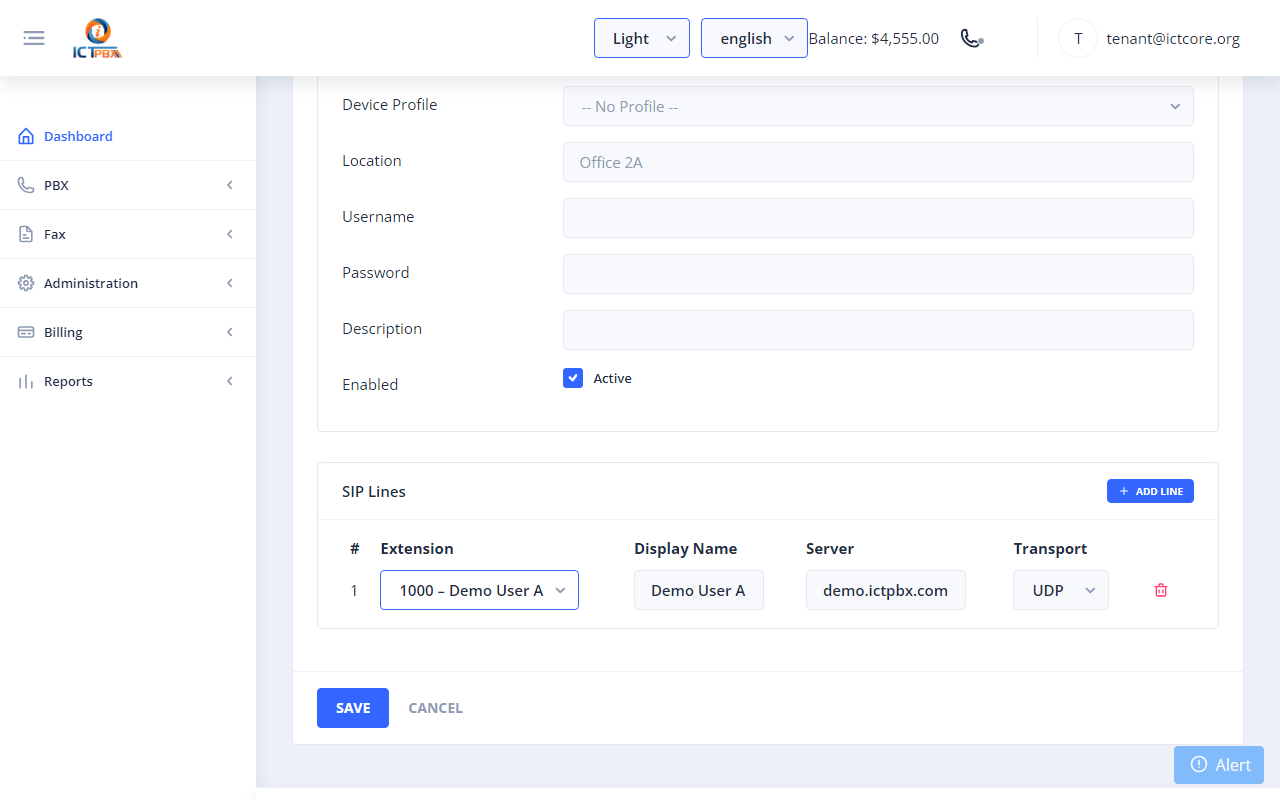
Fig 15-18 - Tenant: extension assigned to SIP line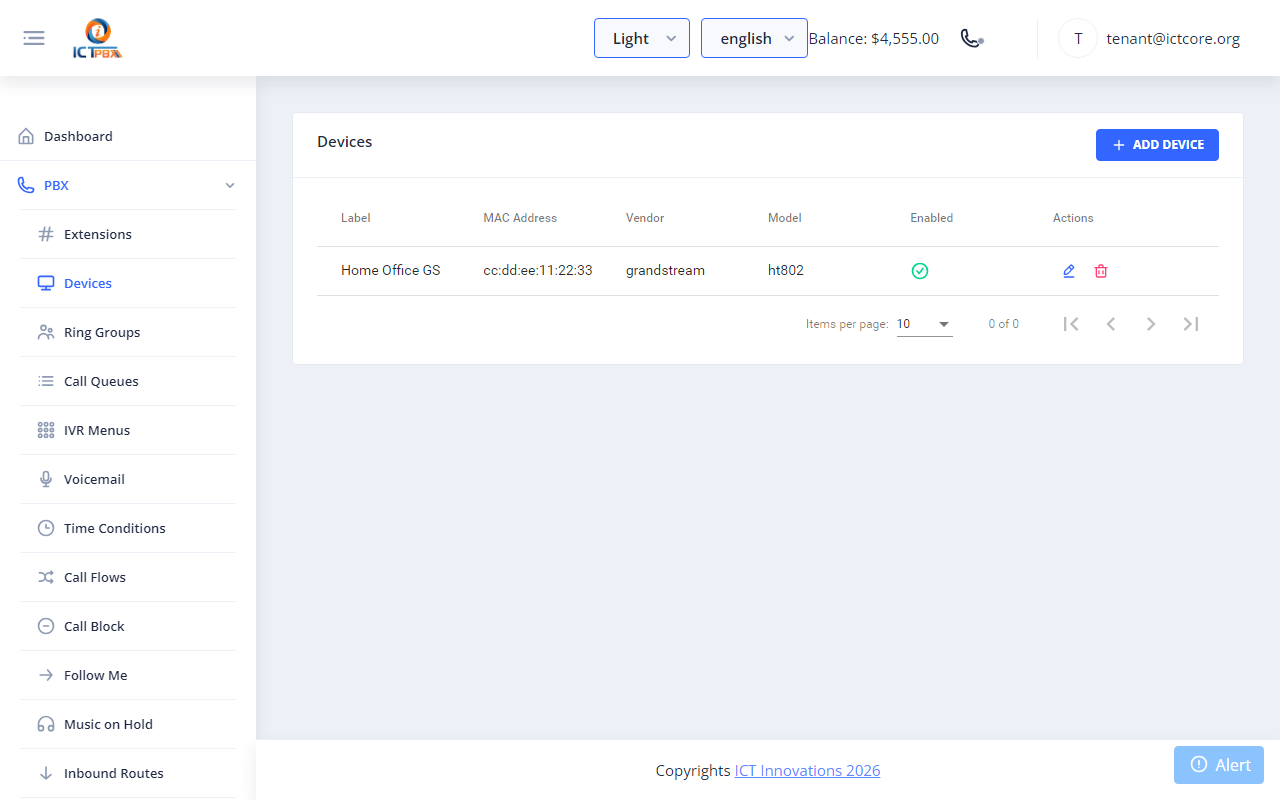
Fig 15-19 - Tenant: device saved
15d. Entering the Provisioning URL on the Phone
Yealink Phones
- Open the phone web interface: http://<phone-ip> (before provisioning, the factory login is admin/admin)
- Settings → Auto Provision → Server URL → paste the ICTPBX provisioning URL
- Protocol: HTTPS → click Autoprovision Now
Grandstream Phones
- Open the phone web interface: http://<phone-ip>
- Maintenance → Upgrade and Provisioning → Config Server Path → paste URL (without https://)
- Upgrade Via: HTTPS → click Update and Provision
DHCP Option 66 - Zero-Touch Deployment
Set DHCP option 66 on your network to the base provisioning URL. Every phone that boots on the network will self-provision using its own MAC address.- Option 66 value:
https://<your-host>/provision/
15e. Quick Reference
- Admin/Tenant → PBX → Device Profiles → New → name → Save
- Admin/Tenant → PBX → Devices → New → MAC + label → Vendor → Model
- Add Line → select Extension → Save
- Edit device → copy Provisioning URL → paste into phone Auto Provision settings
16. Installing ICTPBX as an App
ICTPBX is a Progressive Web App (PWA): you can install it on a desktop or mobile device so it opens in its own window with an app icon - no app store and no separate download required. The installed app stays in sync with the web portal and updates itself automatically.Note: Installation is only offered when the portal is served over HTTPS. On a plain-HTTP install the browser will not show an install option.16a. Install on Windows / macOS (Chrome or Edge)
- Open your ICTPBX URL (e.g. https://demo.ictpbx.com) and sign in.
- Look for the install icon in the address bar - a small monitor/screen icon with a down-arrow, at the right-hand end of the URL field.
- Click it (or open the browser menu ⋮ and choose "Install ICTPBX…" / "Apps → Install this site as an app").
- Click Install in the confirmation dialog.
- ICTPBX opens in its own window and a shortcut is added to your Desktop / Start Menu (Windows) or Dock / Launchpad (macOS).
16b. Install on Android (Chrome)
- Open the ICTPBX URL in Chrome and sign in.
- Tap the menu (⋮) → "Add to Home screen" (or "Install app").
- Tap Add / Install. The ICTPBX icon appears on your home screen.
16c. Install on iPhone / iPad (Safari)
- Open the ICTPBX URL in Safari and sign in.
- Tap the Share button (the square with an up-arrow).
- Scroll down and tap "Add to Home Screen", then tap Add.
16d. Automatic Updates
When a new version of ICTPBX is published, the installed app detects it in the background and shows an update prompt. Click Reload (or re-open the app) to load the latest version - there is nothing to re-download or re-install.Note: If you ever see a stale screen after an upgrade, close and re-open the app, or refresh the page, to pick up the newest version.17. Tenant Fraud & Credit Controls
Note: Admin only. Service Provider Edition.Each tenant has two safeguards that limit toll-fraud exposure and warn before credit runs out. Set them on the Add Tenant or Edit Tenant form, in the "Billing & Call Limits" section.Go to Administration → Tenants → Add Tenant (or edit an existing tenant) and scroll to Billing & Call Limits.| Field | What it does |
|---|---|
| Low-credit alert threshold | Emails the tenant when their credit balance drops below this value. Set to 0 to disable the alert. |
| Max concurrent calls | Caps the number of simultaneous active calls allowed for this tenant. Set to 0 for unlimited. |
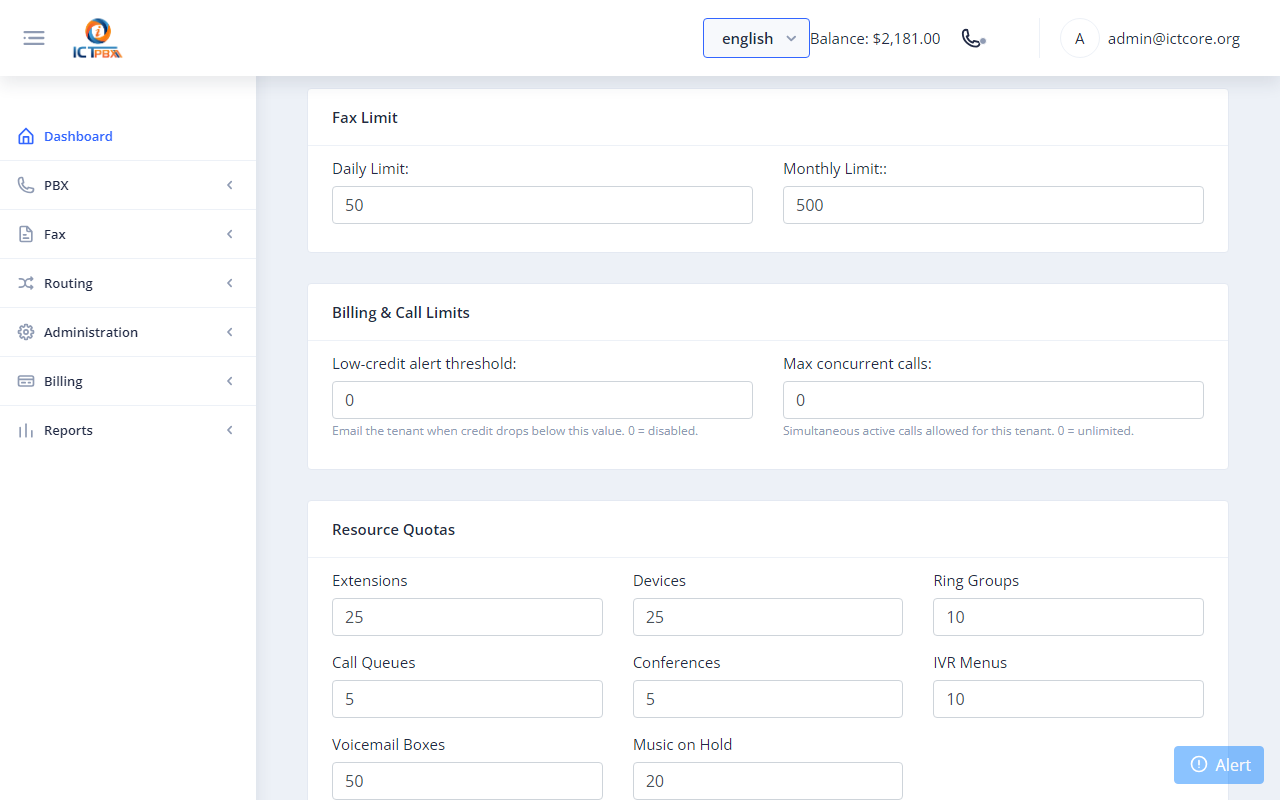
Fig 17-1 - Billing & Call Limits - Low-credit alert threshold and Max concurrent callsImportant: Max concurrent calls is the primary toll-fraud guard: if an account is compromised, the cap limits how many calls an attacker can place at once. Set it to the tenant's realistic peak (e.g. number of seats) rather than leaving it unlimited.Tip: Use the Low-credit alert threshold to give post-paid or pre-paid tenants advance warning before service is affected, so they can top up in time.
18. Click-to-Call from the Realtime Page
Click-to-Call lets you place a call from the browser without a softphone. The server first rings the chosen extension; when that phone is answered, ICTPBX automatically dials the destination and bridges the two parties.Go to PBX → Realtime. The Click to Call card is at the top of the page.| Field | Enter |
|---|---|
| From extension | A registered extension to ring first (e.g. 1001). This phone rings and the user answers to start the call. |
| To number | The destination - another extension (e.g. 1002) or an external number in E.164 / dial format (e.g. 0300…). |
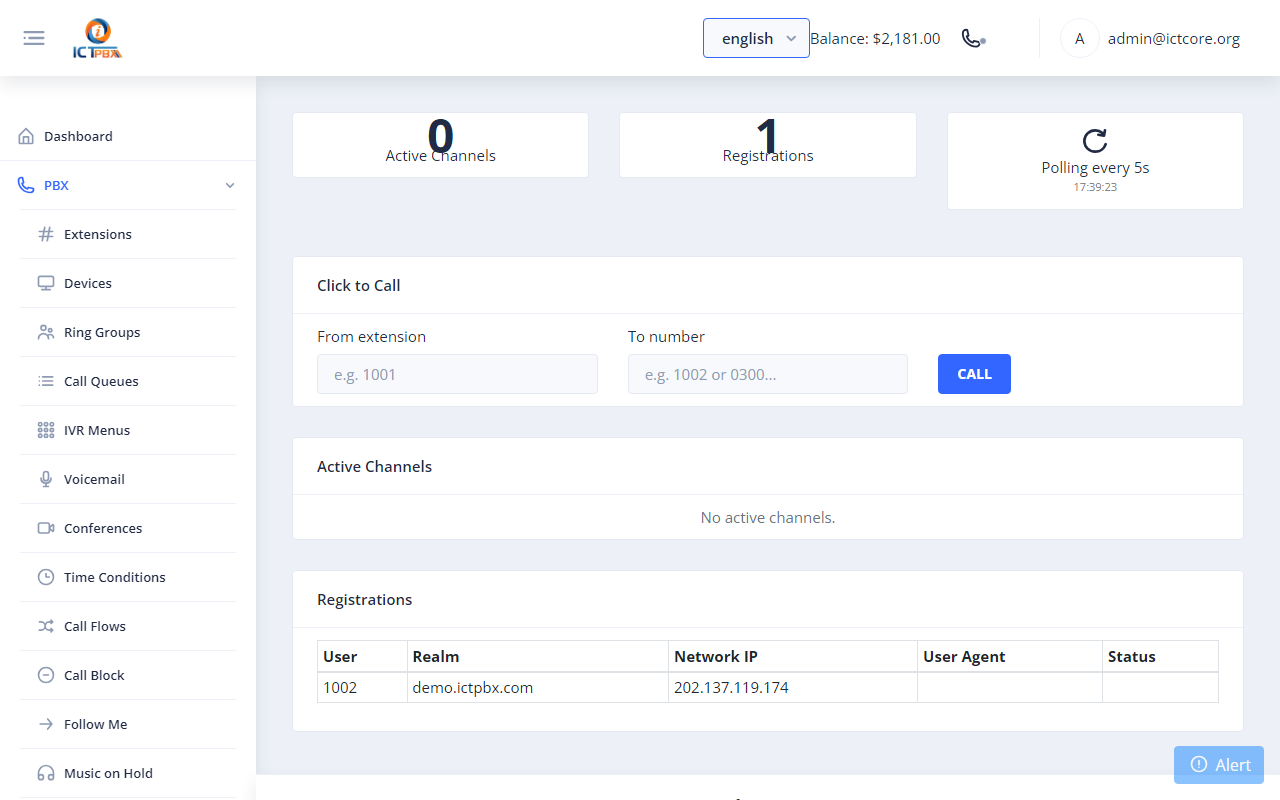
Fig 18-1 - Realtime page - Click to Call card with From extension and To numberNote: The From extension must be registered (visible in the Registrations list lower on the same page) for the call to connect. Live calls then appear in the Active Channels table, where you can hold, transfer, or hang up.
Appendix A - Scenario Reference Matrix
| Goal | Sections |
|---|---|
| Onboard a new customer organisation | 2a → 2b → 14b |
| Create users with correct permissions | 2c → 2d |
| Set up a SIP trunk for outbound calls | 3 |
| Add a phone number (DID) | 4 |
| Create extensions and register softphone | 5 → 6 |
| Provision a physical IP desk phone | 5 → 15 |
| Make extension-to-extension calls | 6 → 11 |
| Incoming call rings all team members | 4 → 5 → 7 → 10 |
| Auto-attendant phone menu | 4 → 8 → 10 |
| Voicemail for unanswered calls | 9 → 10 |
| Transfer a live call | 11 |
| Forward calls to your mobile (Follow Me) | 12 |
| Make outbound PSTN call via softphone | 3 → 5 → 6 → 11 |
| Send a fax | 13a |
| Receive a fax on a DID | 4 → 5 → 13b |
| Set up billing packages and assign to tenant | 14a → 14b |
| Top up a tenant's credit balance | 14e |
| View how much quota a tenant has used | 14f → 14g |
Appendix B - Feature Codes
PBX → Feature Codes shows a read-only list, but a code being listed there doesn't mean it's active. These are the codes that work:| Code | Function |
|---|---|
| *99 + mailbox number | Check voicemail (for example *991001) |
| *99 | AI Voice Agent, when it's installed |
Appendix C - Troubleshooting
Softphone won't register
- Extension exists in PBX → Extensions
- SIP password matches exactly (case-sensitive)
- The portal runs on HTTPS with a domain name. The softphone connects over
wss://<your-host>/ws/on port 443. - Your network allows HTTPS (port 443) to the server. Desk phones and softphone apps use SIP port 5080 instead.
Inbound call not reaching destination
- DID exists in Routing → DID Numbers
- One inbound route exists for the DID in PBX → Inbound Routes
- Destination (ring group / IVR / extension) is saved and active
- Trunk shows REGED on Routing → Trunks
Fax stuck in Queued
- Trunk is registered and has Supports Fax turned on (Routing → Trunks)
- Outbound route pattern matches the fax destination number
- Document is a valid non-password-protected PDF
- An outbound route exists for the Fax service (Routing → Routes)
Billing quota shows 0 for all resources
- No package assigned to the tenant - go to Billing → Subscriptions
- billing_seed.sql not loaded - contact admin to run the DB seed
User can't see a PBX menu item
- Check the tenant has the required permission token (Administration → Tenants → Edit)
- Check the user has the matching permission checkbox ticked (Administration → User Management → Edit)