
6. Fax Features #
ICTPBX provides a full fax pipeline: send, receive, fax-to-email delivery, bulk fax and cover pages.
Fax calls need a trunk with Supports Fax (T.38 / G.711 pass-through) enabled (Routing → Trunks) and an outbound route for the Fax service (Routing → Routes).
Fax Lines (Fax Extensions) #
A fax line is an extension with Extension Type = Fax.
- Go to PBX → Extensions → Add Extension.
- Set Extension Type to
Faxand enter a Fax Delivery Email. - Optionally Assign to User so the user sees it under Fax → My Fax Account.
Routing a DID to Fax #
- Go to Fax → My DIDs (admins can also use Routing → DID Numbers).
- Click Forward on the DID.
- Choose Forward to Extension and pick the fax extension, or Fax to Email and enter an address.
A DID is used for voice or fax. Do not create a voice inbound route (PBX → Inbound Routes) for a fax DID: a voice route takes priority and the fax will never arrive.
Send Fax #
Permission required: Send Fax
How to Send a Fax #
- Go to Fax → Send Fax and click New Outbound Fax.
- Fill in the form:
| Field | Required | Description |
|---|---|---|
| Title | ✅ | Reference for this fax |
| Document | ✅ | Upload a PDF, TIFF, image (PNG/JPG) or Word file, or pick one from Fax Documents |
| Caller ID | ✅ | One of your own fax accounts |
| Contact | ✅ | Recipient (choose a contact or enter a number) |
| Fax quality | Standard, Fine or Super | |
| Retry | Retry automatically if the fax fails | |
| Send Cover page | Prepend a cover page (choose one with Select Cover Page) | |
| Fax Header | Print a header line on each page |
- Submit. The fax is queued and transmitted by the background scheduler.
Fax Status #
The Send Fax list shows each fax with status Processing, Completed or Failed. Use the retry icon to resend a failed fax, or the download icon to get the document.
Receive Fax #
Permission required: Receive Fax
Go to Fax → Receive Fax.
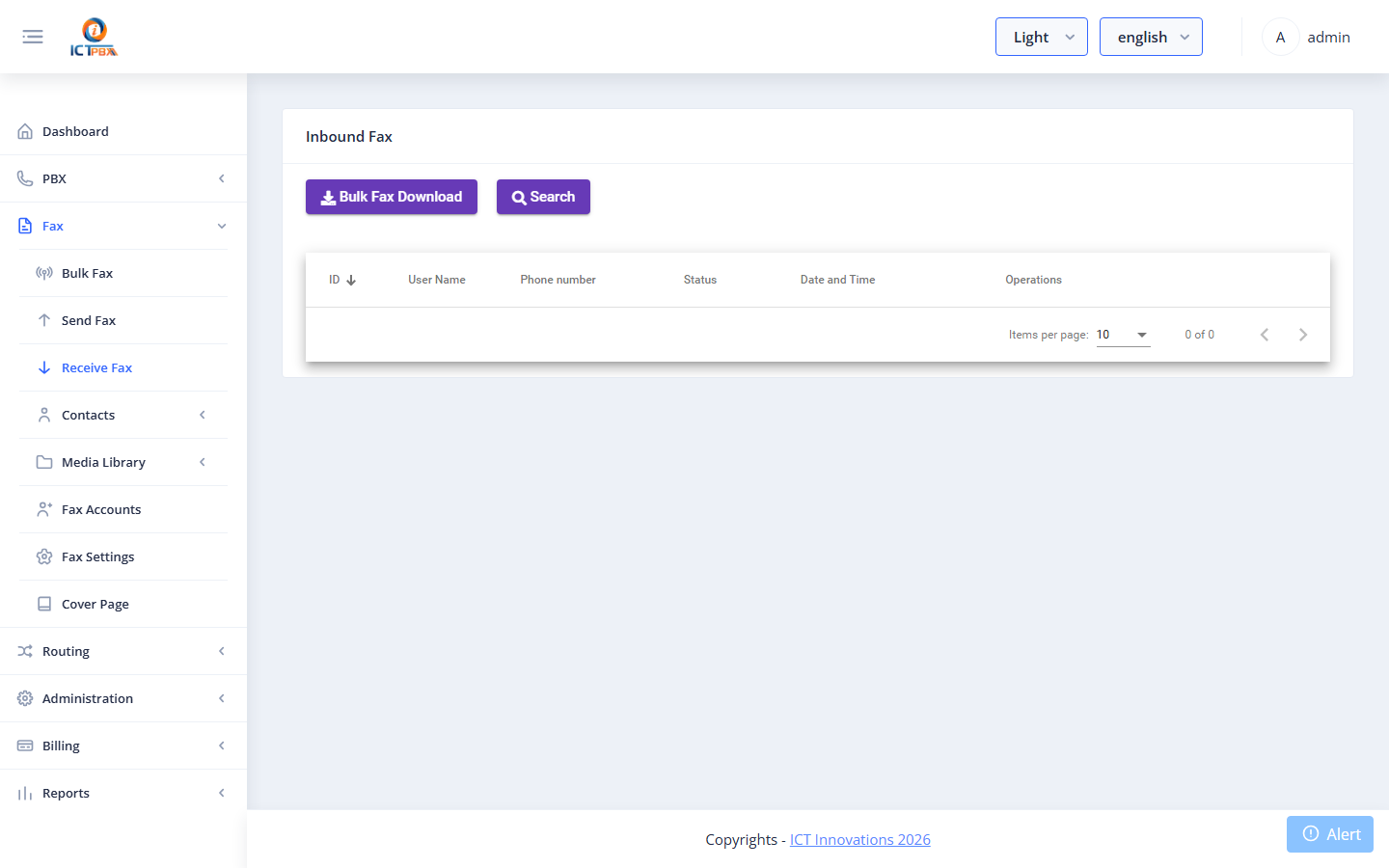
Received faxes are listed with date, caller ID and destination number. Search by username or phone number, filter by date, view or download a fax, or use Bulk Fax Download.
If the receiving extension has a Fax Delivery Email (or the DID uses Fax to Email), each received fax is also emailed as an attachment.
My Fax Account (end users) #
End users see Fax → My Fax Account with their fax delivery email and DID. Fax → My DIDs and Fax → My CIDs are read-only for end users.
Bulk Fax #
Permission required: Bulk Fax
Bulk Fax sends the same document to many recipients.
- Go to Fax → Bulk Fax.
- Create a new bulk fax, select a Contact Group (set up under Fax → Contacts → Contact Groups) and the document.
- Start it. One fax is queued per recipient; progress is shown in the list.
Fax Documents #
Permission required: Fax Documents
Go to Fax → Media Library → Fax Documents to upload frequently used documents (letterheads, forms) so they can be selected when sending a fax without re-uploading.
Fax Settings #
Permission required: Fax Settings
Go to Fax → Fax Settings.
| Setting | Description |
|---|---|
| Send Cover page | Add your default cover page to outgoing faxes |
| Send Email Body as page | When faxing by email, send the email text as a page |
| Retry Fax Interval | Wait between retries (MM:SS) |
Cover Page #
Permission required: Cover Page
Go to Fax → Cover Page and click Add CoverPage. Enter a Title and the page body, and use Set Default Cover Page to make it the default.
Available tokens (replaced when the fax is sent):
| Token | Value |
|---|---|
[transmission:destination:first_name], …:last_name, …:email, …:phone |
Recipient details |
[transmission:source:first_name], …:last_name, …:email, …:phone |
Sender details |
[program:date] |
Date sent |
[template:subject], [template:body] |
Subject and message text |
Fax Billing (Service Provider Edition) #
Each package includes a number of free fax pages per month. Pages beyond that are charged from the tenant's credit at the fax rate.


