
9. SMS & Messaging #
Service Provider Edition only. SMS messaging does not appear in Community Edition builds.
ICTPBX supports two-way SMS: send and receive text messages directly from the portal. Delivery runs over SignalWire. There are two surfaces:
- Messaging (Inbox): a threaded, 1:1 conversation view for everyday texting.
- Send SMS (Campaign): bulk SMS to a whole contact group in one operation (Super Admins and Tenant Admins).
Both write to a single message history, so a text sent from the Inbox and a text sent by a campaign appear in the same record.
| Role | Menu |
|---|---|
| Super Admin / Tenant Admin | Messaging → Inbox, Messaging → Send SMS, and the Text Templates page (below) |
| End User | a single Messaging item (the Inbox) |
Access requires the messaging permission (and campaigns for Send SMS).
Messaging Inbox #
Menu: Messaging → Inbox (End Users: Messaging)
The Inbox is a conversation view: threads on the left, the selected conversation in the center, and a composer at the bottom.
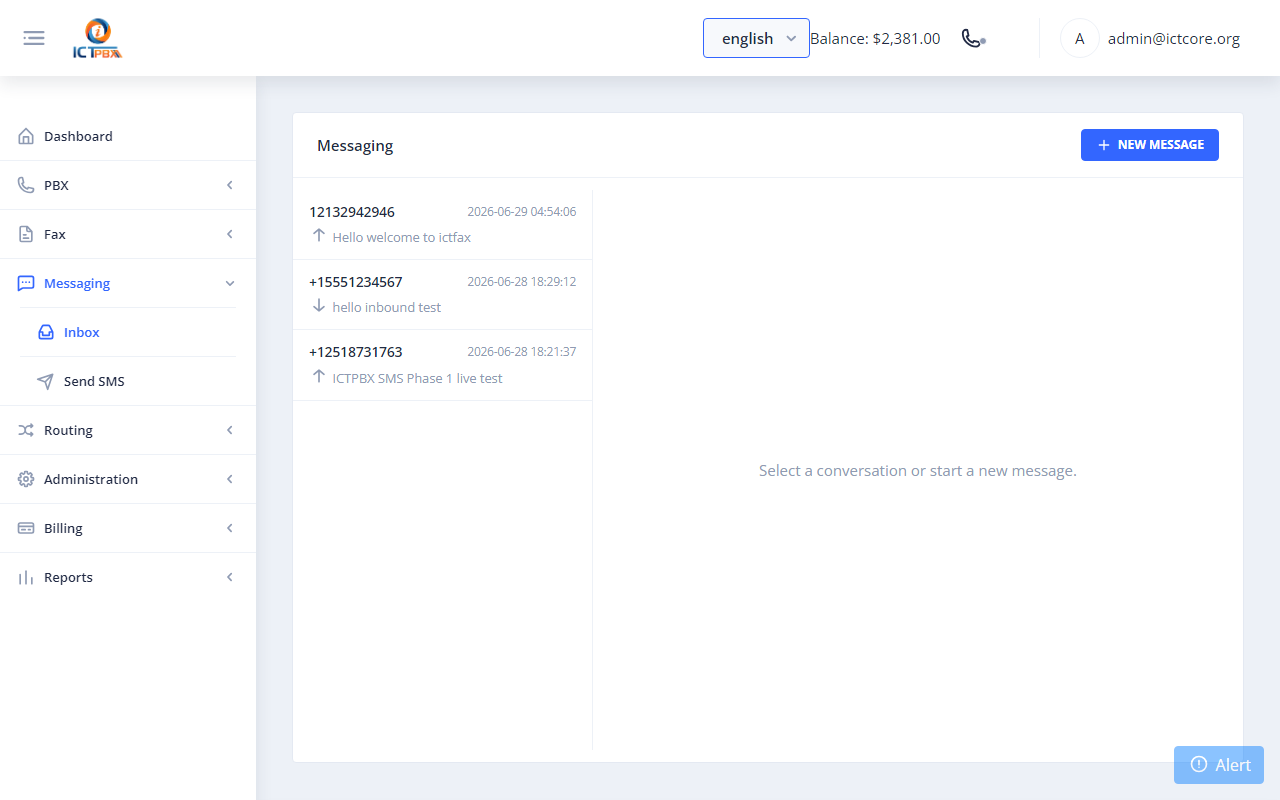
Each thread row shows the remote party's number, a preview of the last message, the timestamp, and a direction arrow:
- ↑ (up arrow): an outbound message you sent.
- ↓ (down arrow): an inbound message received from that number.
Click a thread to open the conversation. Messages appear as bubbles with a status badge:
| Badge | Meaning |
|---|---|
| Delivered | Carrier confirmed delivery |
| Sent / Queued | Accepted by the provider, awaiting a delivery report |
| Received | An inbound message from the remote party |
| Failed | The provider rejected or could not deliver the message |
The Inbox refreshes every 15 seconds, so replies appear without a page reload.
Send a new message #
- Click New Message (top right).
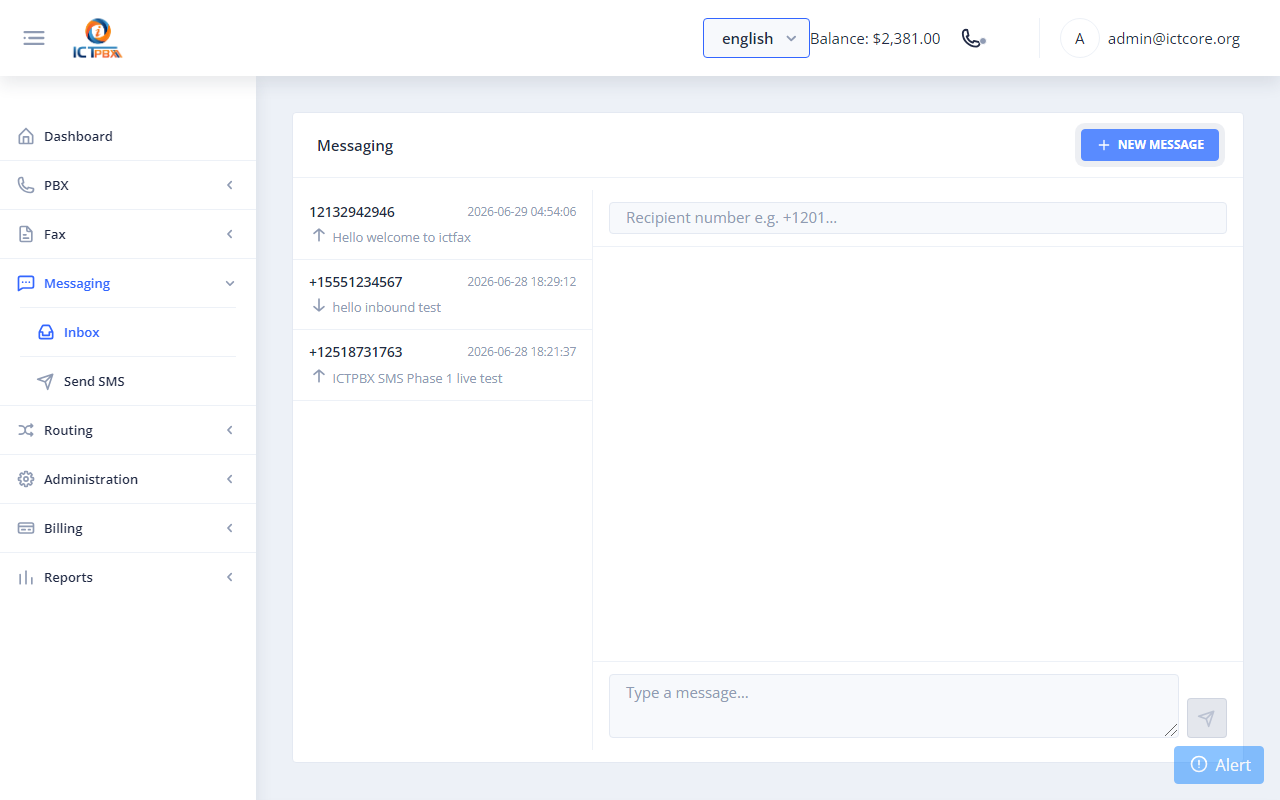
- Enter the recipient in the Recipient number field in E.164 format (e.g.
+12015550123). - Type your text in the Type a message… box.
- Click Send (disabled until you type some text).
The message is sent immediately and a new thread appears for that number. Replies from the recipient land in the same thread.
Reply in an existing conversation #
- Click the thread in the left list.
- Type in the composer and click Send: the recipient is already set from the thread.
Send SMS Campaign (Bulk) #
Menu: Messaging → Send SMS (Super Admins and Tenant Admins)
Campaigns send the same message to every contact in a group. You need a Text Template and a Contact Group (Fax → Contacts → Contact Groups) first.
Step 1: Create a Text Template #
Open the Text Templates page at https://<your-host>/pages/message/text and create the message body you want to send. Templates are reusable: save common messages once and pick them for many campaigns.
Step 2: Create the campaign #
- Go to Messaging → Send SMS and click Add.
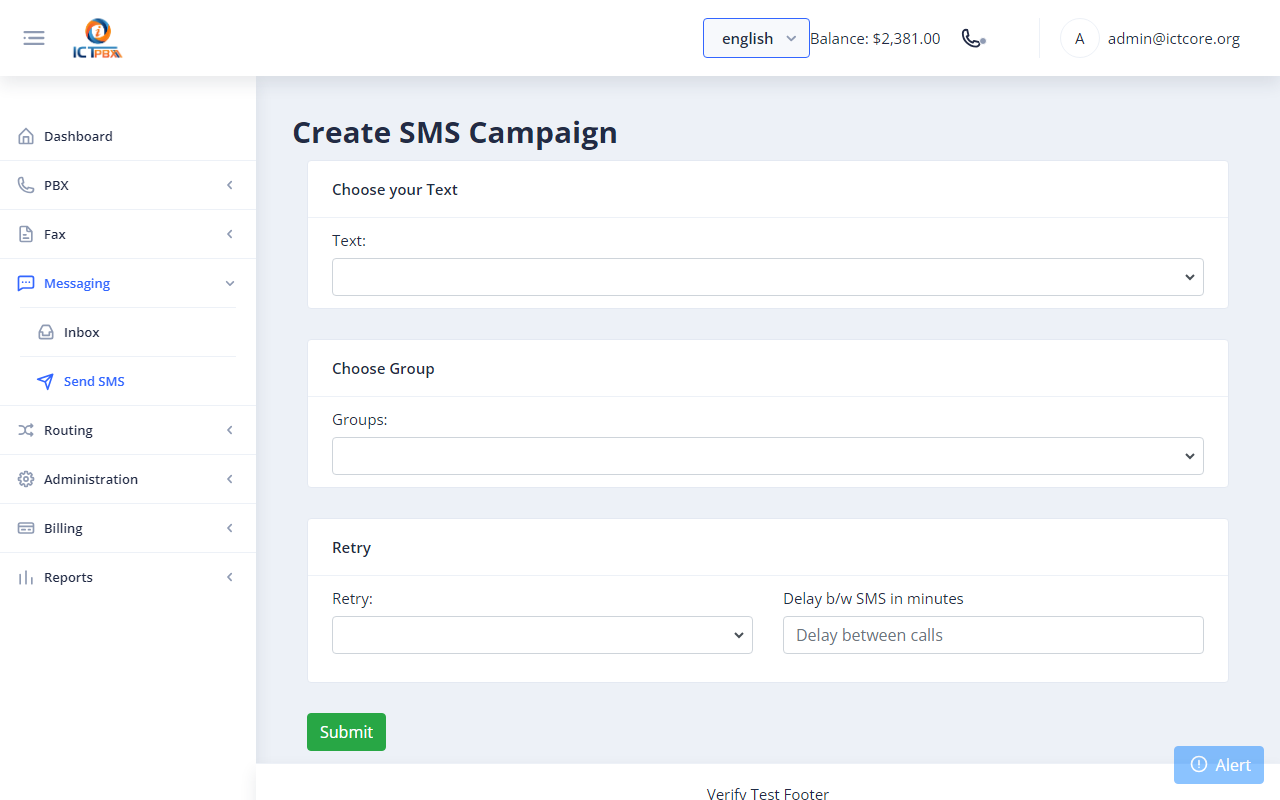
- Fill in the campaign form:
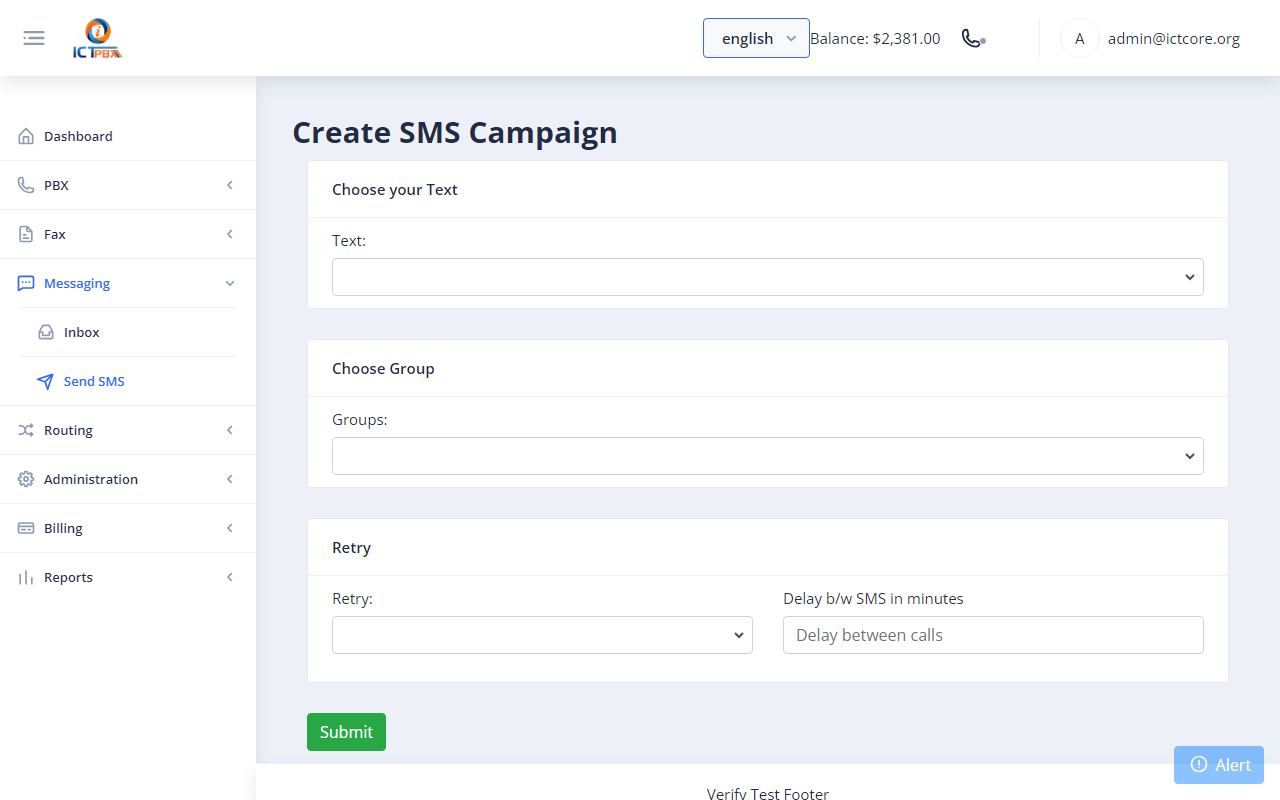
| Field | Required | Description |
|---|---|---|
| Text | ✅ | The saved Text Template to send |
| Groups | ✅ | The contact group to send to (every contact receives one message) |
| Retry | How many times to retry a failed recipient (1, 2, or 3) | |
| Delay b/w SMS | Minutes to wait between sends: throttles the campaign to stay within provider limits |
- Click Submit.
One message is queued per recipient. Each appears in the same history as the Inbox and is billed the same way as 1:1 messages.
Billing #
SMS is metered like voice minutes and fax pages:
- Each package includes a monthly free allowance of SMS messages (resource 18, SMS Messages / month). Credit is deducted only for outbound messages above the allowance, from the tenant's credit, hourly. The counter resets each month.
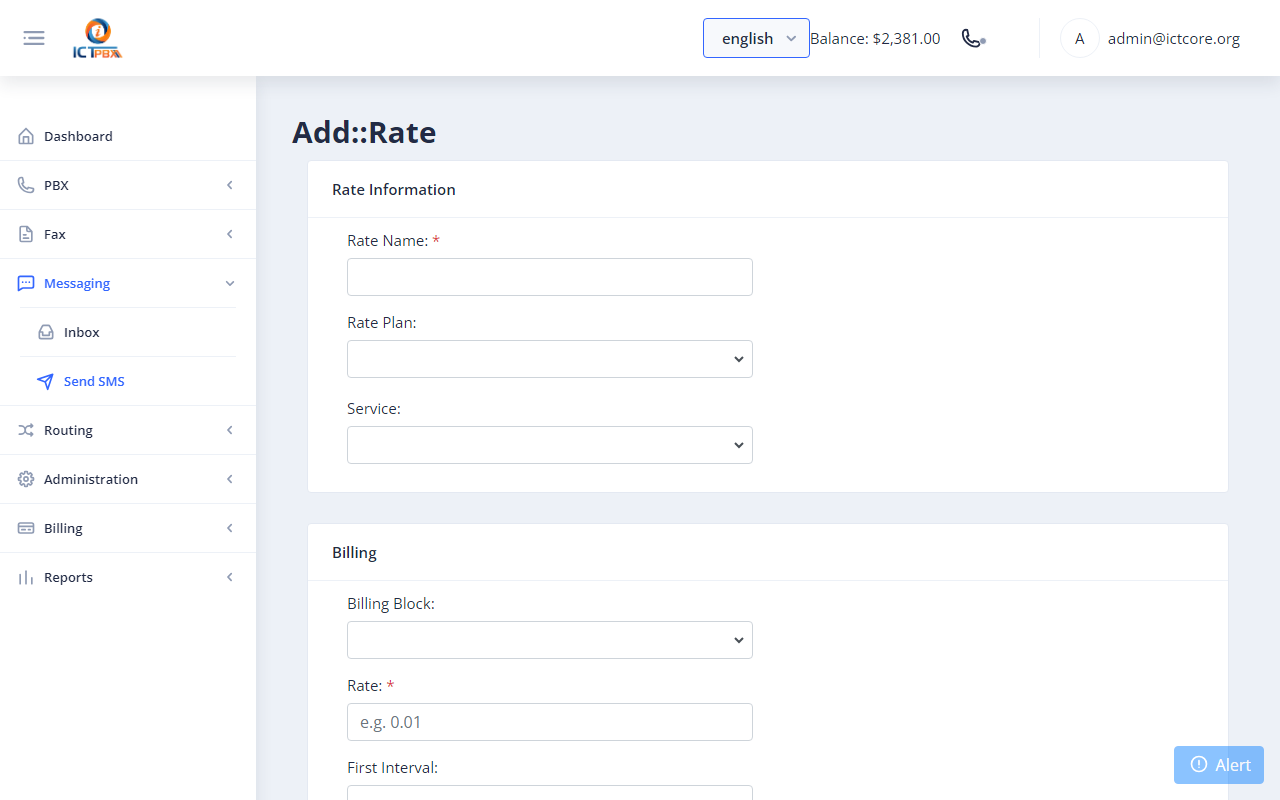
- Admins set the per-message price on Billing → Rate Plans by selecting the SMS service. With no SMS rate set, usage is tracked but nothing is charged.
- Inbound (received) messages are not charged.
Tenants and users can watch SMS usage on Billing → Quota alongside voice minutes and fax pages.
How receiving works #
- A text arrives at your SignalWire number.
- SignalWire posts the message to ICTPBX's secured inbound webhook.
- ICTPBX matches the destination number to the DID that owns it and records the message for that tenant and user.
- The message appears in the Inbox within 15 seconds.
The receiving number must be a DID in ICTPBX (Routing → DID Numbers) assigned to the tenant. Messages to a number ICTPBX does not recognise are visible only to the Super Admin.
Setup (server administrators) #
SignalWire credentials are not entered as a trunk. They live in the [signalwire_sms] section of /usr/ictcore/etc/ictcore.conf:
[signalwire_sms]
space        = https://<your-space>.signalwire.com
project_id   = <SignalWire project ID>
api_token    = <SignalWire API token>
default_from = +12015550123
webhook_key  = <generated by the installer>
- Provide them at install time with the
SIGNALWIRE_SPACE,SIGNALWIRE_PROJECT_ID,SIGNALWIRE_API_TOKENandSIGNALWIRE_DEFAULT_FROMenvironment variables, or edit the file afterwards and runsystemctl reload php-fpm. Upgrades keep existing values. webhook_keyis generated automatically. In the SignalWire dashboard, set each number's incoming-message webhook to:
https://<your-portal-host>/api/sms/inbound?key=<webhook_key>
Delivery status reports are requested automatically on each outbound message.- Until credentials are set, sending returns "SMS gateway not configured".
Requirements & limits #
- SignalWire account with at least one SMS-capable number.
- A2P 10DLC registration (US numbers): US carriers require an approved 10DLC brand and campaign, with the number attached, before long-code SMS is delivered. Until then outbound messages fail or are filtered by carriers. This is done in your SignalWire account, not in ICTPBX. A verified toll-free number is an alternative.
- E.164 numbers: always address recipients in full international format (
+and country code).


